Your system is set to automatically log users out after a period of inactivity. You can customize this timeout to better suit your business needs.
🖥️ On the Web Portal:
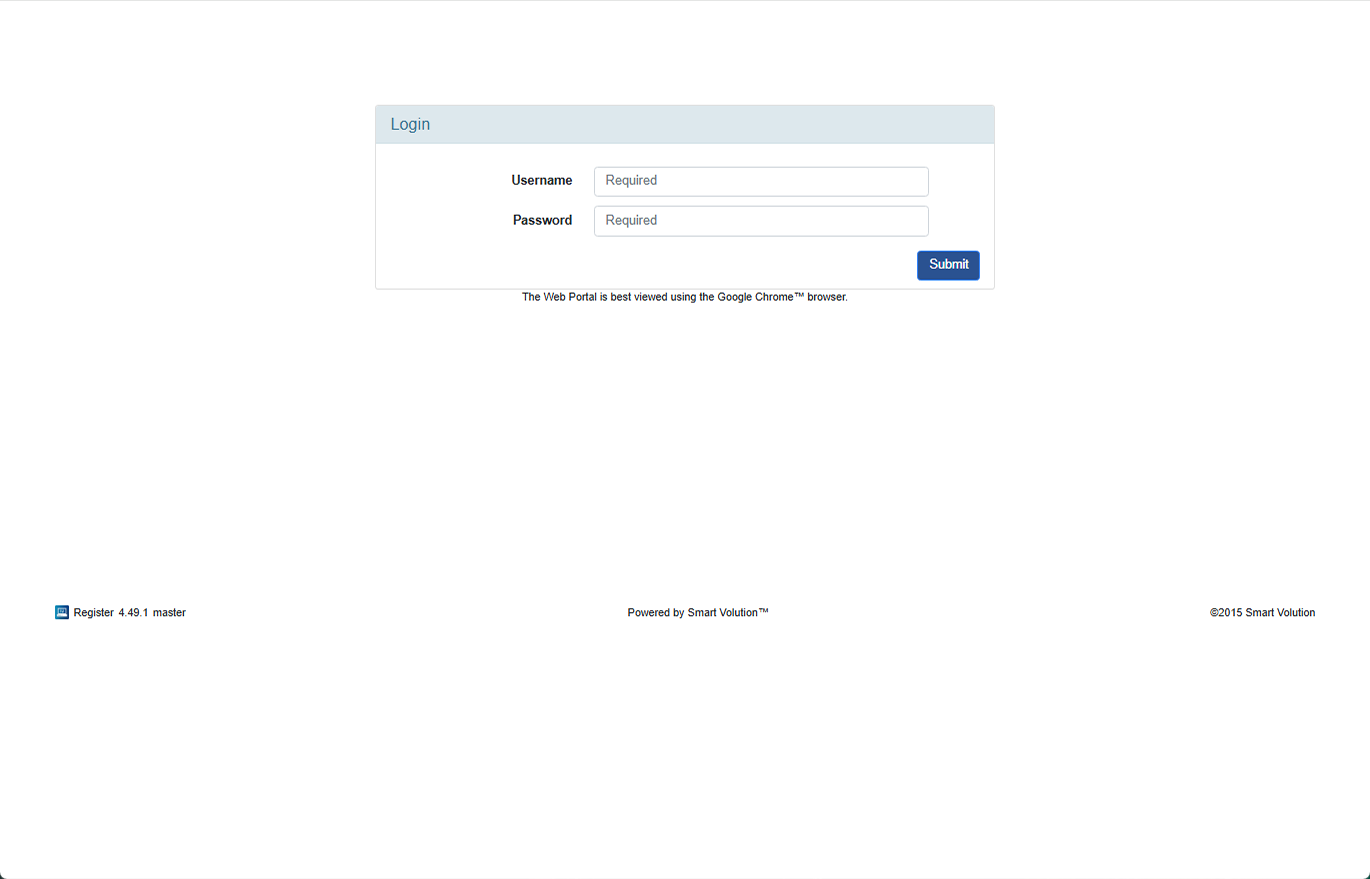
- Log in to the Web Portal using credentials provided by your Solution Provider.
- Click Config in the top menu bar.
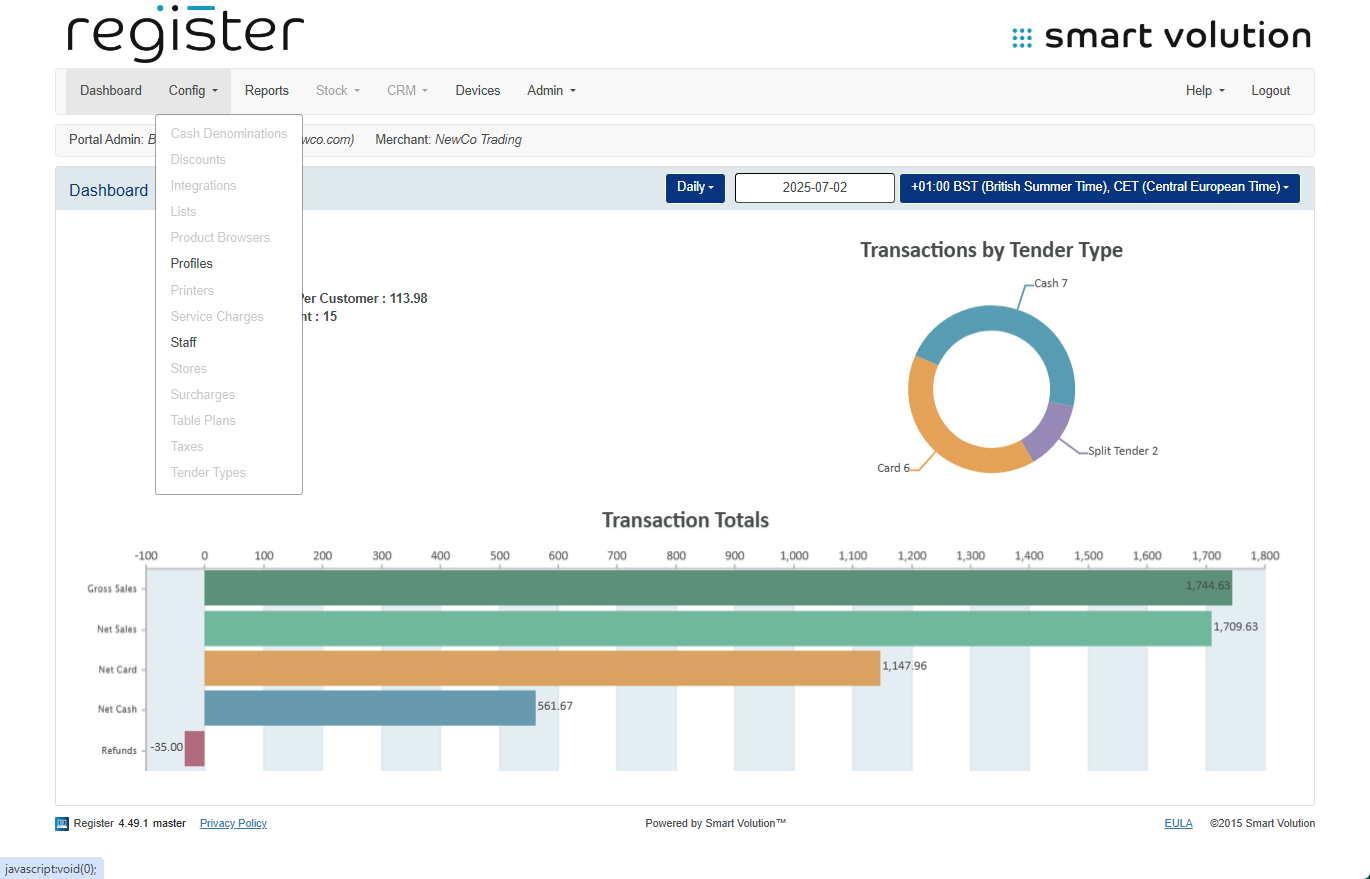
- Select Profiles from the sub-menu.
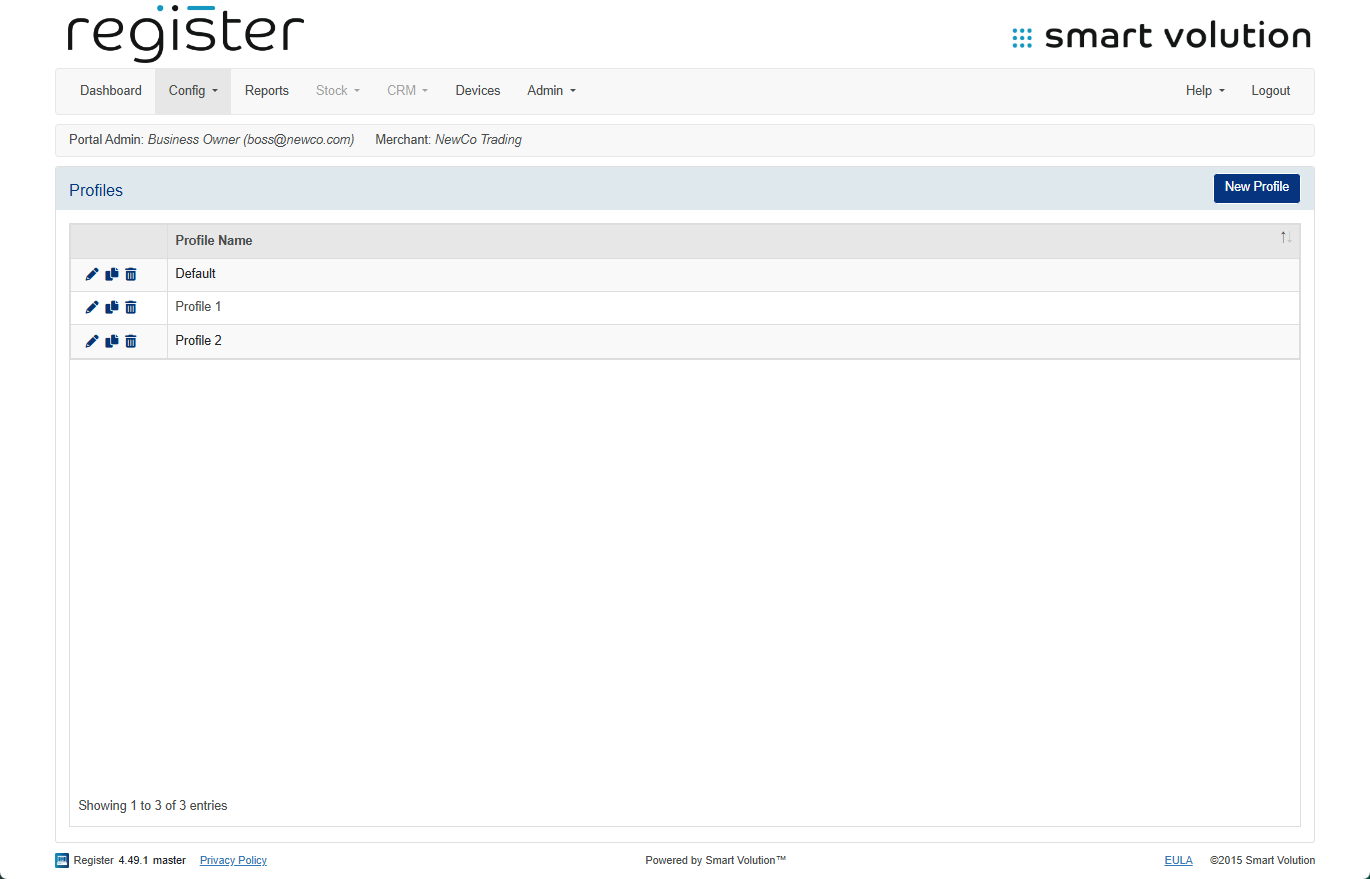
- Find the Profile assigned to your device and click the Edit ( ✎ ) icon.
- Not sure which profile is used? Check under the Devices tab.
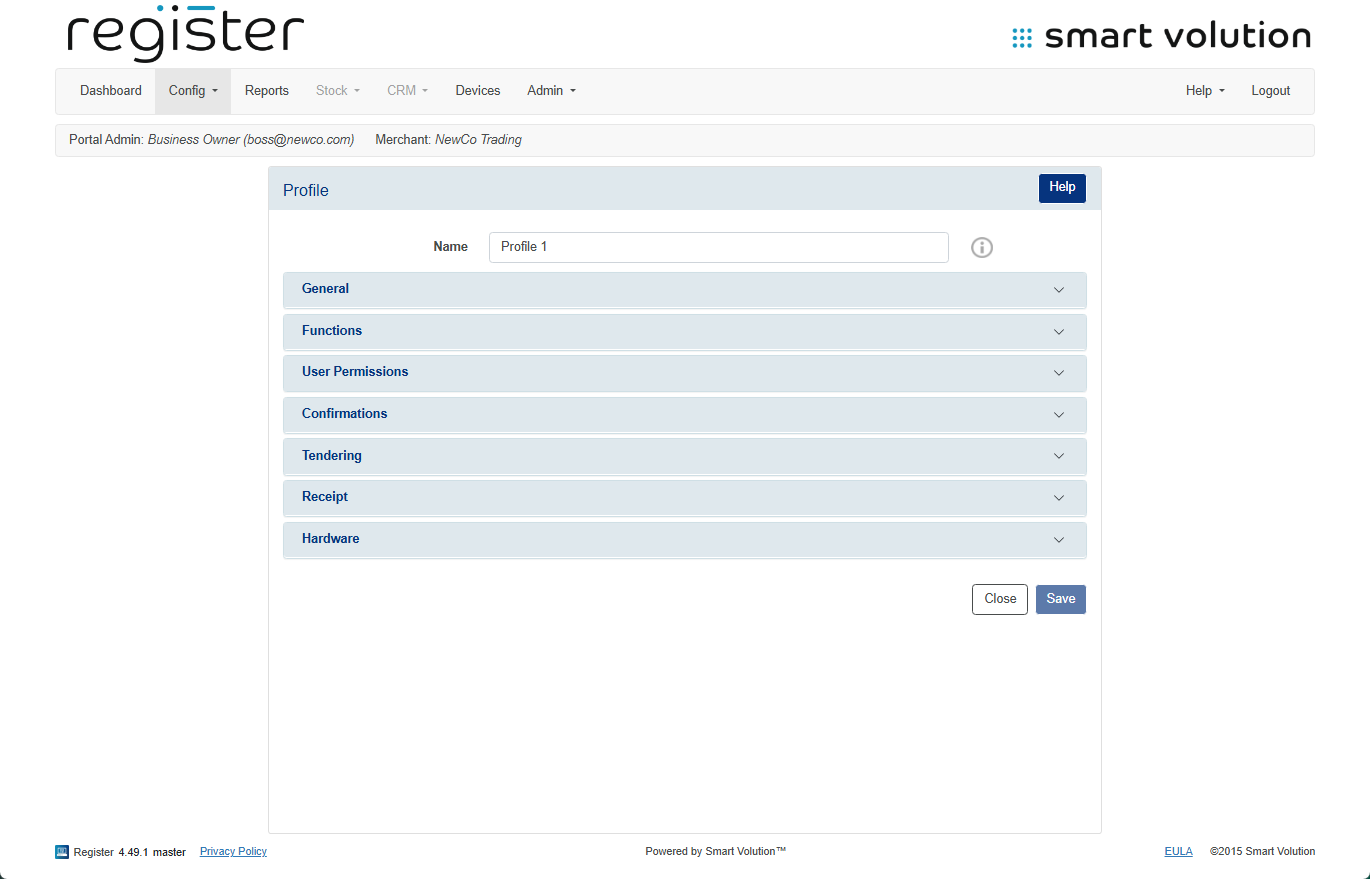
- Not sure which profile is used? Check under the Devices tab.
- Expand the General section.
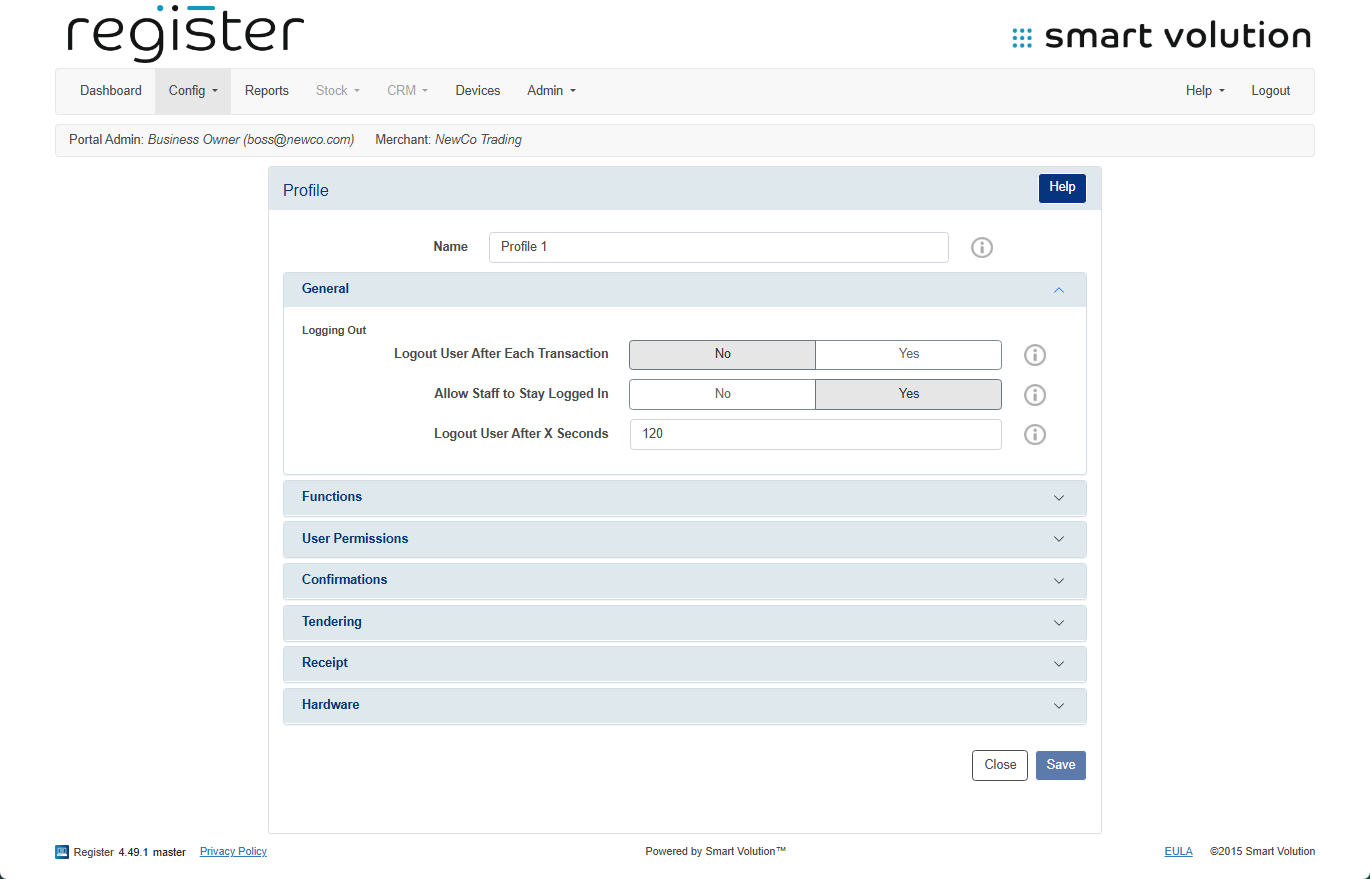
- In the field Logout User After X Seconds, enter the desired timeout (in seconds).
- Example: 300 for 5 minutes.
- To disable auto logout, enter 0.
- Click the Save button at the bottom of the page.
📱 On Your Device:
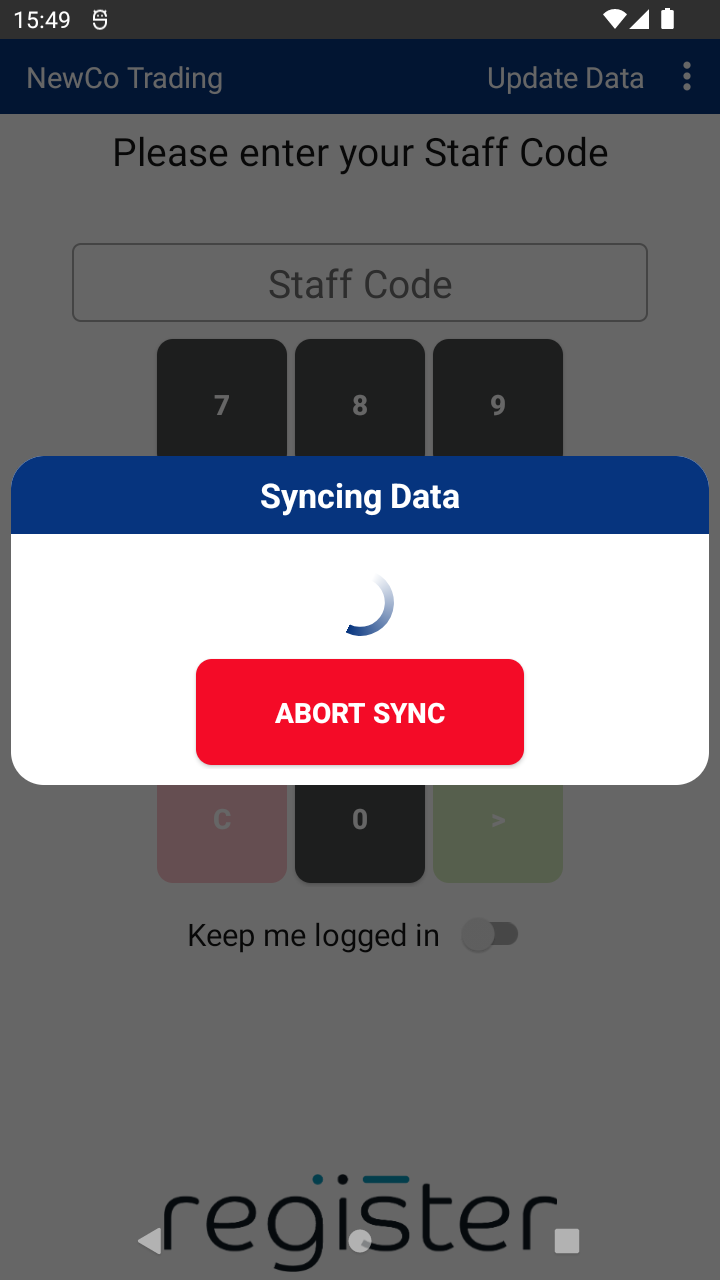
- On the login screen, tap the Update Data button (top-right corner) to download and apply the configuration changes.