Manual split payments let you divide the bill into custom amounts, ideal when:
- A customer wants to pay part by card and part by cash
- Different people are covering uneven portions of the bill
🔹 Step-by-Step: Splitting a Payment Manually
- Start a Sale
Enter the total sale amount, then tap SPLIT PAYMENT.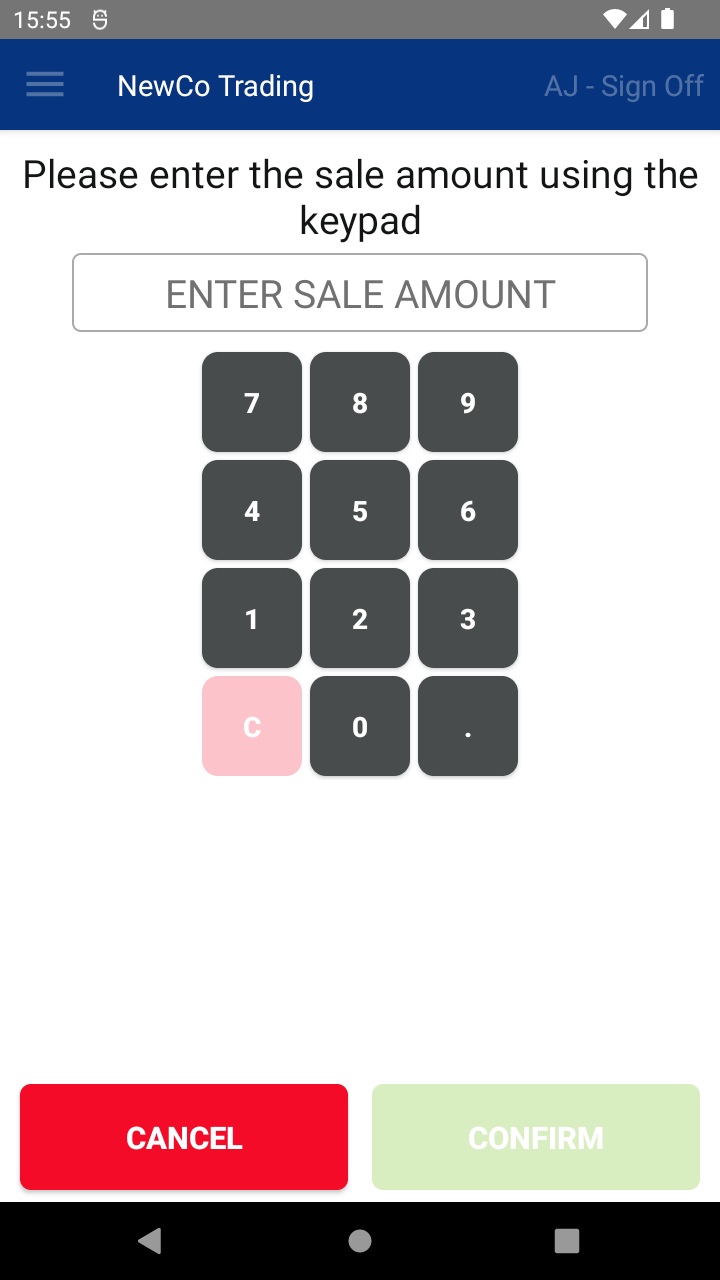
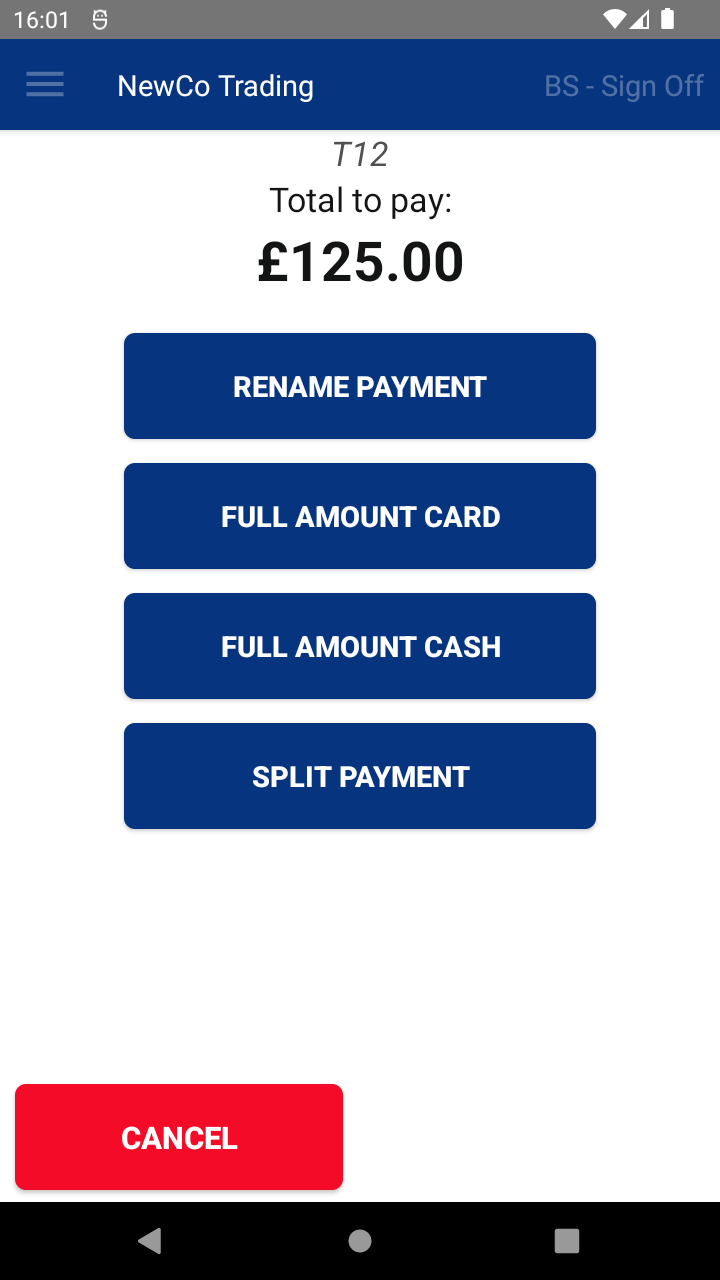
- Choose Manual Split
Tap SPLIT MANUALLY.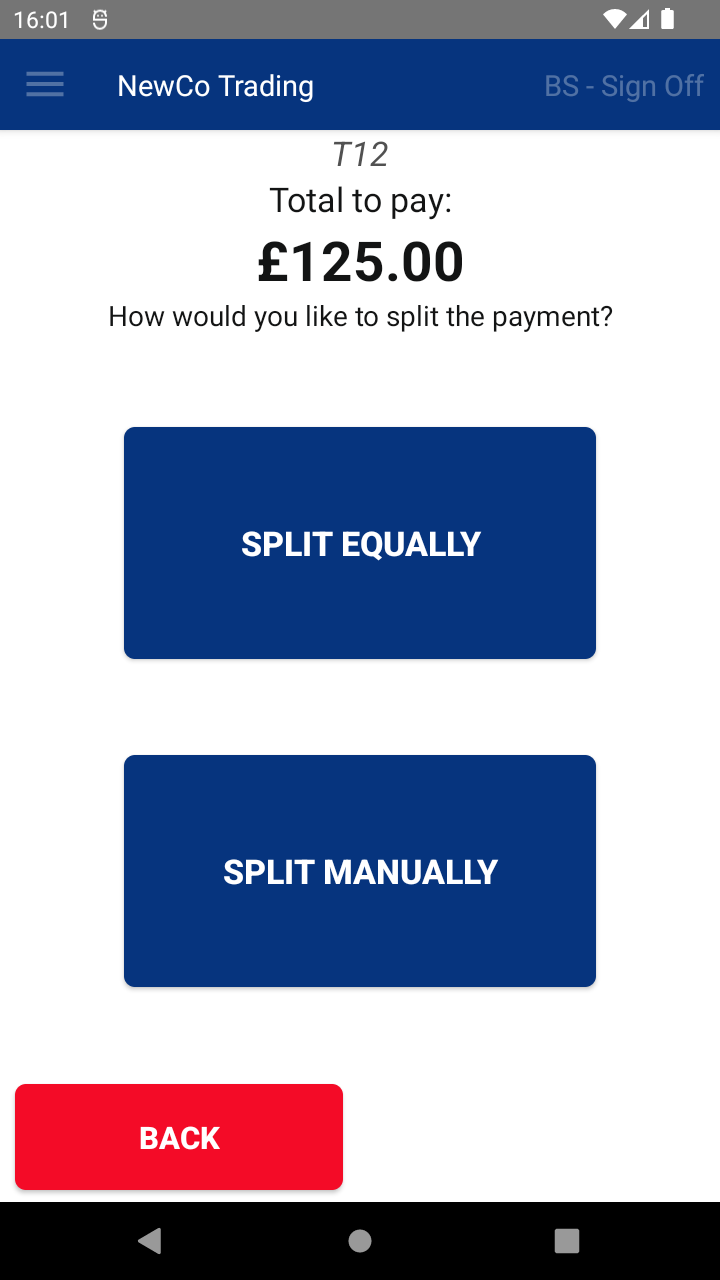
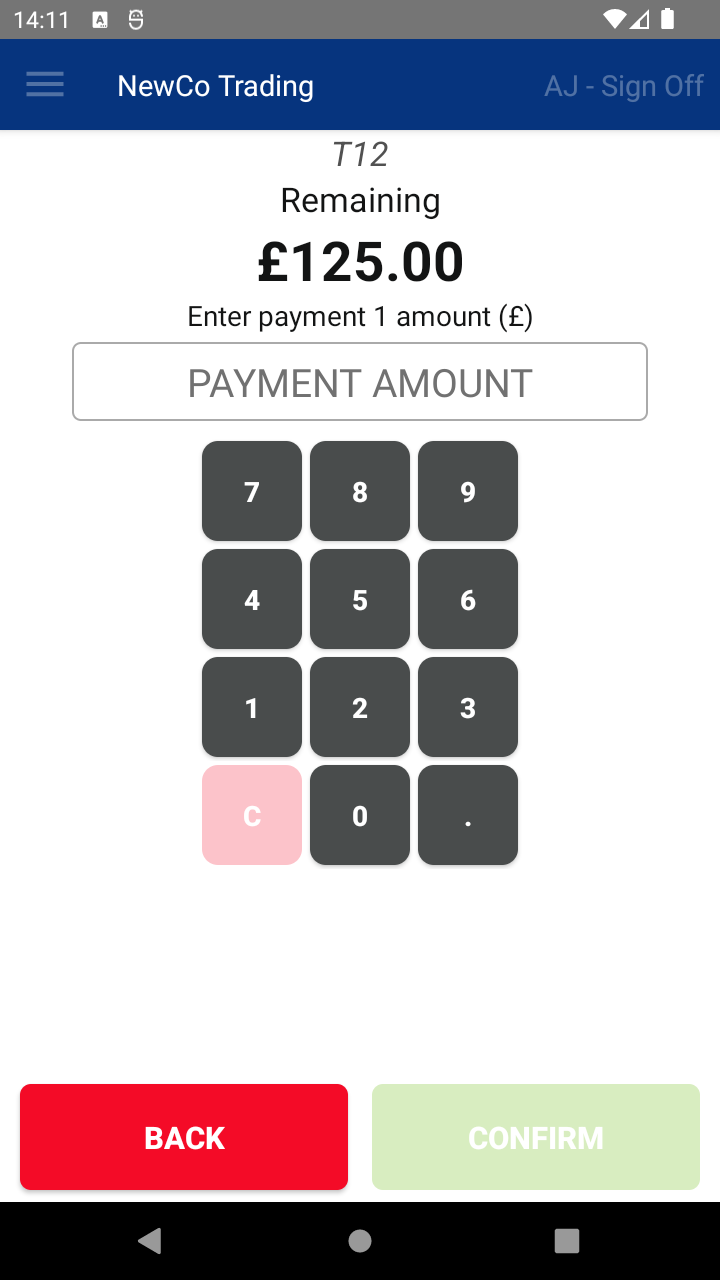
- Enter First Payment Amount
- Use the keypad to enter the amount for the first payment.
- Tap CONTINUE to proceed.
- Complete Each Payment in Turn
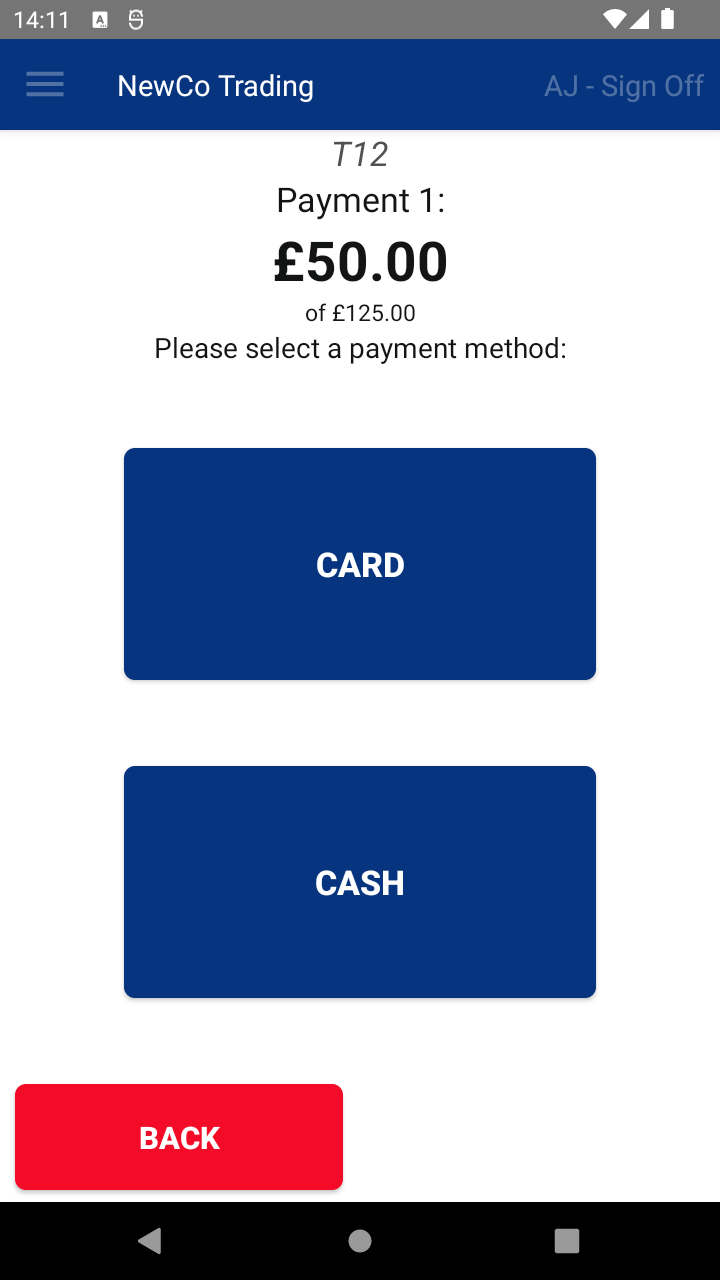
For each part:- The system will show the remaining balance.
- Enter the next payment amount.
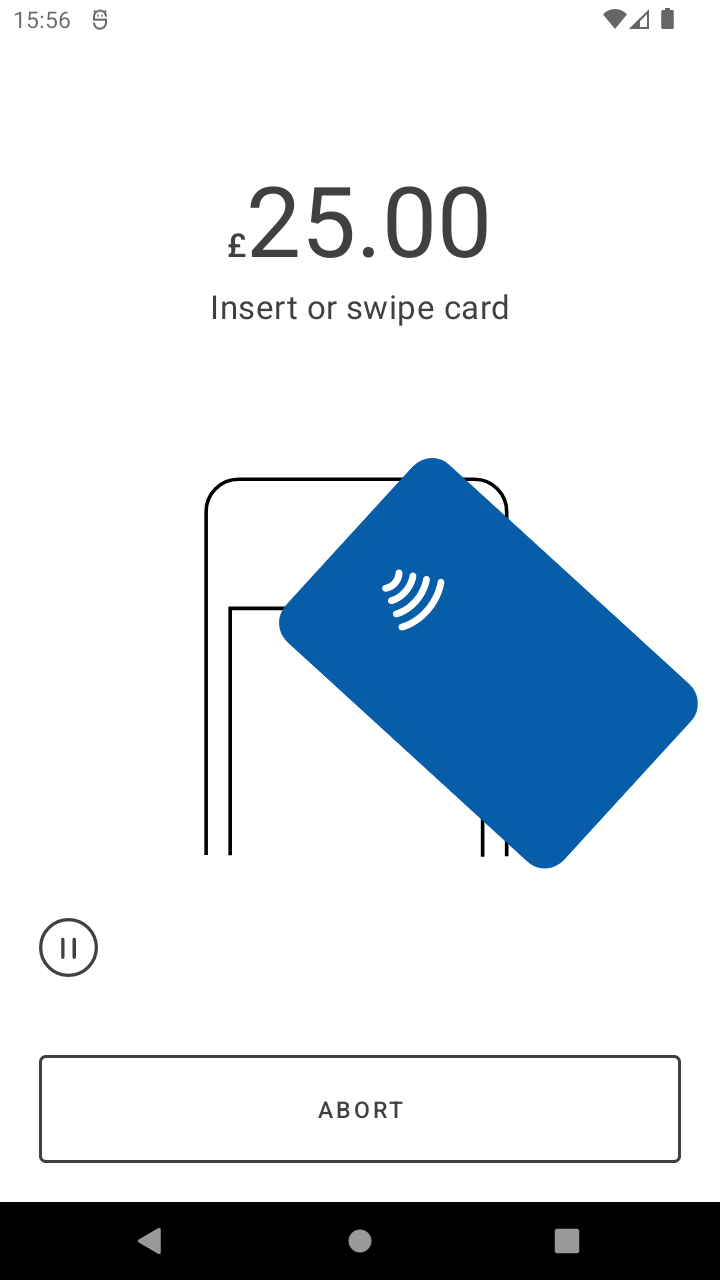
- Choose the payment method (CARD or CASH).
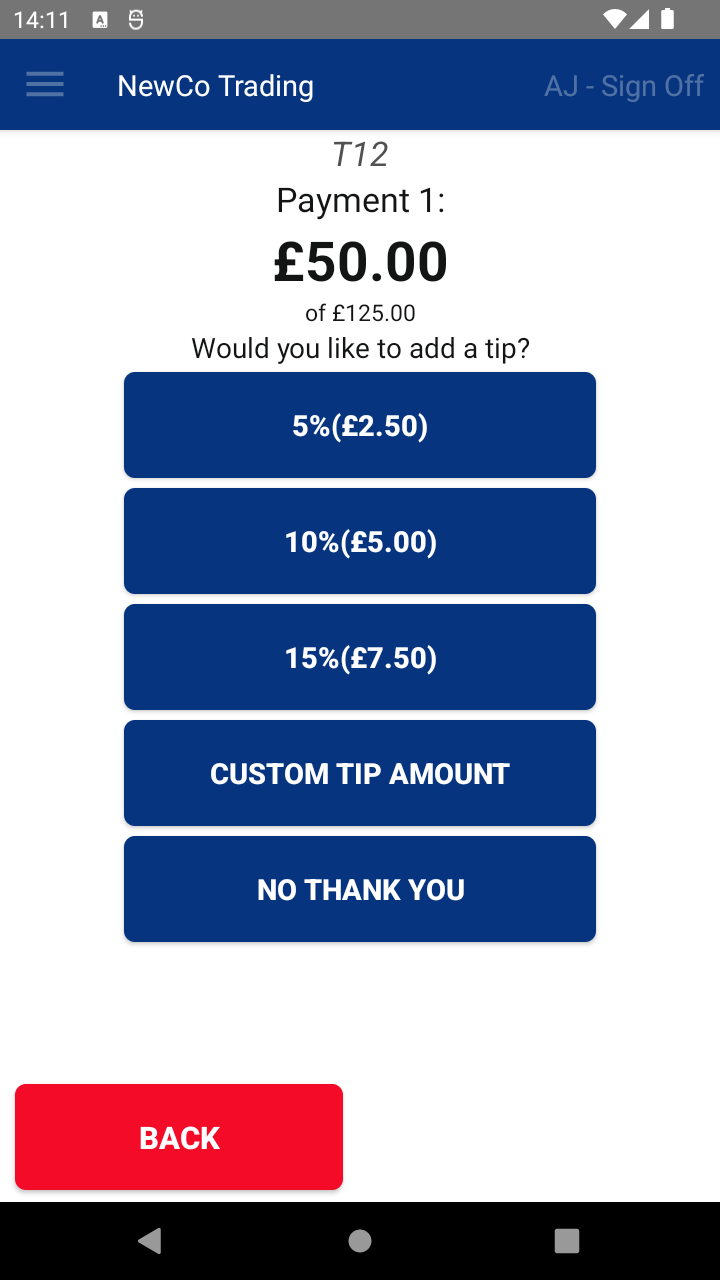
- If tips are enabled, you’ll see gratuity options.
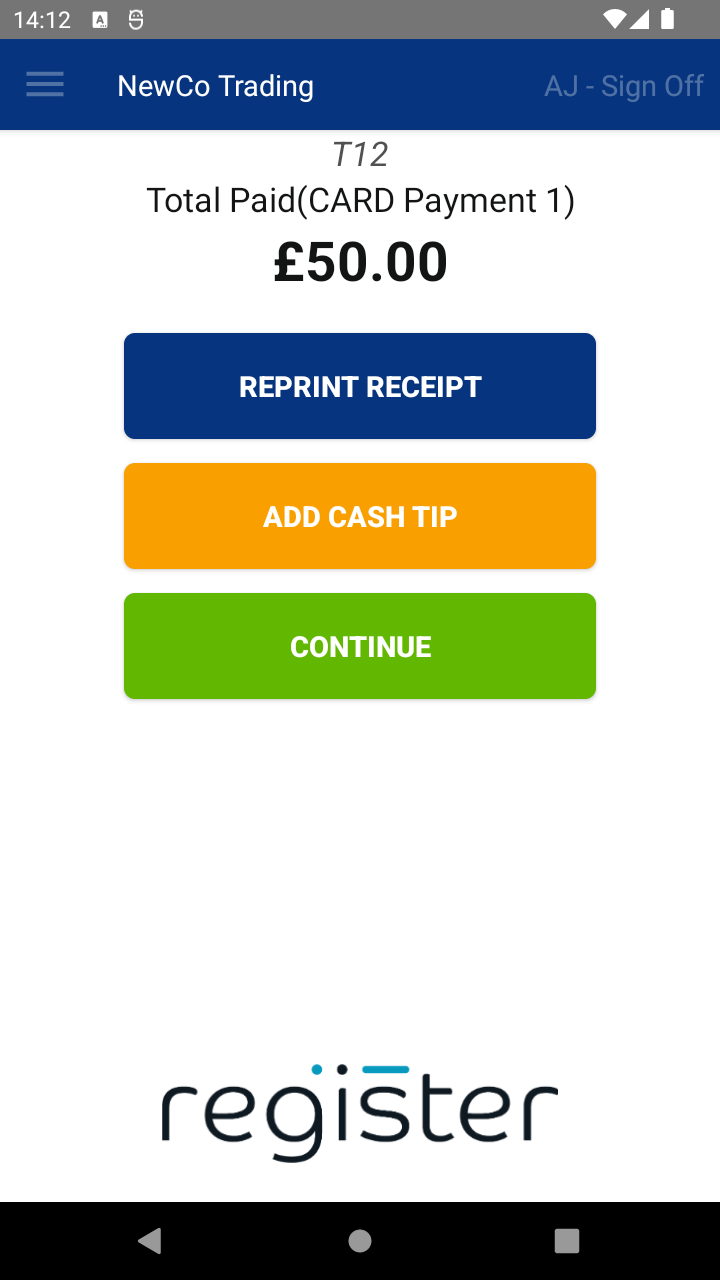
- A receipt will print for each individual payment.
- Tap CONTINUE to move on to the next payment.

- Finalize the Transaction
- Once the entire balance is paid, the system will print a final receipt.
- Tap DONE to return to the Pay screen and begin a new transaction.
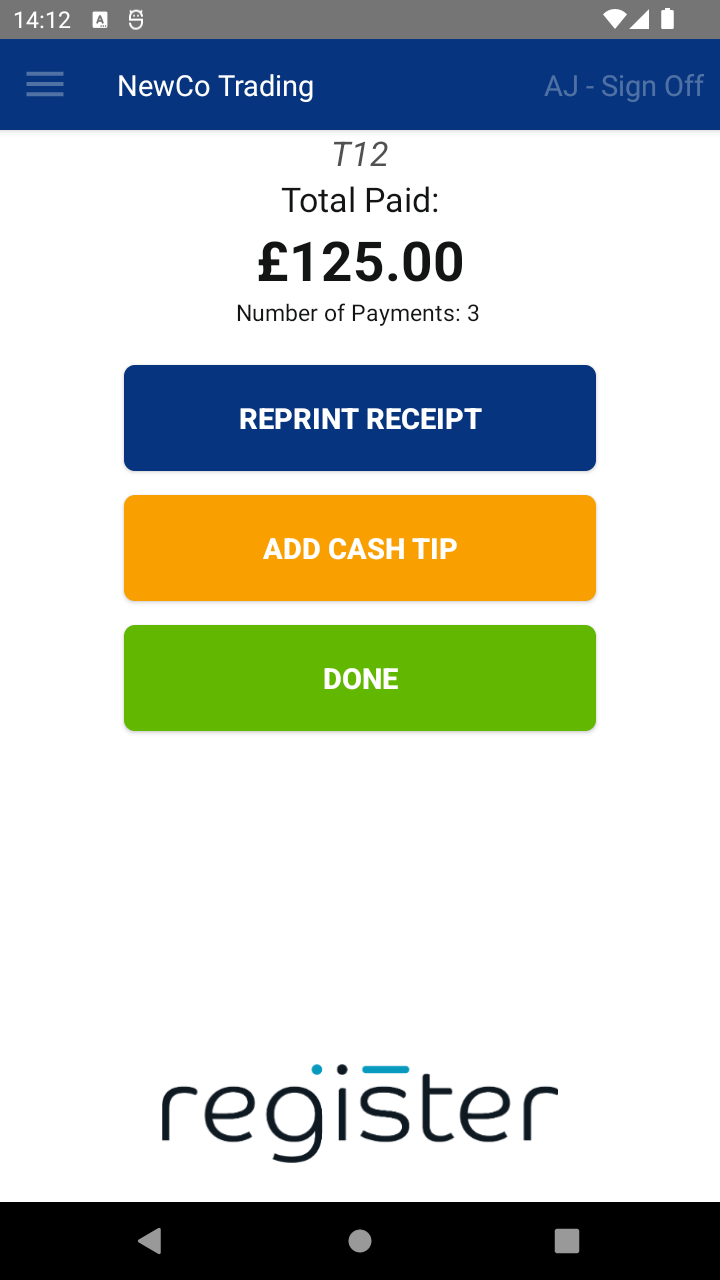

The DONE button will display a 60-second countdown timer.
If no action is taken, once the countdown reaches 0, the system will automatically select DONE and return you to the main screen, ready for the next transaction. This helps keep the device ready to use and avoids it being left on the summary screen.
📘 Learn more:

