Making a sale with your payment terminal is quick and simple. Just follow these steps:
- Log In
Enter your Staff Code and tap the Next ( > ) button.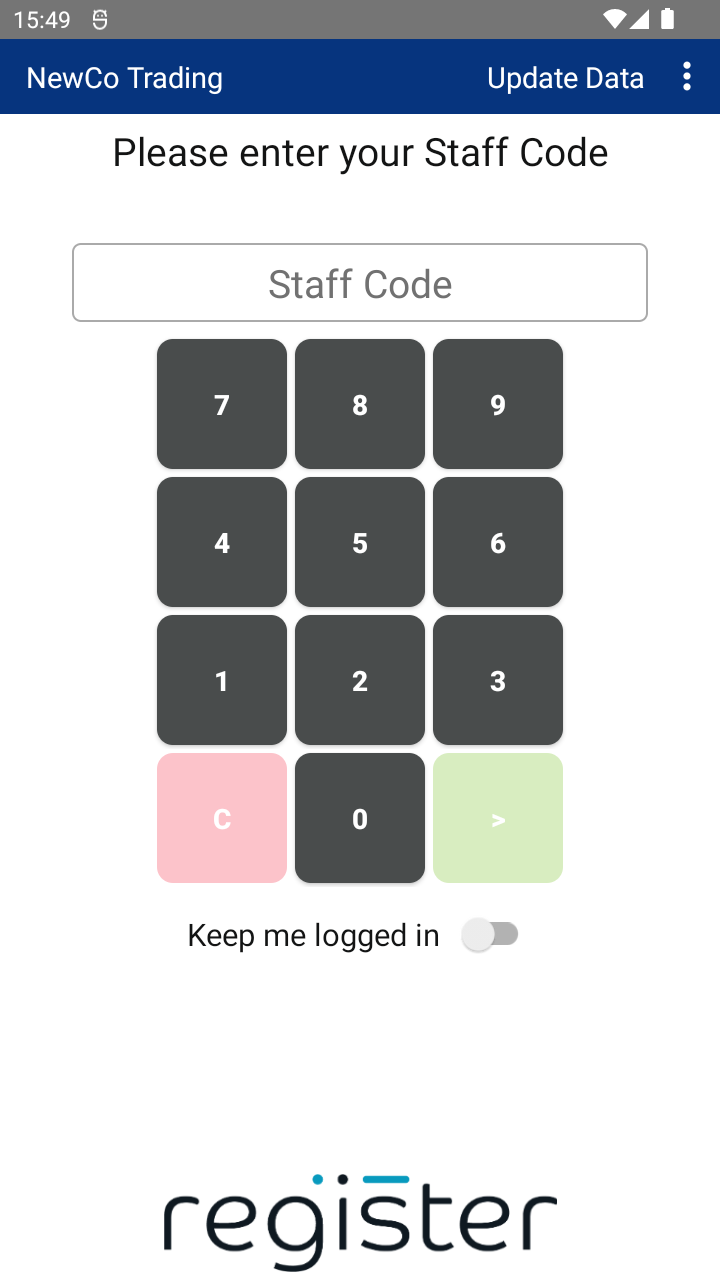
- Enter the Sale Amount
Use the keypad to enter the total amount for the sale, then tap CONFIRM.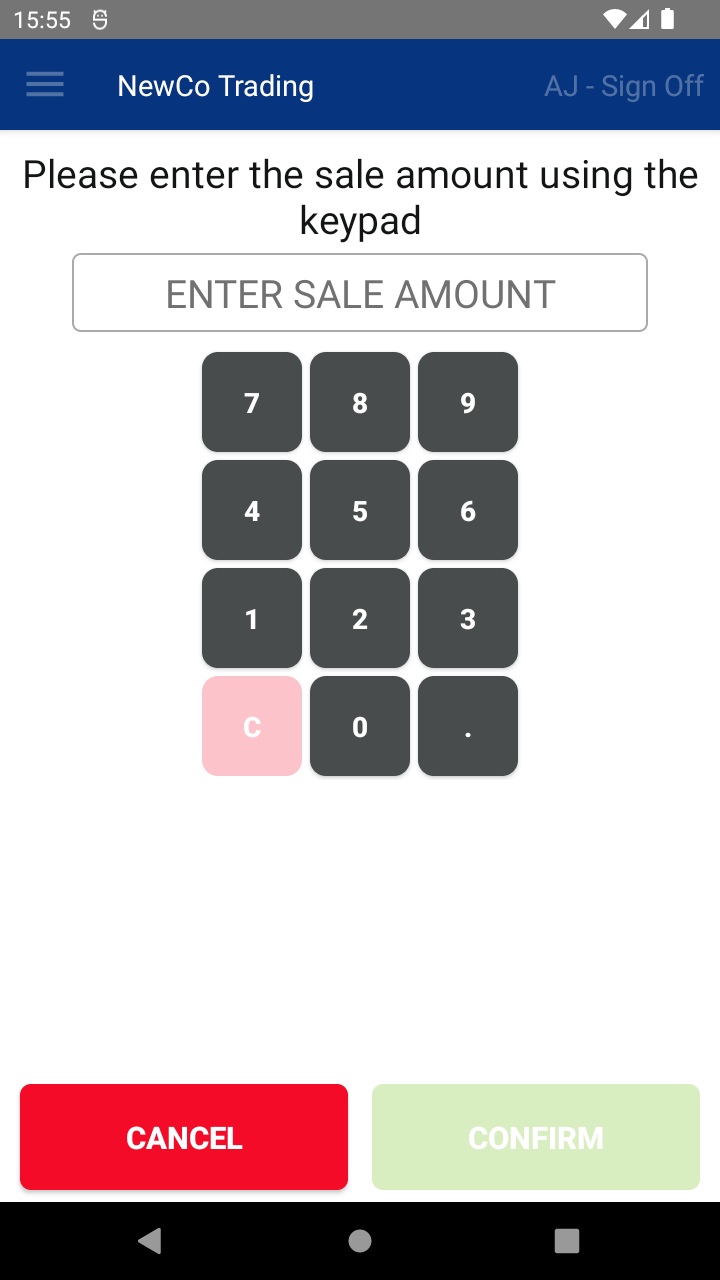
- Select Payment Method
Tap the FULL AMOUNT CARD button to proceed with a card payment.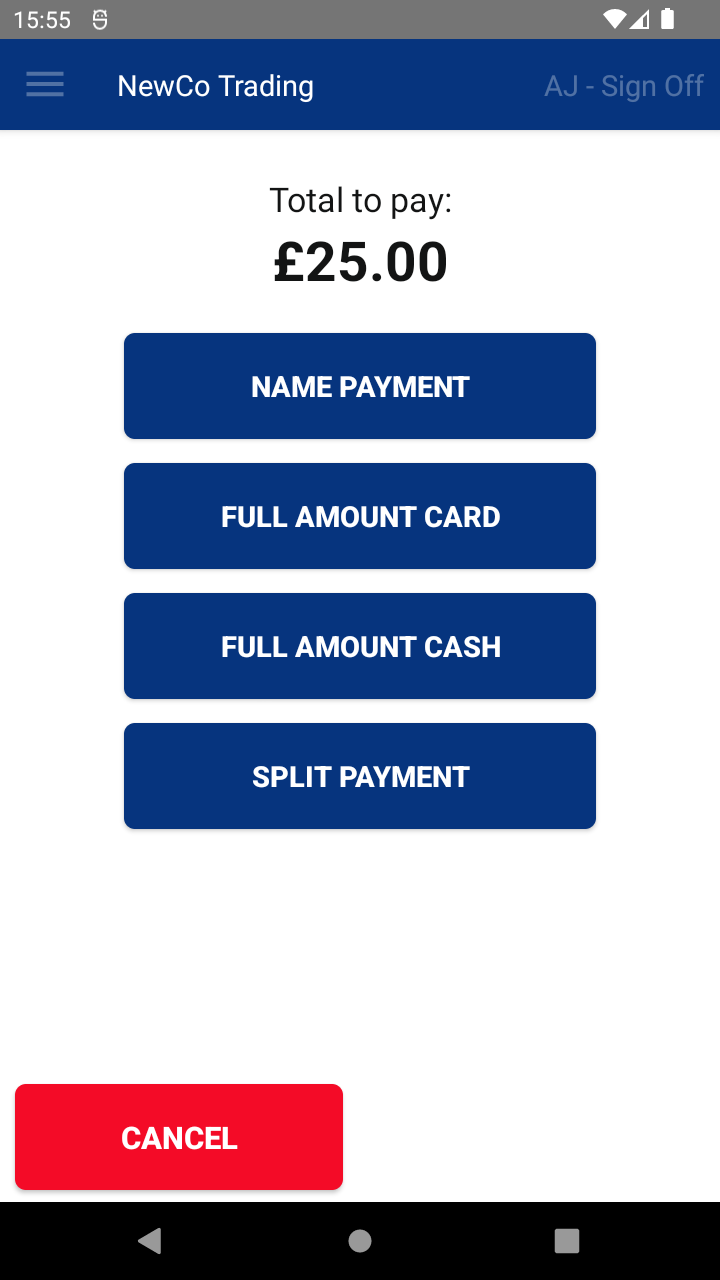
- (Optional) Add Gratuity
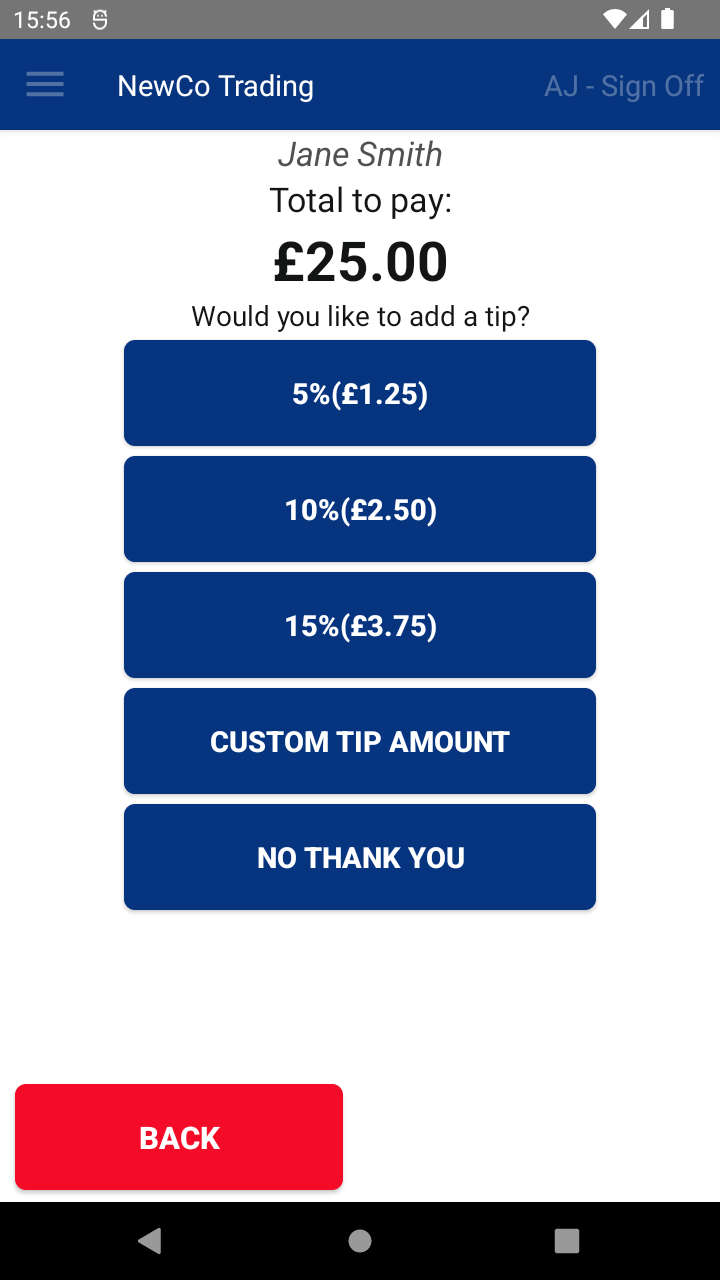
Depending on your setup, you may be prompted to add a gratuity:- Tap a gratuity amount to include it.
- Or tap NO THANK YOU to skip this step.
- Complete the Payment
The terminal will now launch the payment application and guide the customer through the card payment process.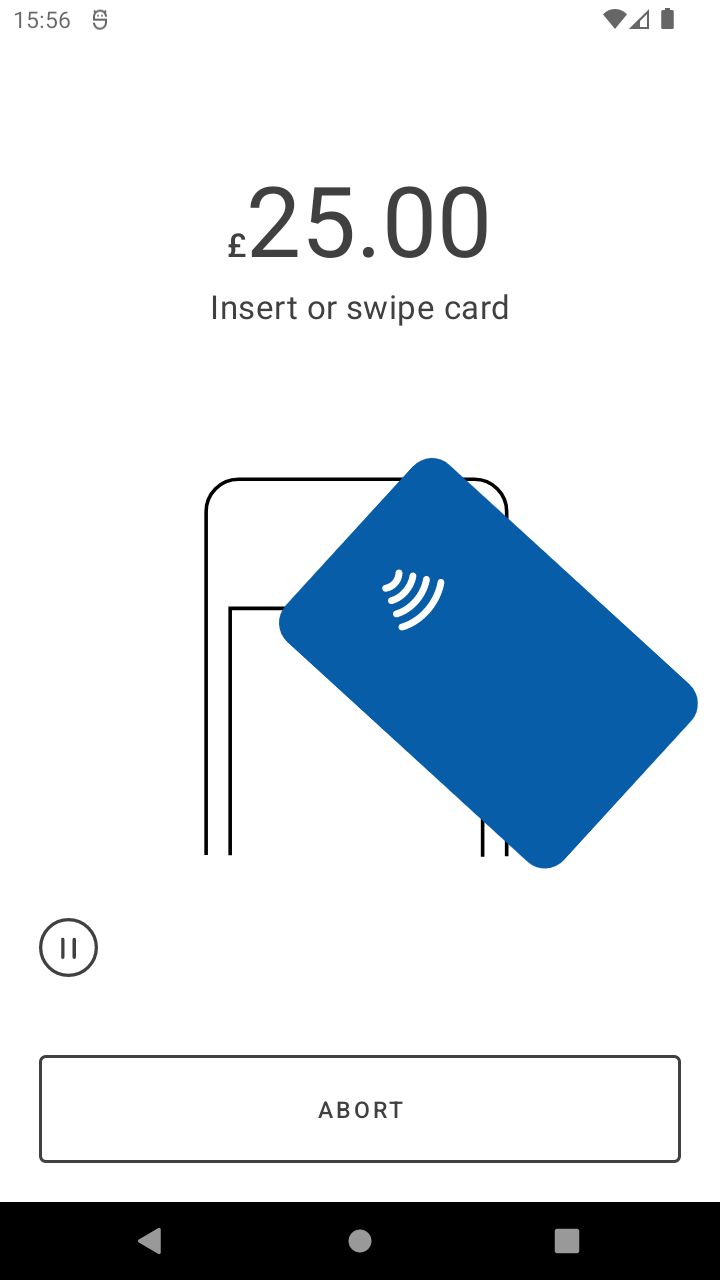
- View Transaction Summary
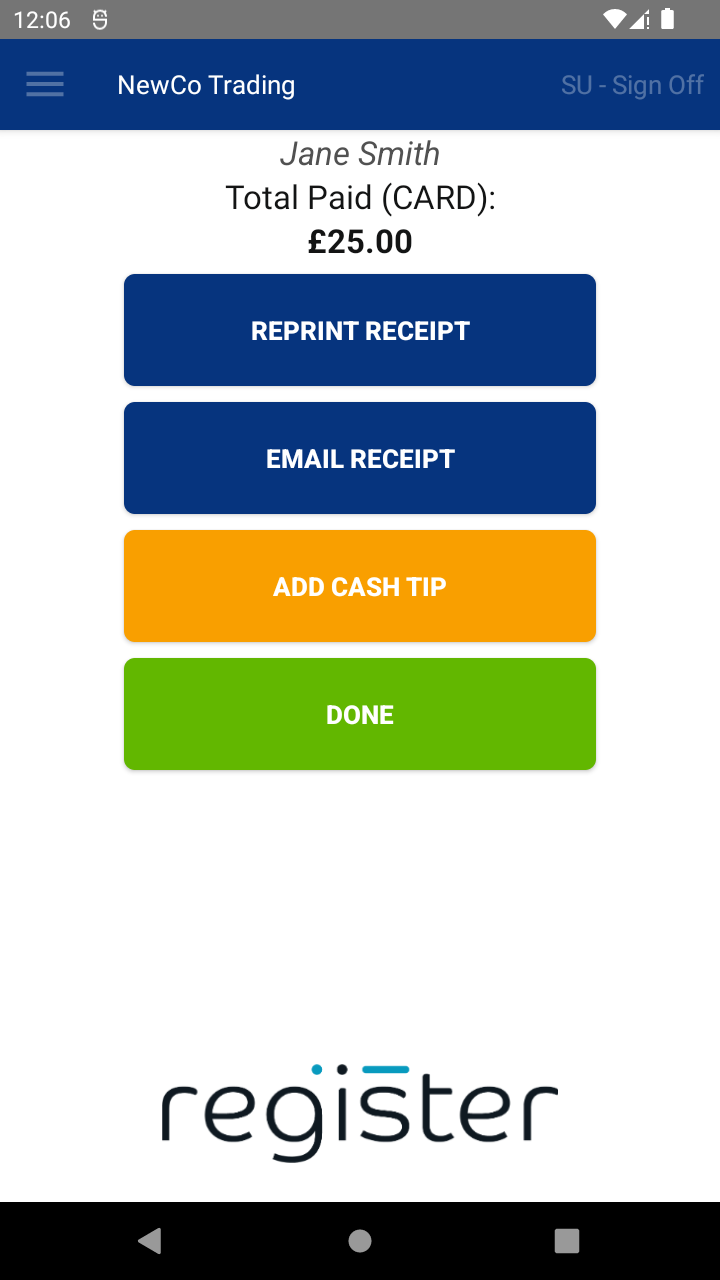
After payment is successful, you’ll see the Transaction Summary screen.
Depending on your configuration, you may have the option to:- Print a receipt
- Email a receipt
- Record a cash tip
- Finish the Sale
Tap DONE to finalize the transaction and return to the main screen.
The DONE button will display a 60-second countdown timer.
If no action is taken, once the countdown reaches 0, the system will automatically select DONE and return you to the main screen, ready for the next transaction. This helps keep the device ready to use and avoids it being left on the summary screen.
📘 Learn more about:

