The Web Portal Reports screen provides detailed reporting for sales, refunds, and transactions.
🧭 Steps to Access Reports Online:
- Login to the Web Portal using the credentials provided by your Solution Provider
- After login, the Sales Dashboard will be shown, displaying sales totals for all your devices for the current day
- Use the calendar control and date range selector (top right) to change the displayed range
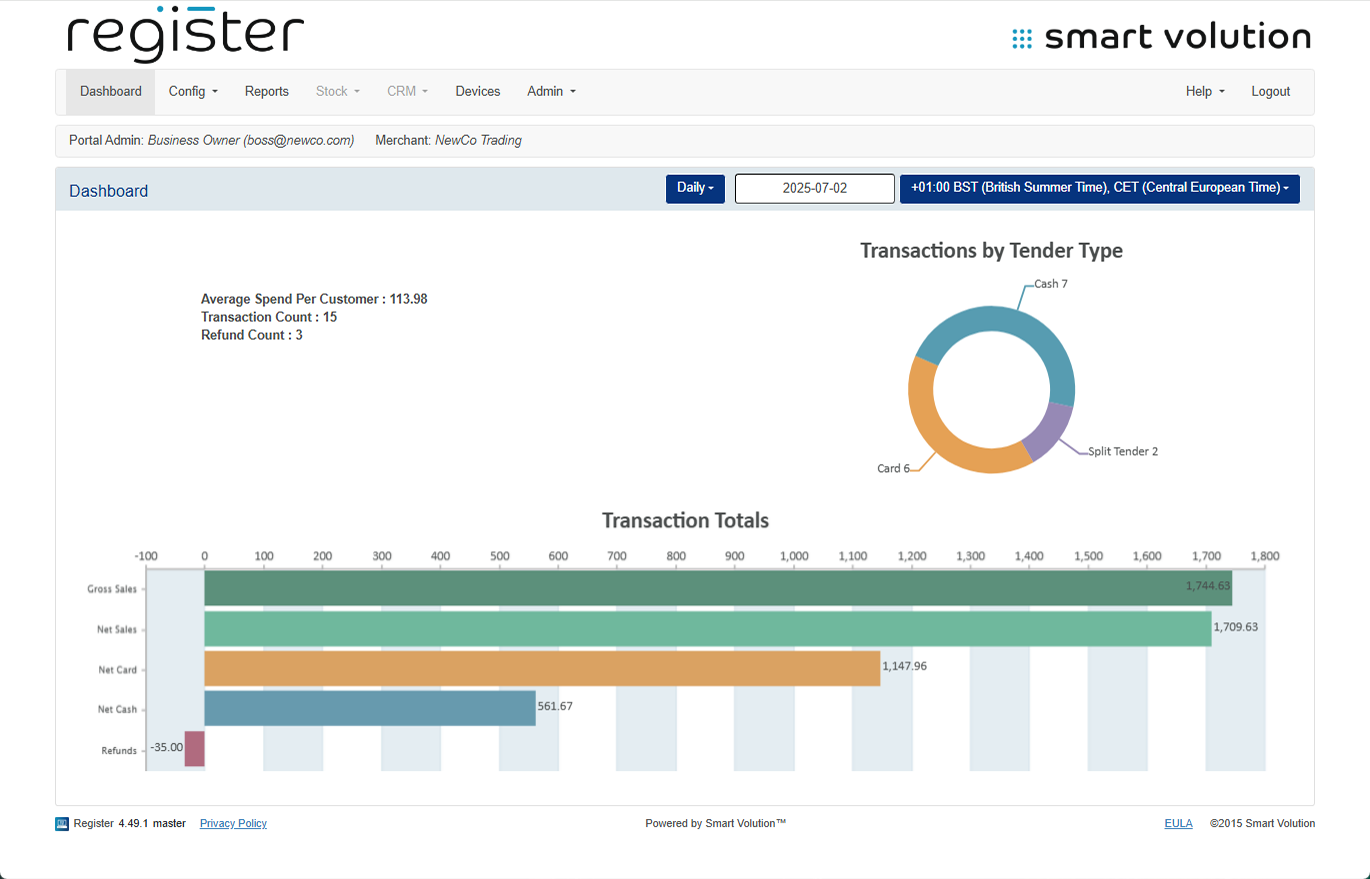
- Use the calendar control and date range selector (top right) to change the displayed range
- To view other reports:
- Click Reports from the top navigation bar
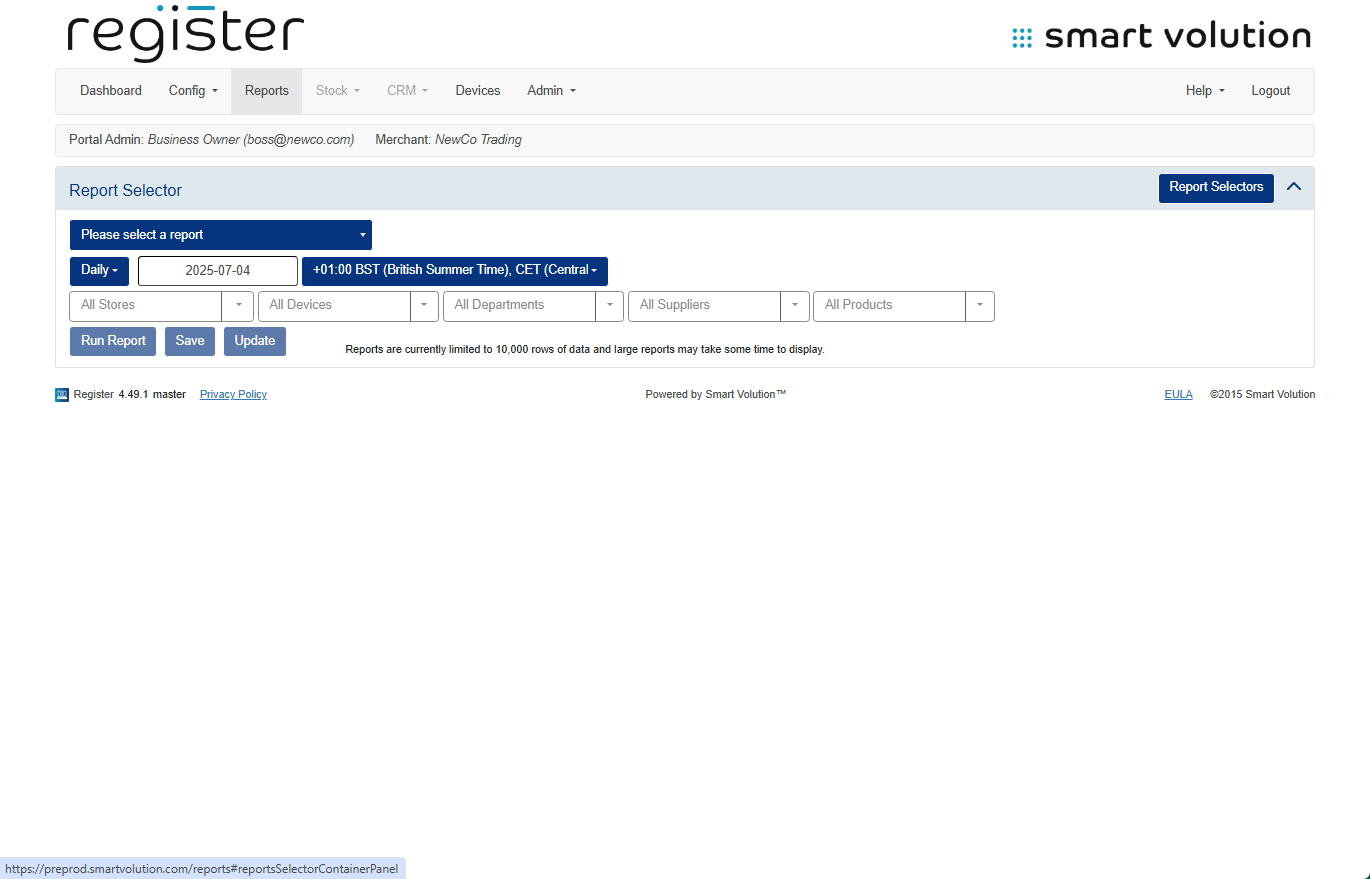
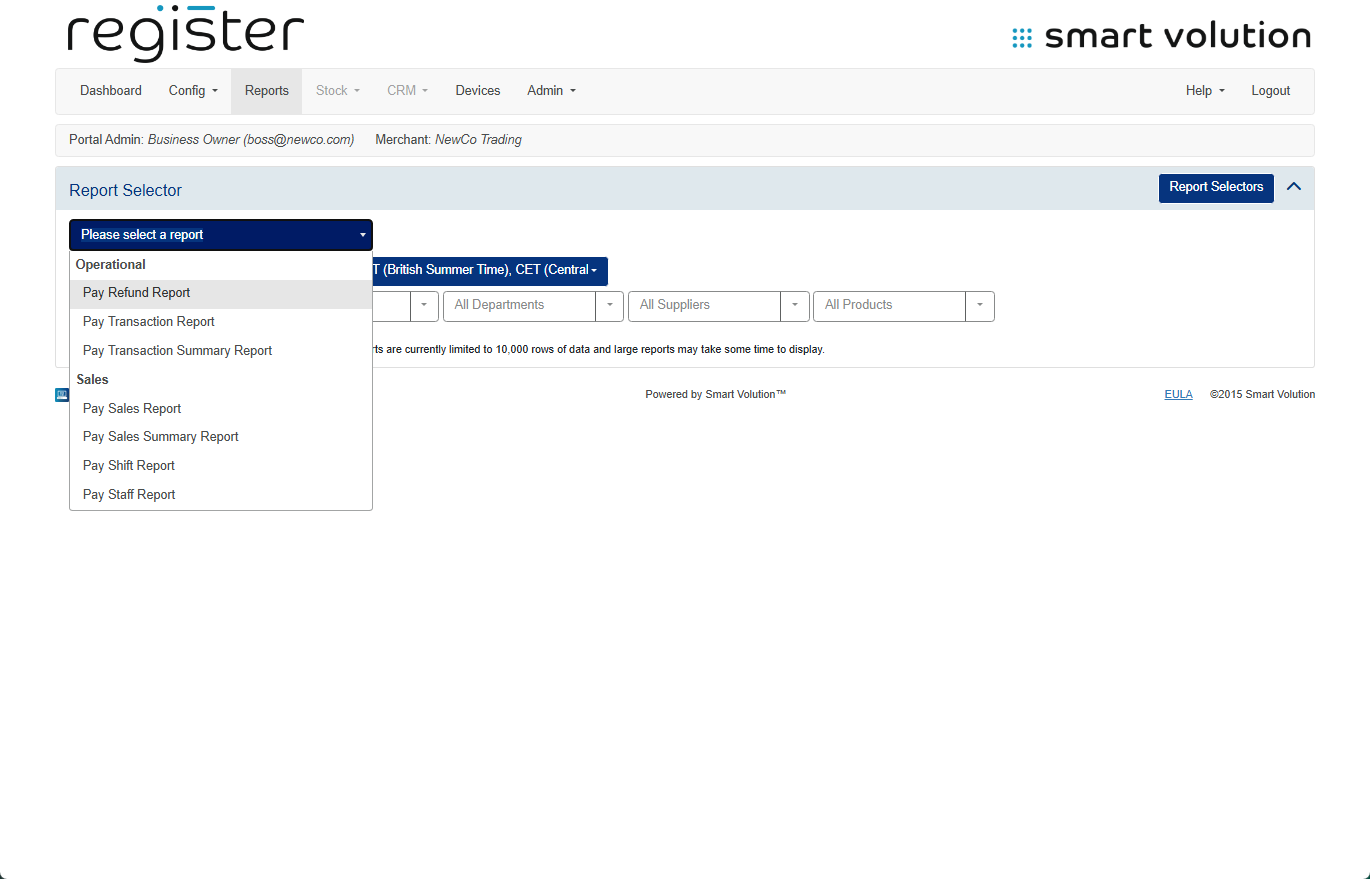
- Use the Please select a report dropdown to choose a report
- Adjust date range as needed using the Daily dropdown and calendar controls
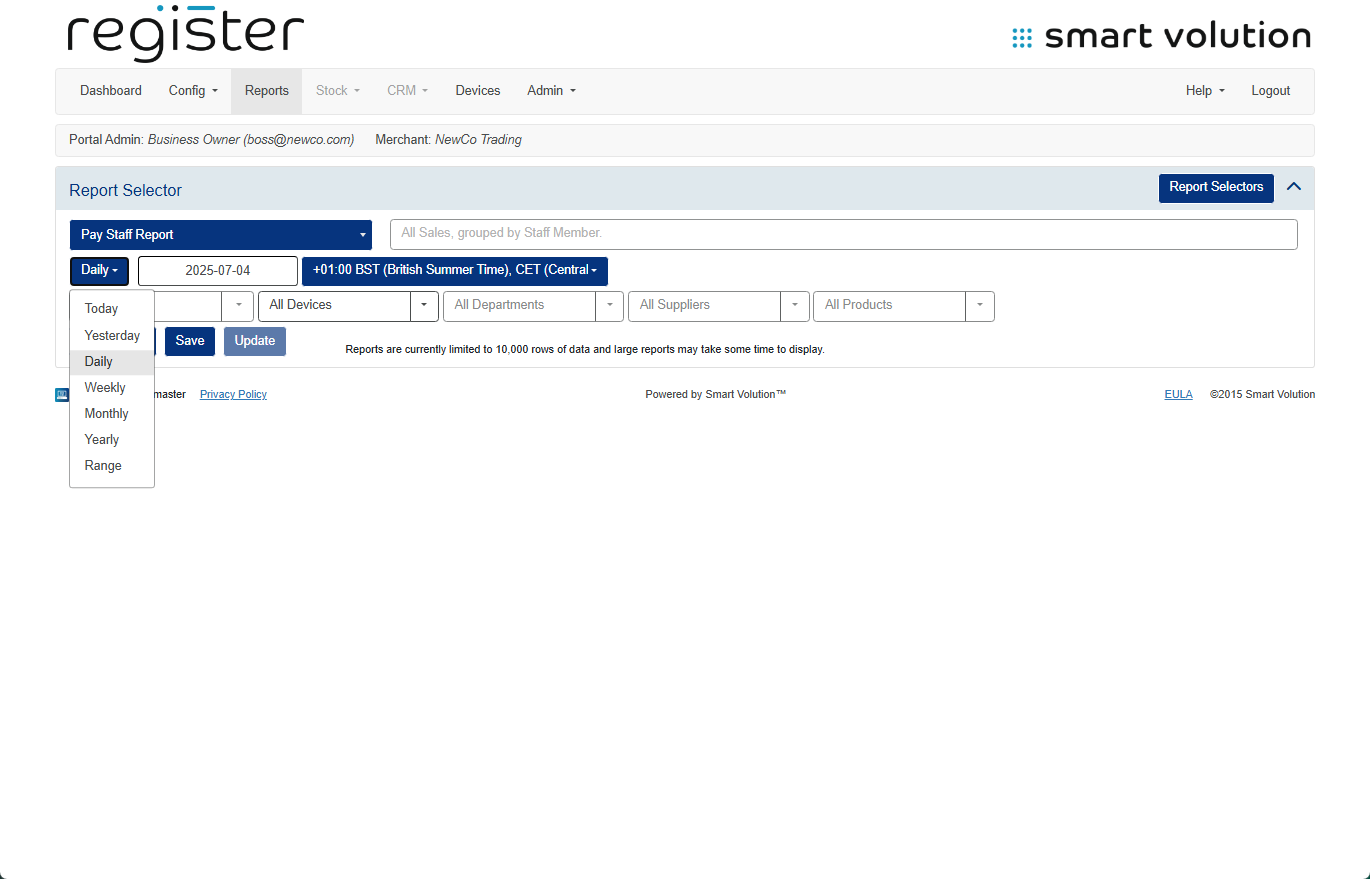
- Click Run Report to generate it
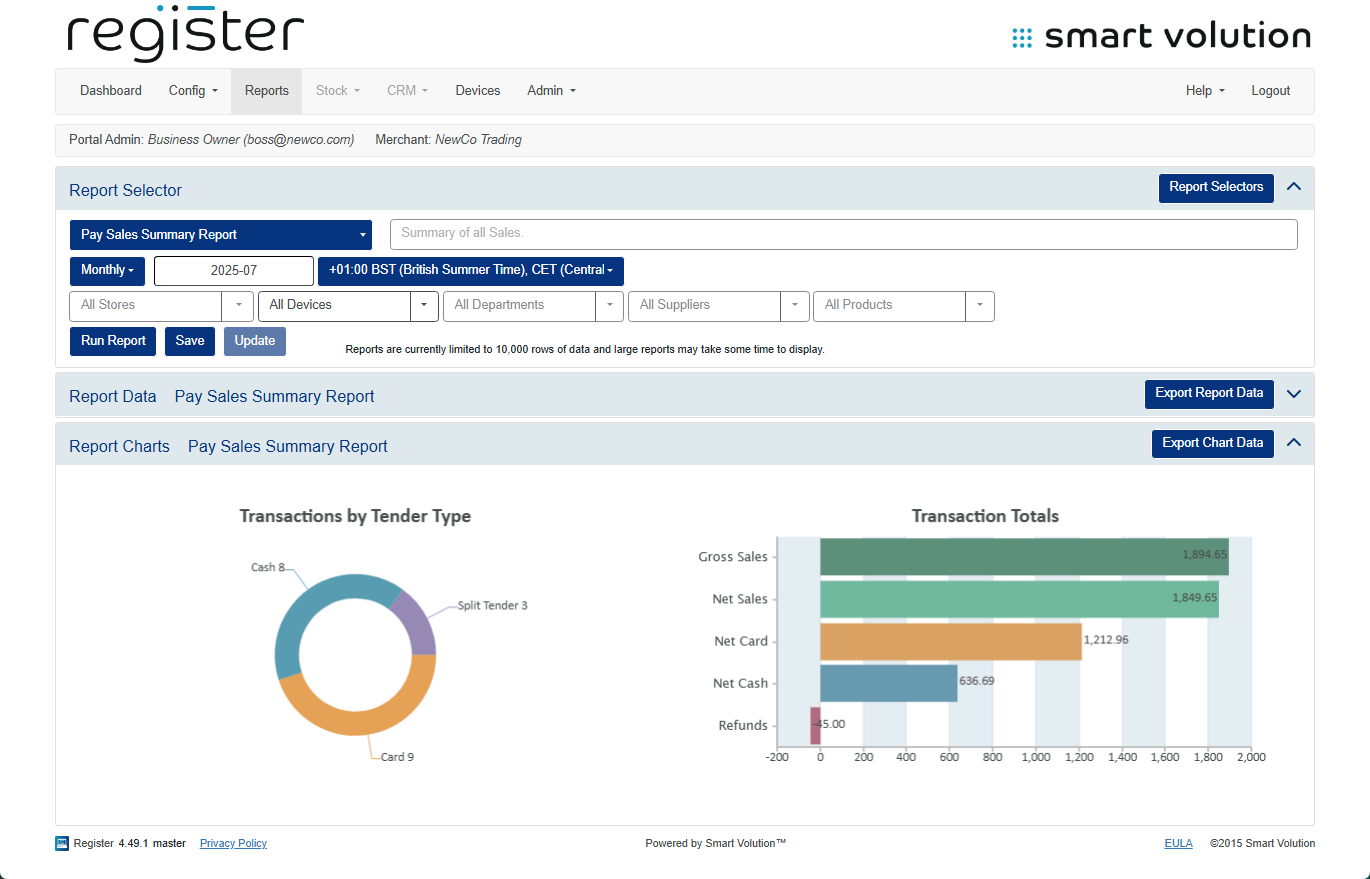
- Click Reports from the top navigation bar
📄 Types of Reports Available:
✅ Operational Reports
- Pay Refund Report – Lists all refunds performed
- Pay Transaction Report – Detailed transaction-level report (for support/analysis)
- Pay Transaction Summary Report – Summary view of all transactions (similar to Transaction History)
💰 Sales Reports
- Pay Sales Report – Daily sales totals per device
- Pay Sales Summary Report – Combined sales totals across all devices
- Pay Shift Report – Z Report / End of Day sales totals per device
- Staff Sales Report – Sales totals split by staff member
📈 Report Tools & Exporting:
- Some reports include charts along with data tables
- Click Export Report Data to download in Excel or CSV format
- Click Export Chart Data to download the chart as a PDF
ℹ️ More Info:

