By default, your Solution Provider will create a Web Portal account using the primary registered email address on your account.
To manage additional users:
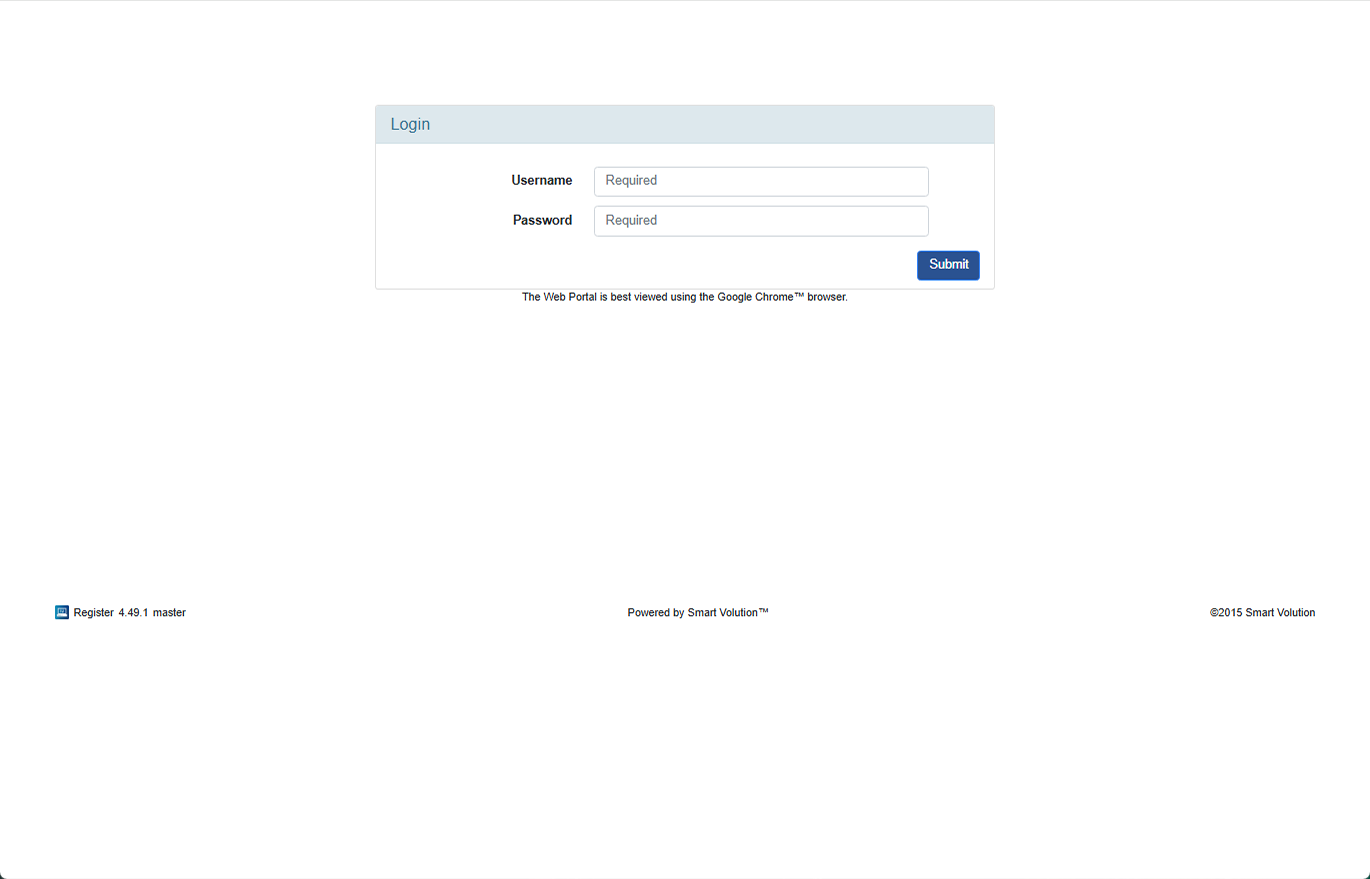
Log in to the Web Portal using your administrator credentials.
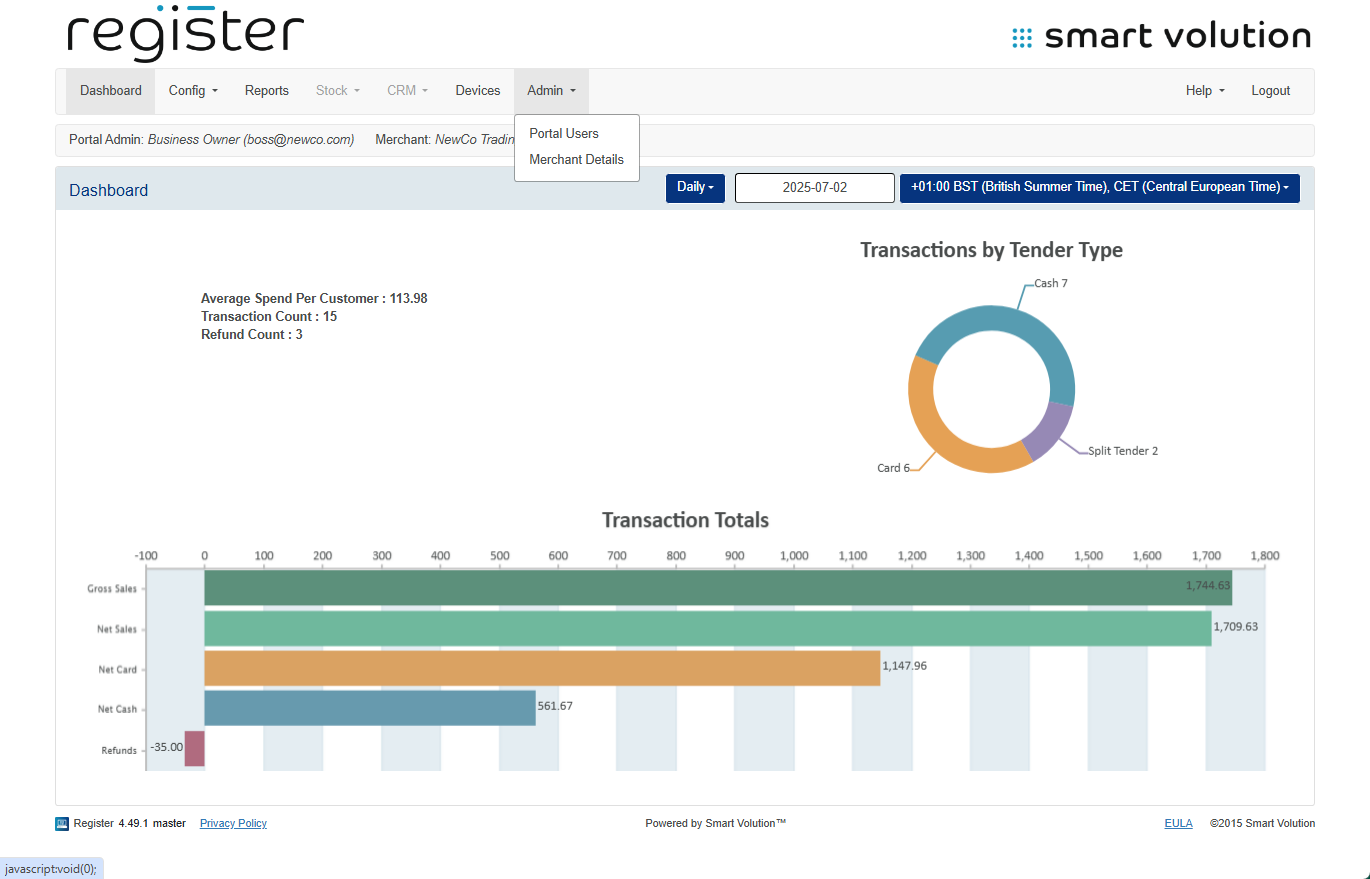
In the top navigation bar, click Admin, then select Portal Users from the submenu.
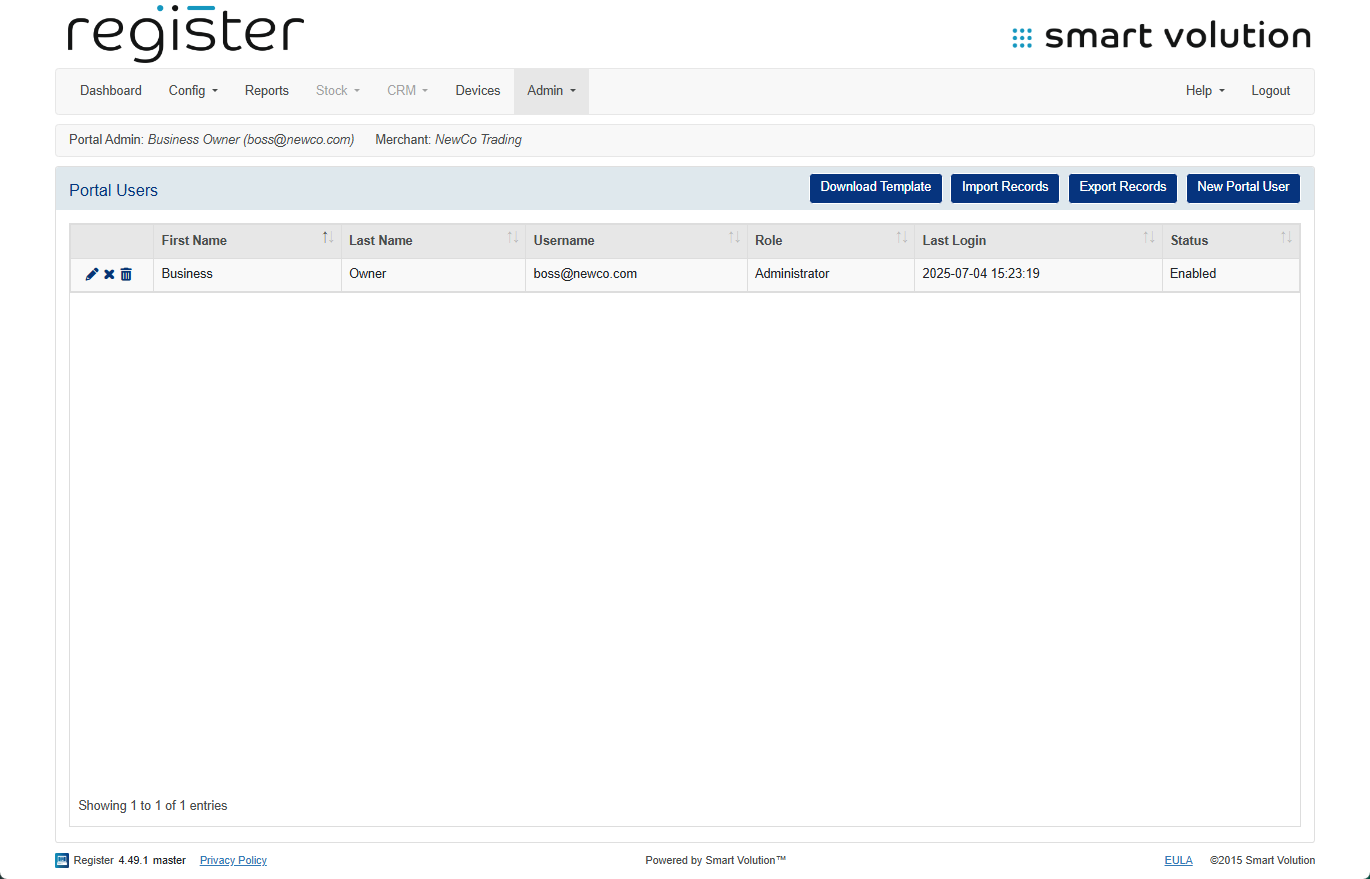
On the Portal Users screen, you can:
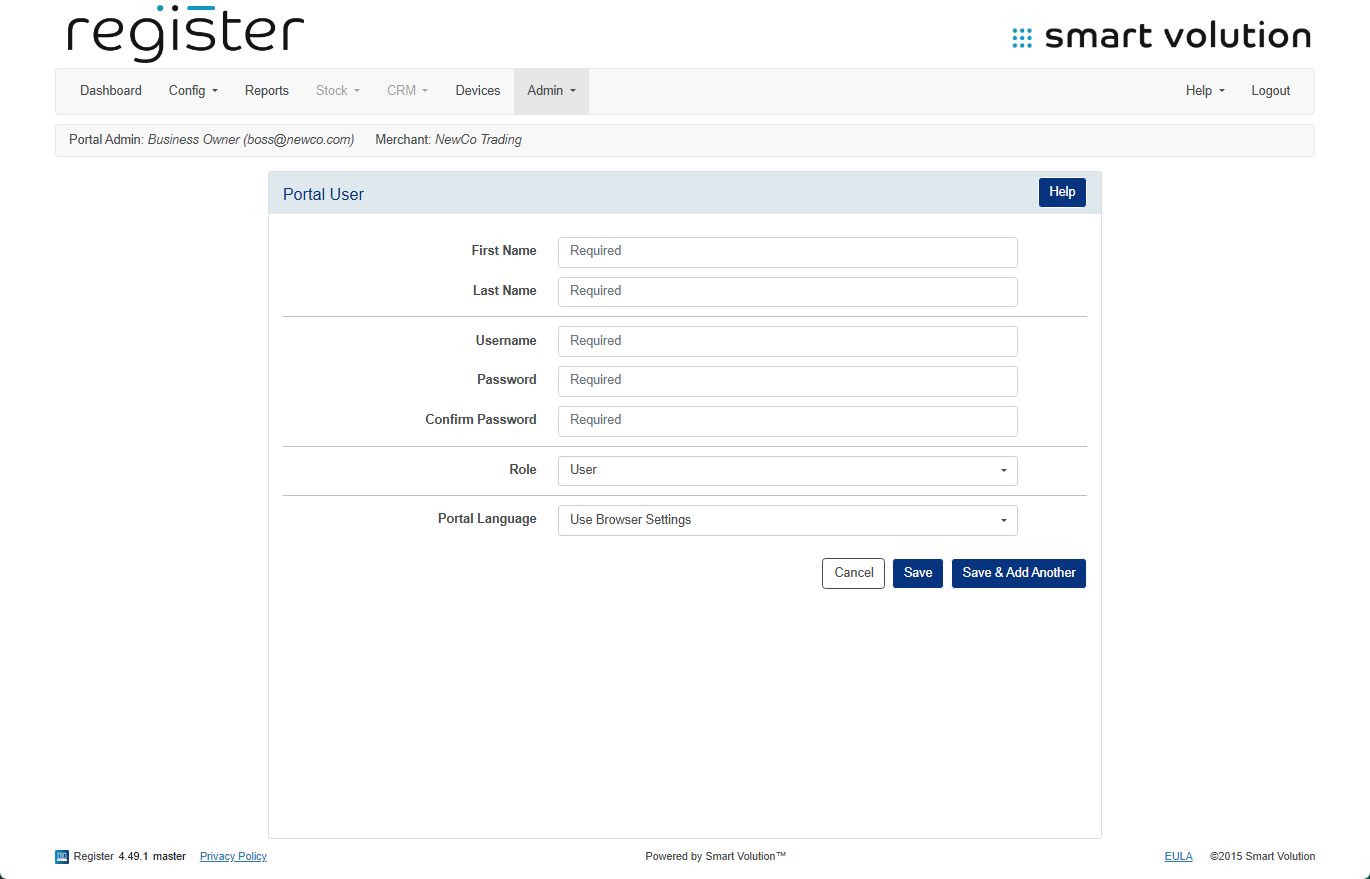
Add a new user: Click the New Portal User button and fill out the user details in the form provided.
Edit an existing user: Click the pen icon (✎) next to the user you want to modify.
Delete a user: Click the trashcan icon (🗑) next to the user to remove their access.
✅ Tip: Ensure you use a unique email address for the username, all Portal Users have strong passwords and please only provide access to trusted personnel.

