Refunding a previous transaction is quick and easy:
Method 1: Using the Refund menu
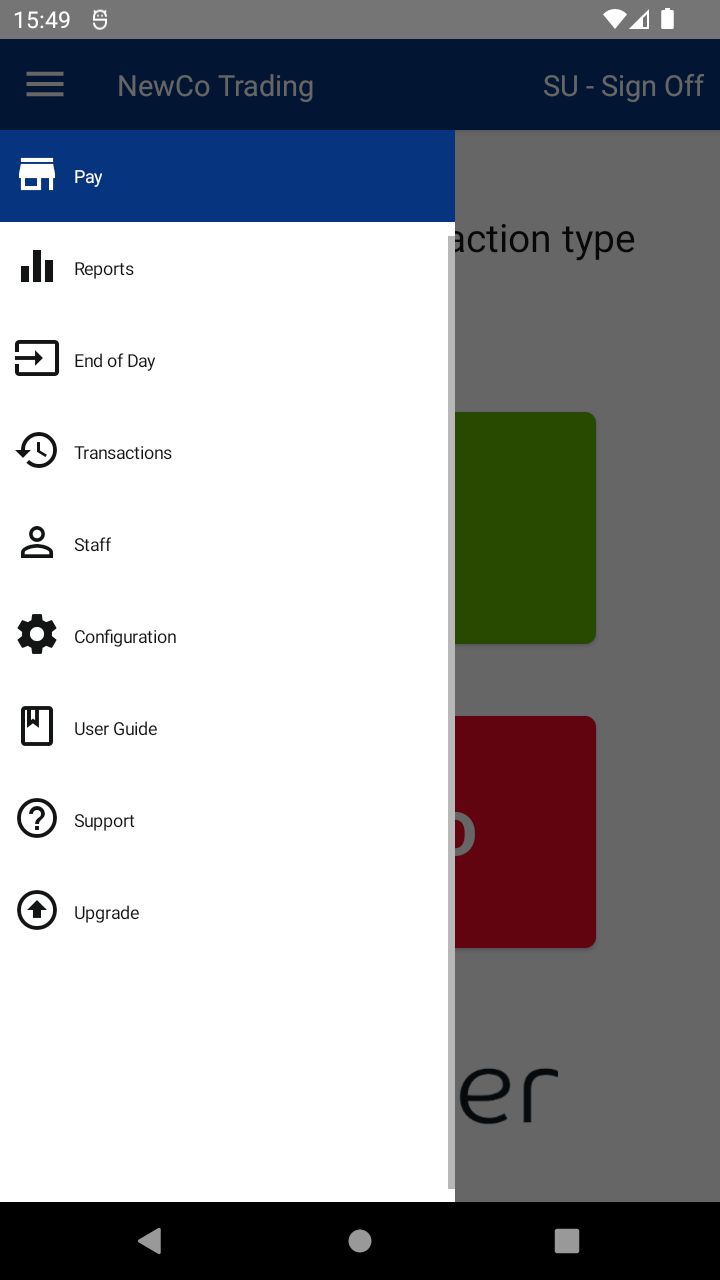
- After logging in, tap the MENU button and tap the REFUND menu item.
- Enter the REFUND CODE using the keypad, then tap ENTER.
- The default code is 8520.
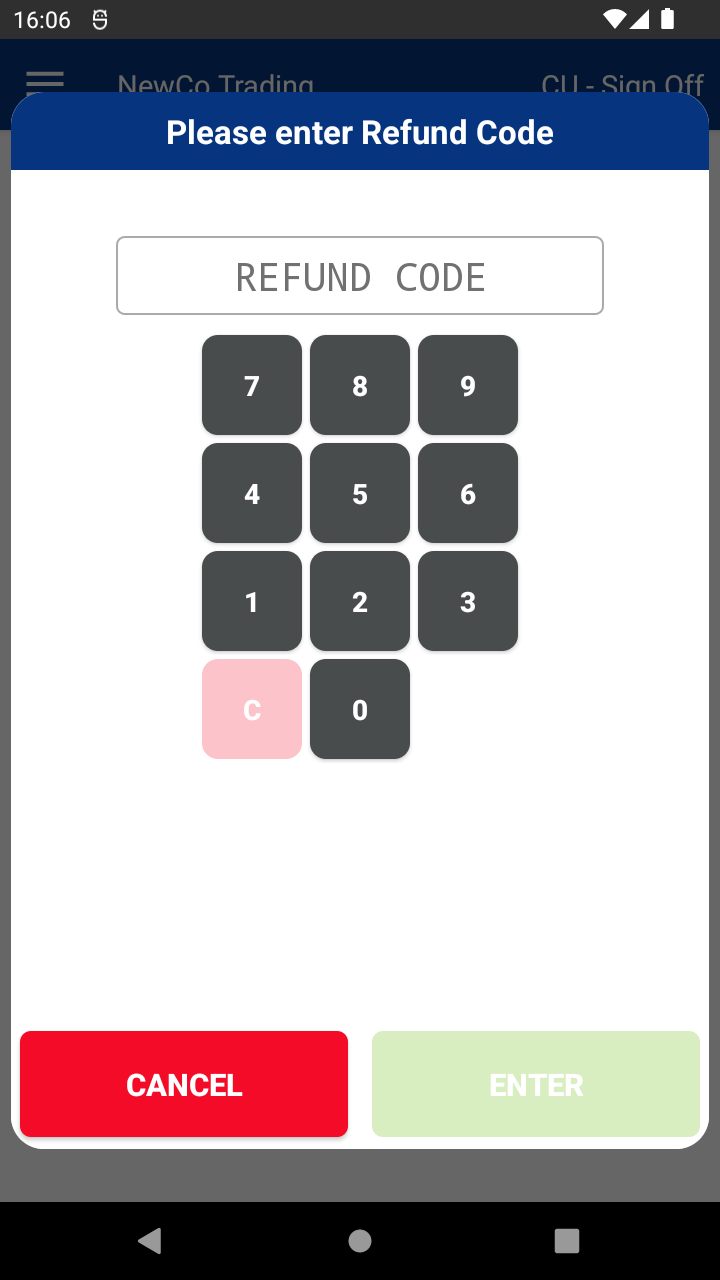
- The default code is 8520.
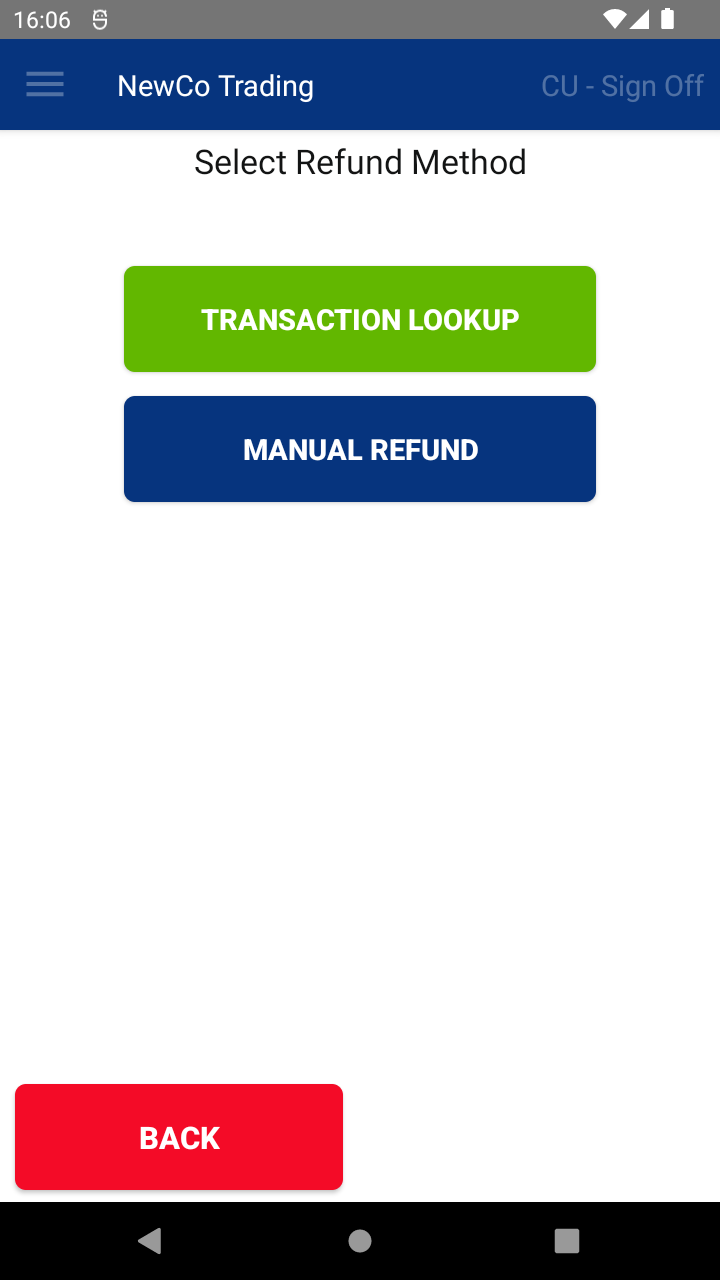
- Tap the TRANSACTION LOOKUP button.
- Search for the transaction by Date, Reference, Transaction ID, or the last 4 digits of the card using the controls at the top.
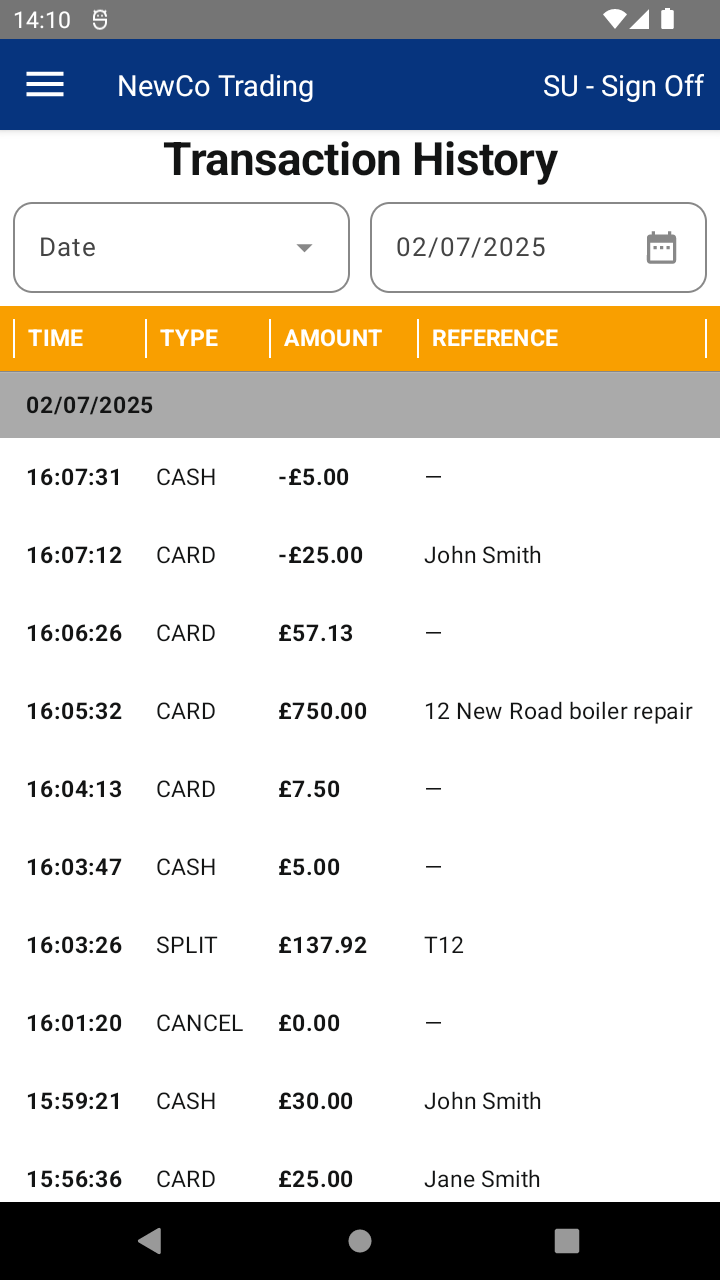
- Tap the transaction you want to refund.
- Depending on your setup, you can now:
- Name or rename the refund
- Refund the full amount using the original payment type
- Refund a partial amount of the original payment
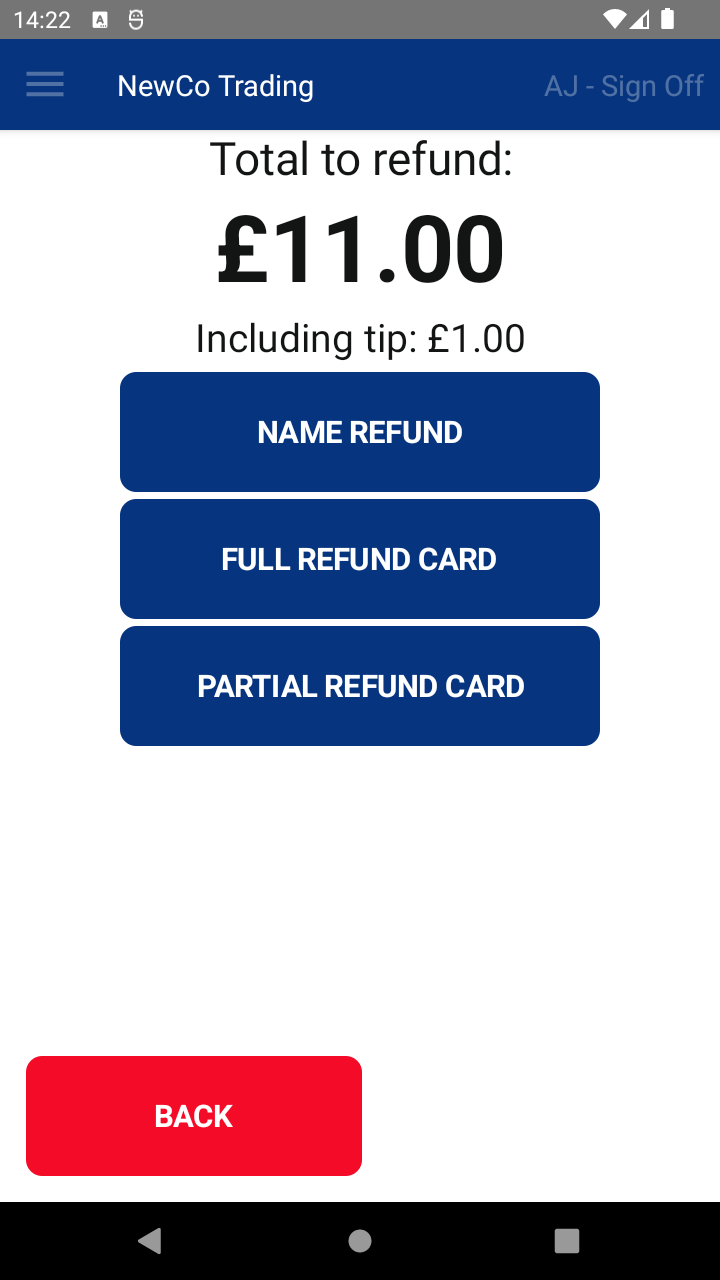
- Tap NAME REFUND to add or change the refund name (optional).
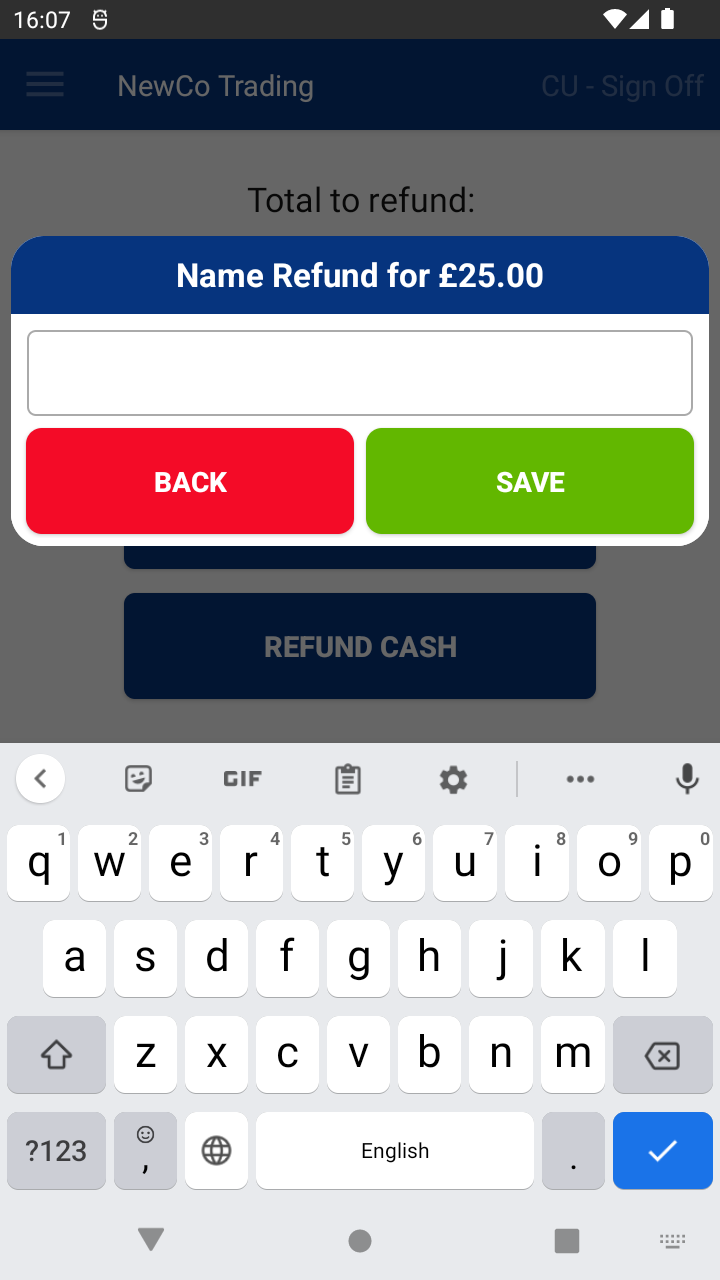
- Tap FULL REFUND to refund the entire transaction amount.
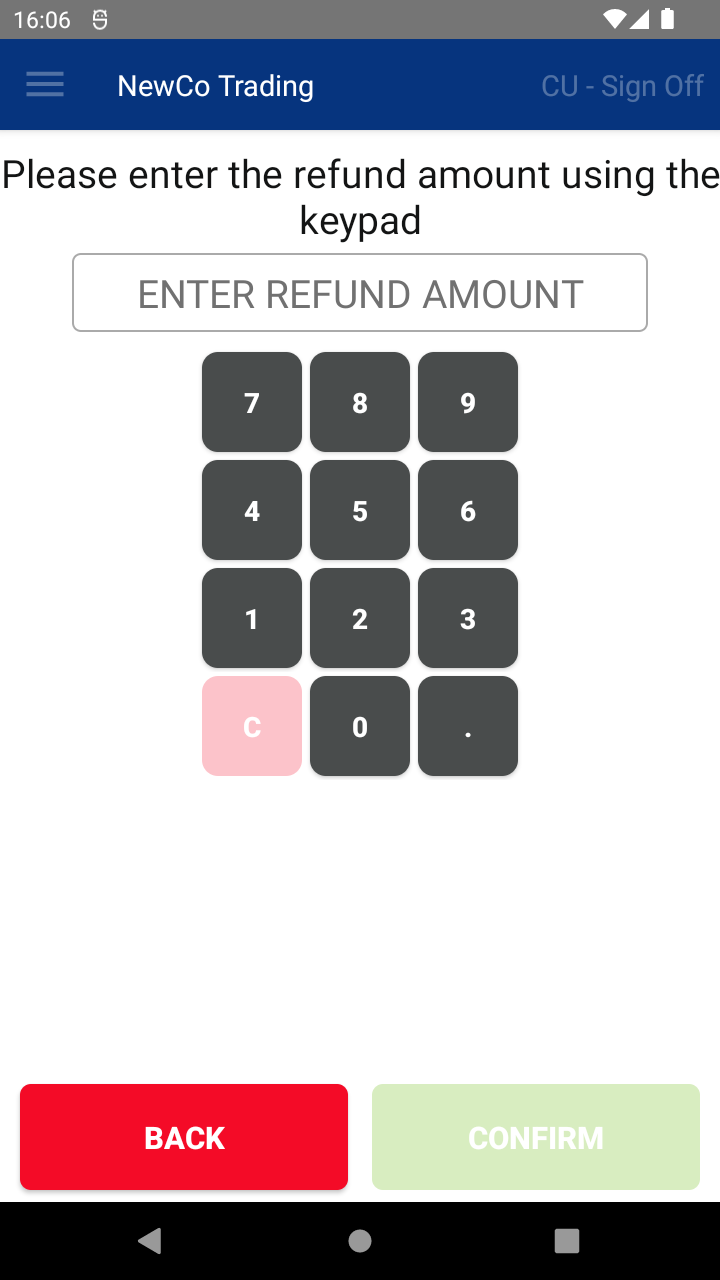
- Tap PARTIAL REFUND to refund only part of the transaction amount—you’ll be asked to enter the amount using the keypad.
- You’ll see a Transaction Summary screen where you can print or email a receipt, or continue with your next transaction.
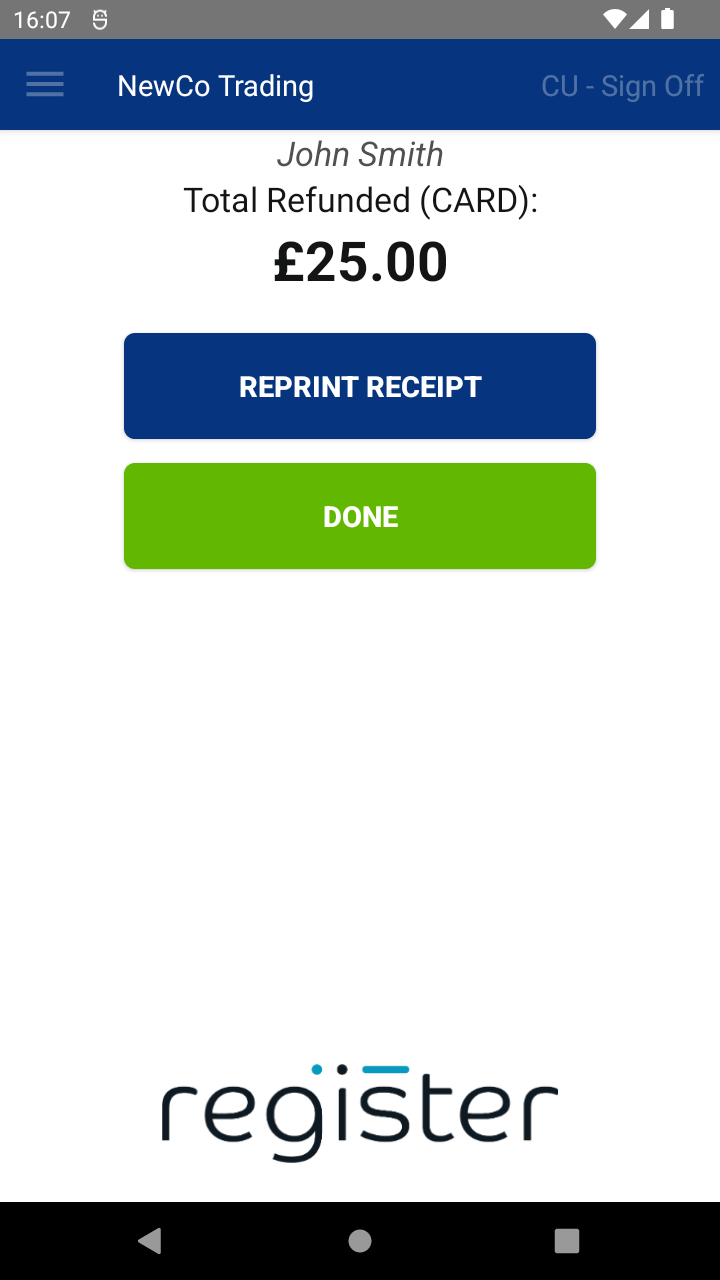
- Tap DONE to finalize.
The DONE button will display a 60-second countdown timer.
If no action is taken, once the countdown reaches 0, the system will automatically select DONE and return you to the main screen, ready for the next transaction. This helps keep the device ready to use and avoids it being left on the summary screen.
Method 2: From the Transaction History screen
- After logging in, tap the Menu ( ☰ ) button, then tap Transactions.
- Use the search controls at the top to find the transaction by Date, Reference, Transaction ID, or last 4 card digits.
- Tap the transaction to view details.
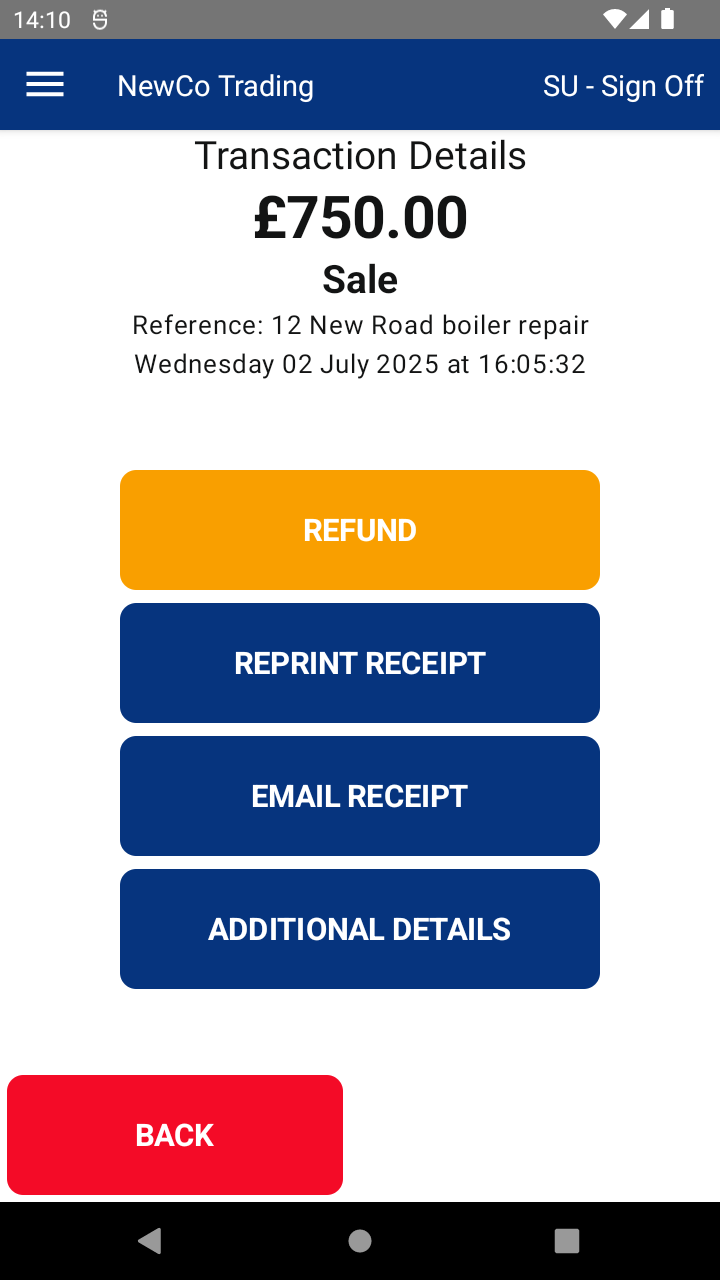
- Tap the REFUND button.
- Enter the REFUND CODE (default 8520) and tap ENTER.
- Then follow steps 6 to 11 above.
📘 Learn more:

