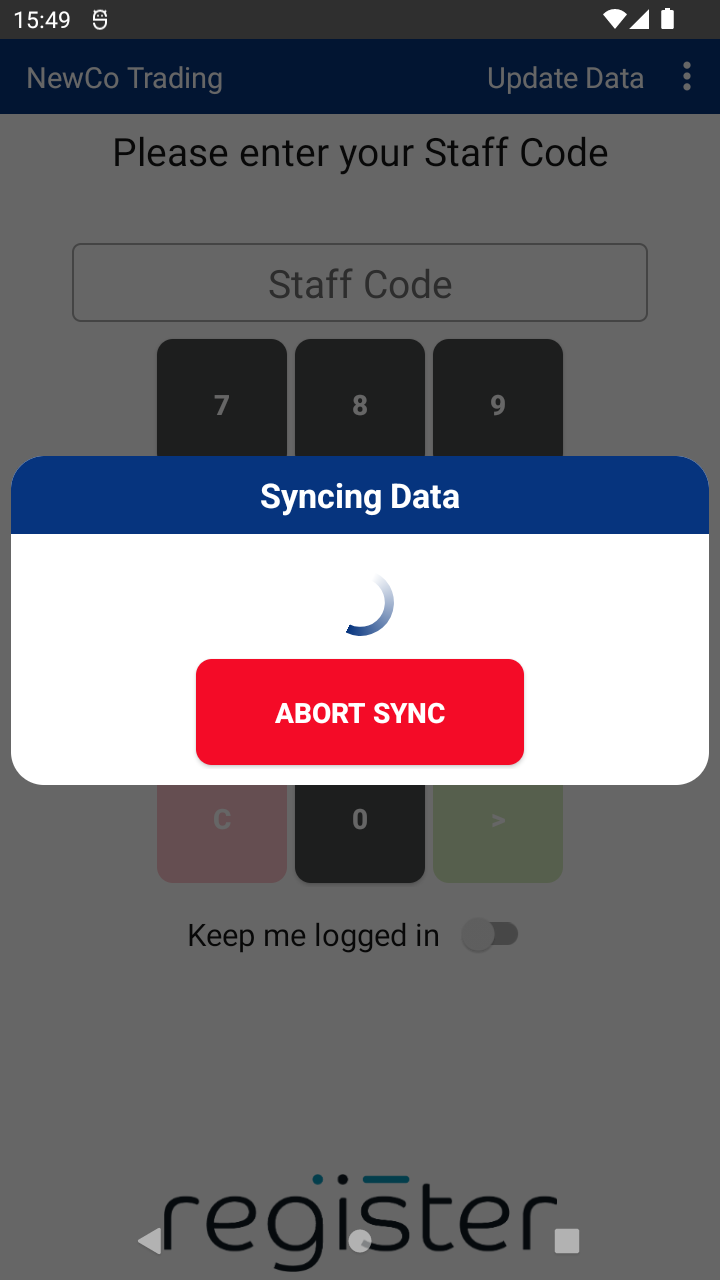
By default, staff members can toggle “Keep me logged in” on the login screen to stay signed in beyond the auto logout timeout. To remove this option and ensure automatic logout after inactivity:
🖥️ On the Web Portal:
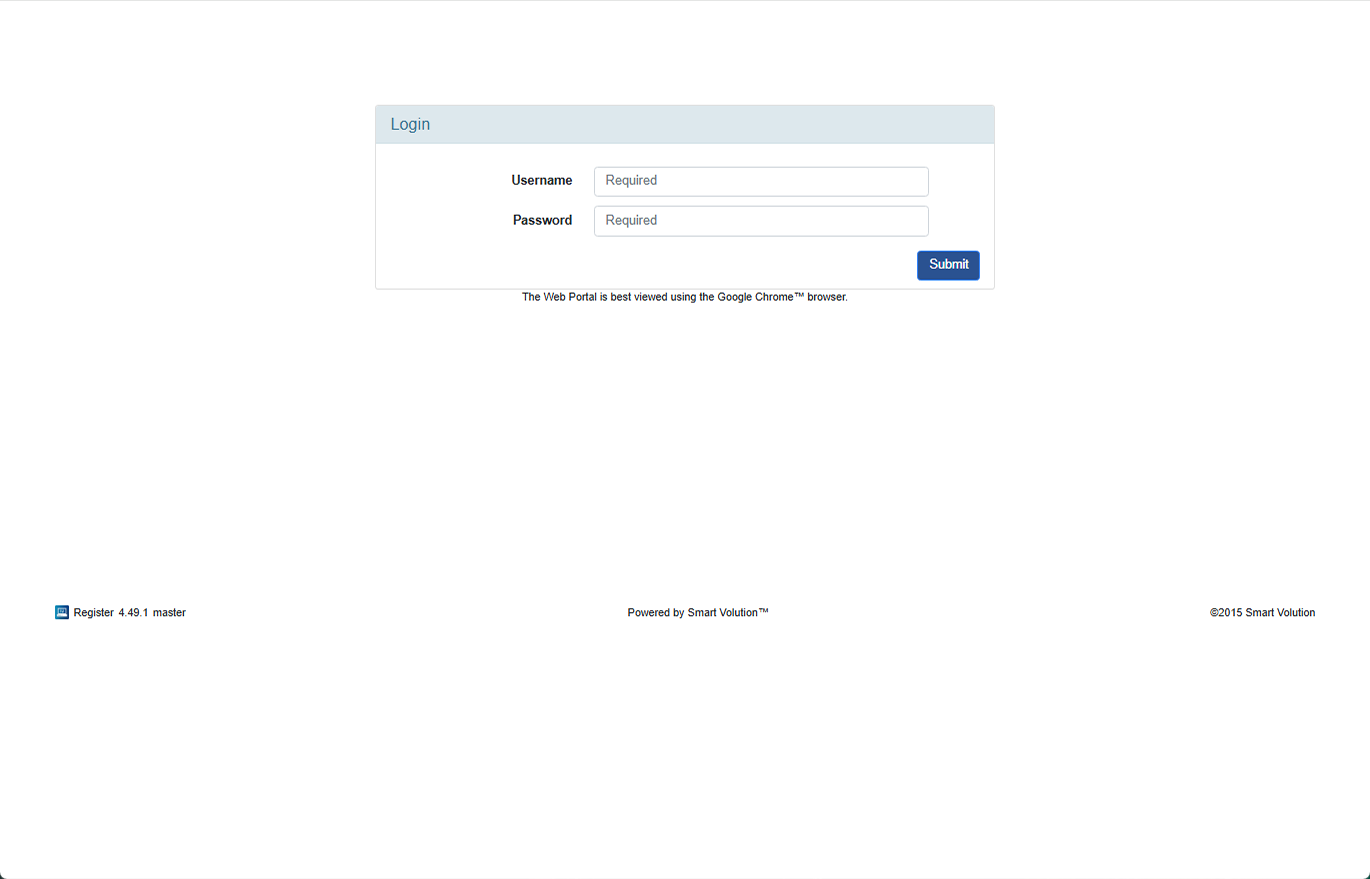
- Log in to the Web Portal using credentials provided by your Solution Provider.
- Click Config in the top menu bar.
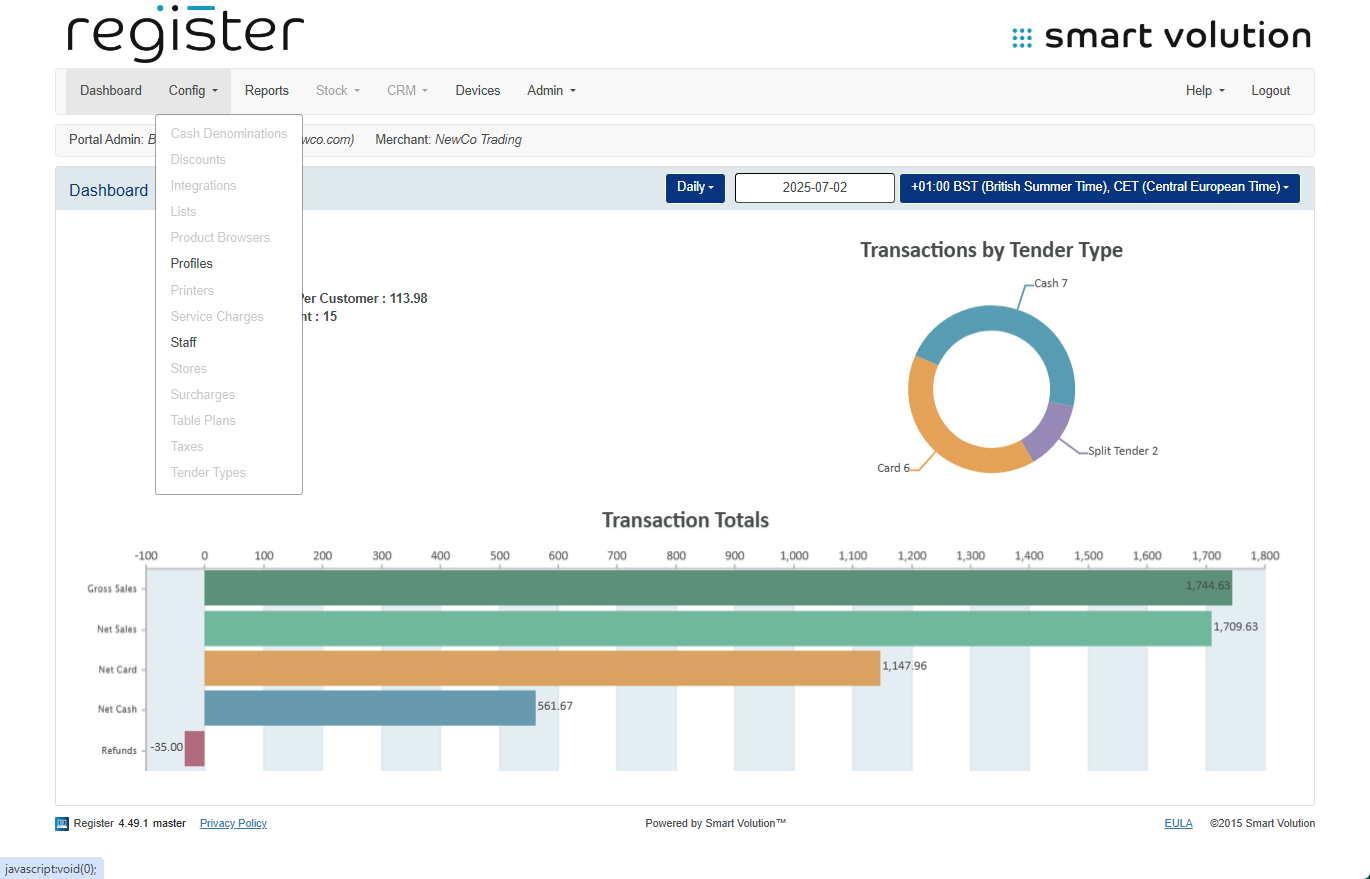
- In the sub-menu, click Profiles.
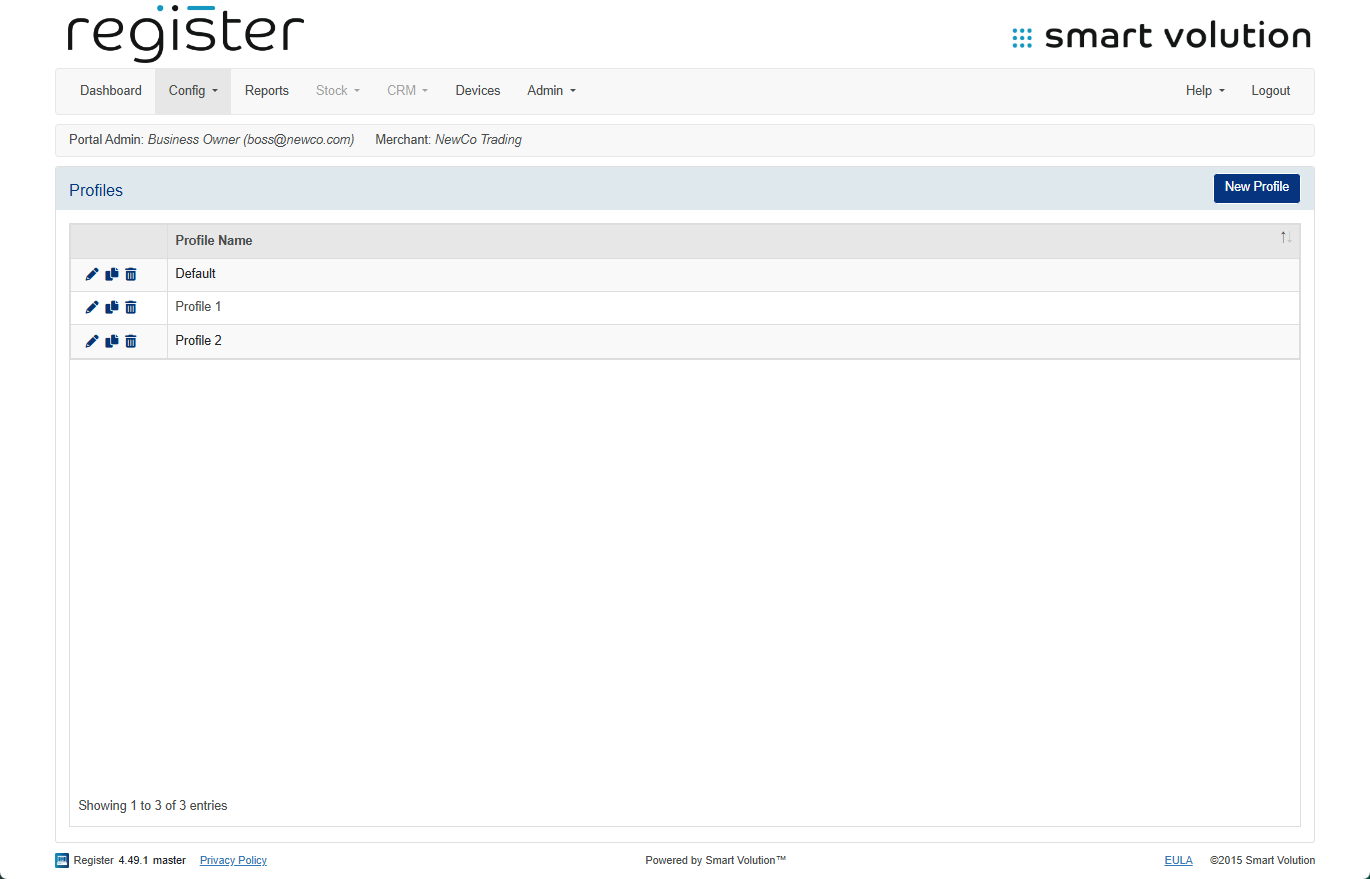
- Locate the Profile assigned to your device and click the Edit ( ✎ ) icon.
- Not sure which profile? Check under the Devices tab.
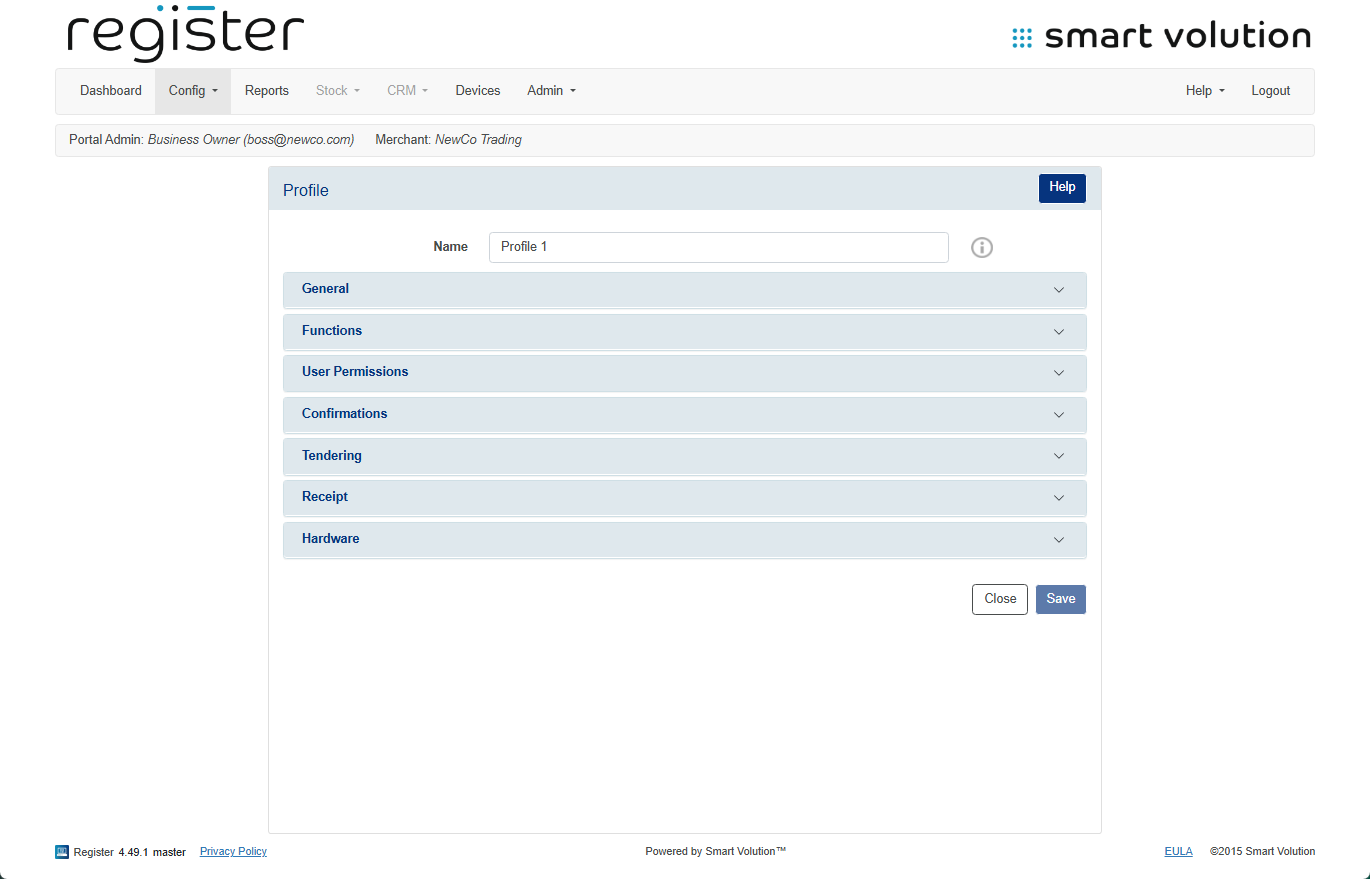
- Not sure which profile? Check under the Devices tab.
- Expand the General section.
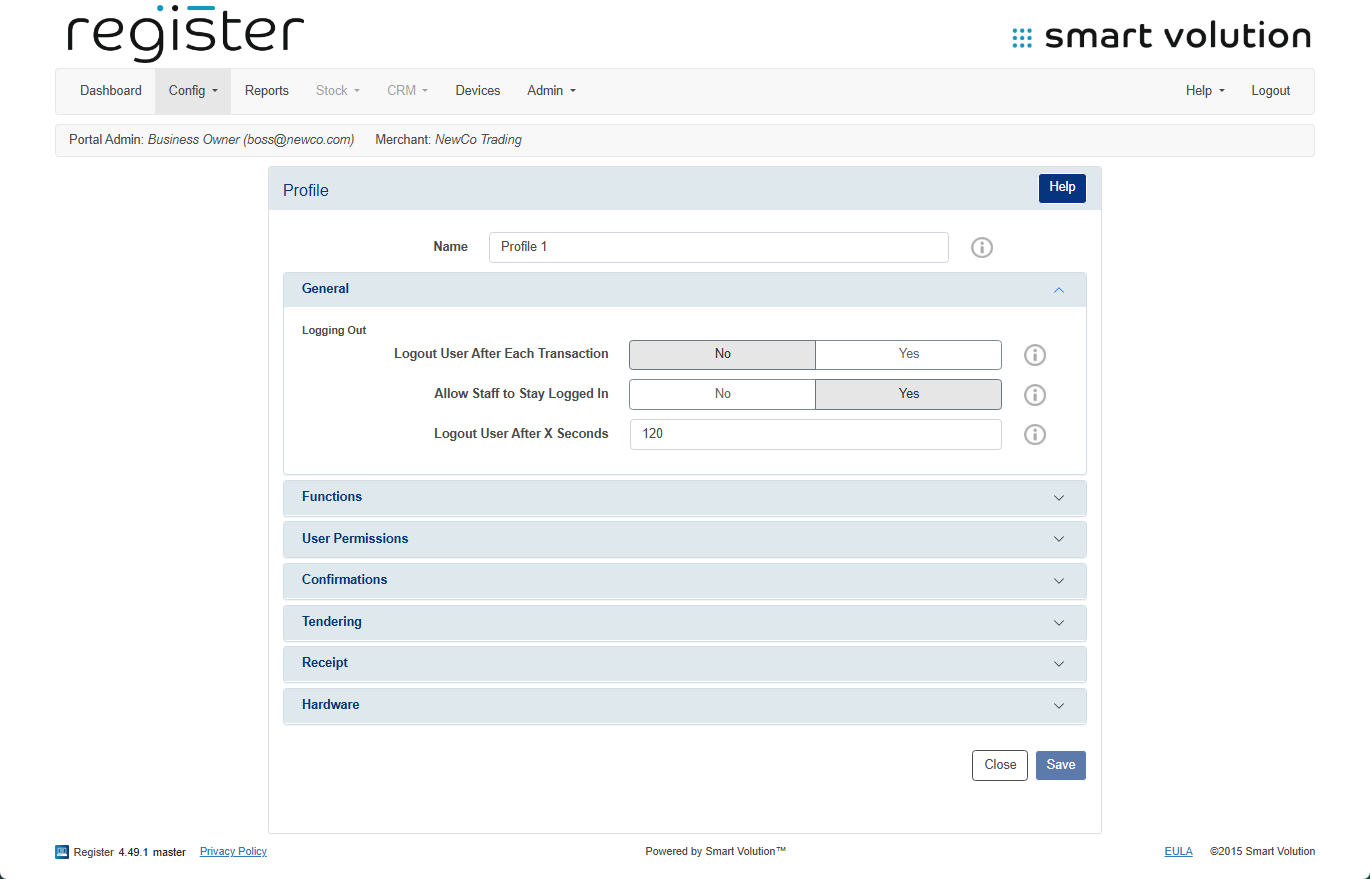
- Set Allow Staff to Stay Logged In to No.
- Click the Save button at the bottom of the screen.
📱 On Your Device:
- From the login screen, tap the Update Data button (top-right corner) to apply the updated configuration.