By default, only Supervisor-level users have access to the Staff Management section via the Menu.
To adjust this permission, follow the steps below:
🖥️ Change Staff Management Access via the Web Portal:
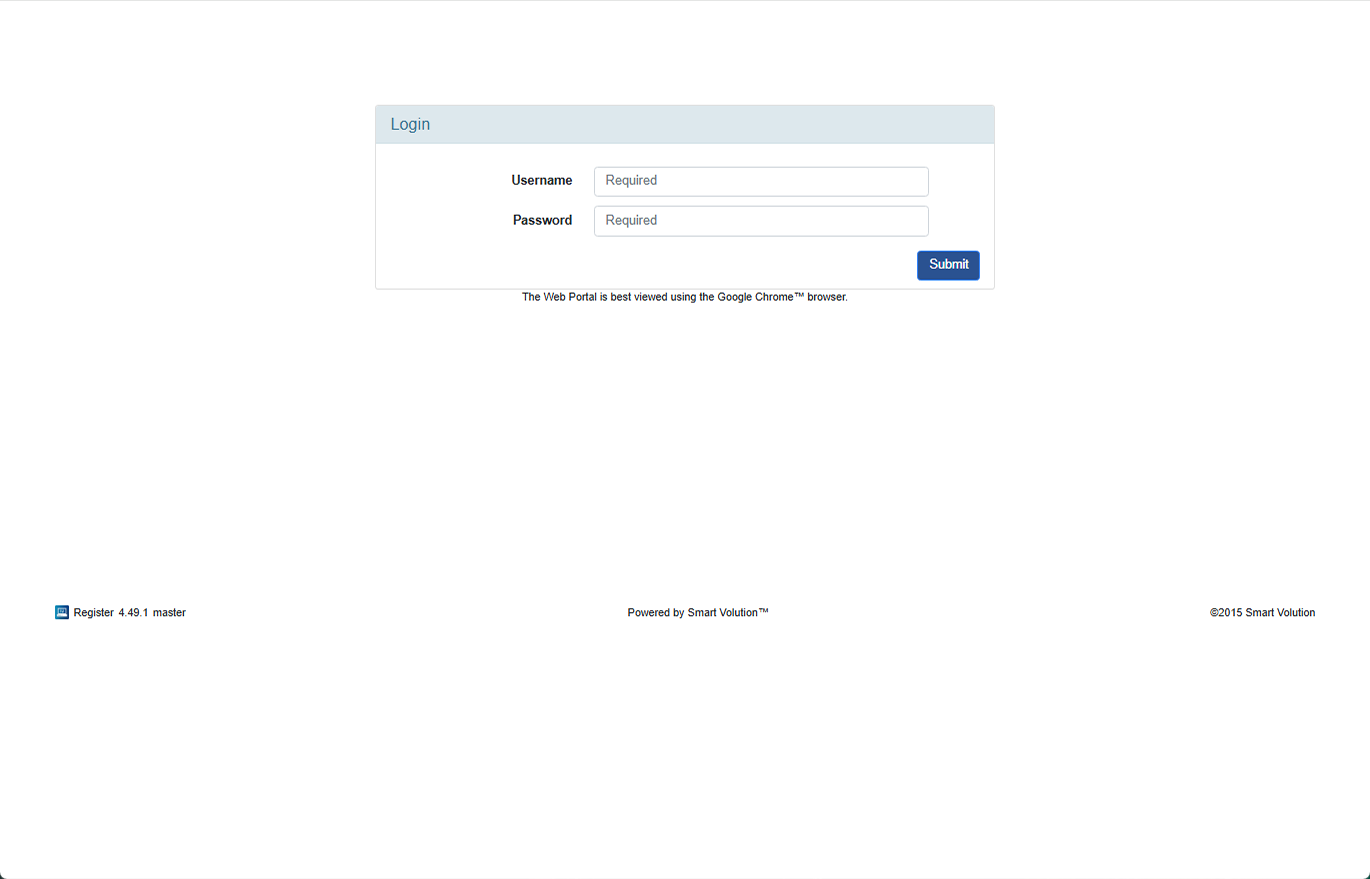
- Log in to the Web Portal using the credentials provided by your Solution Provider.
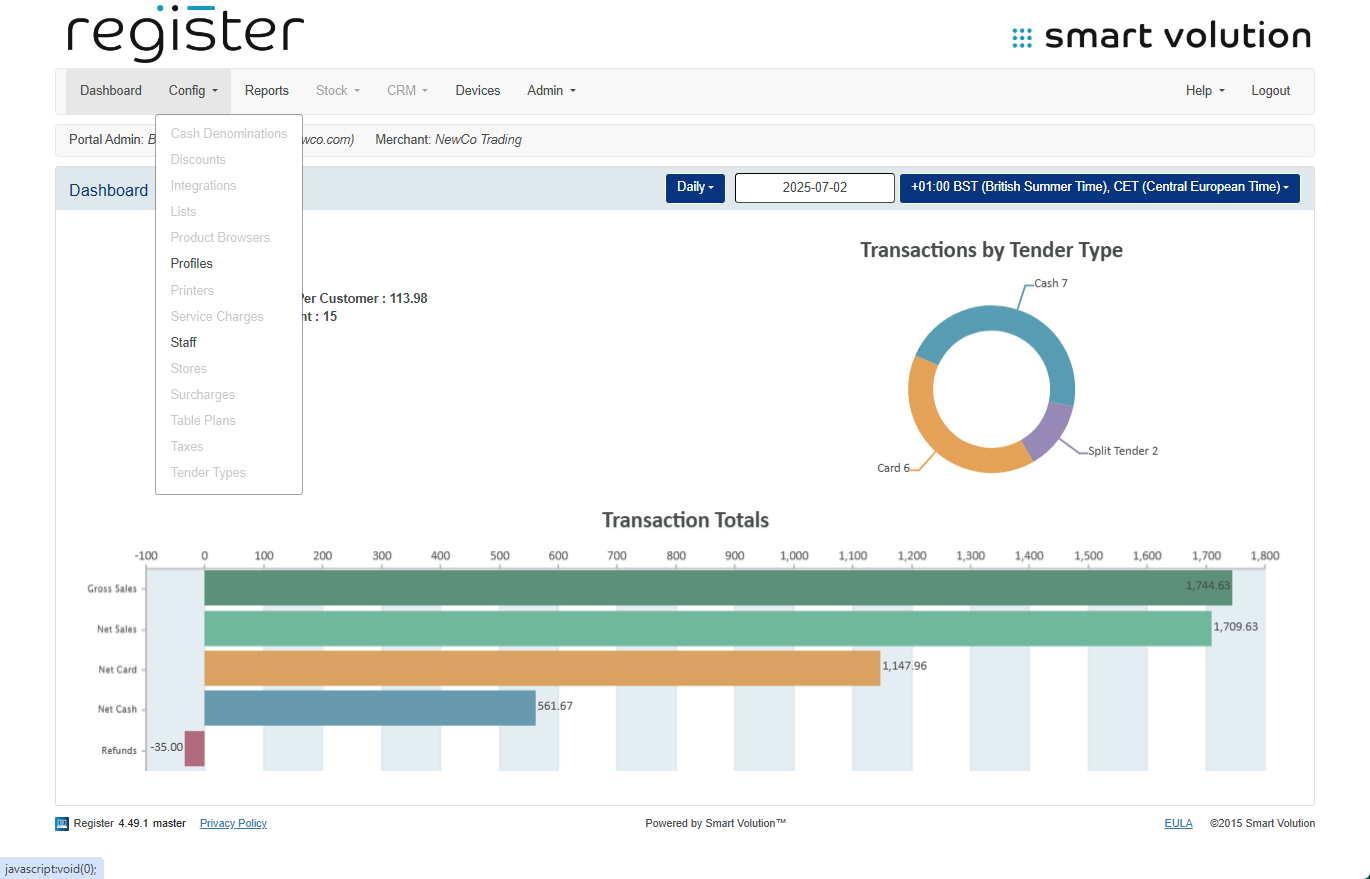
- In the top menu, click Config, then select Profiles from the submenu.
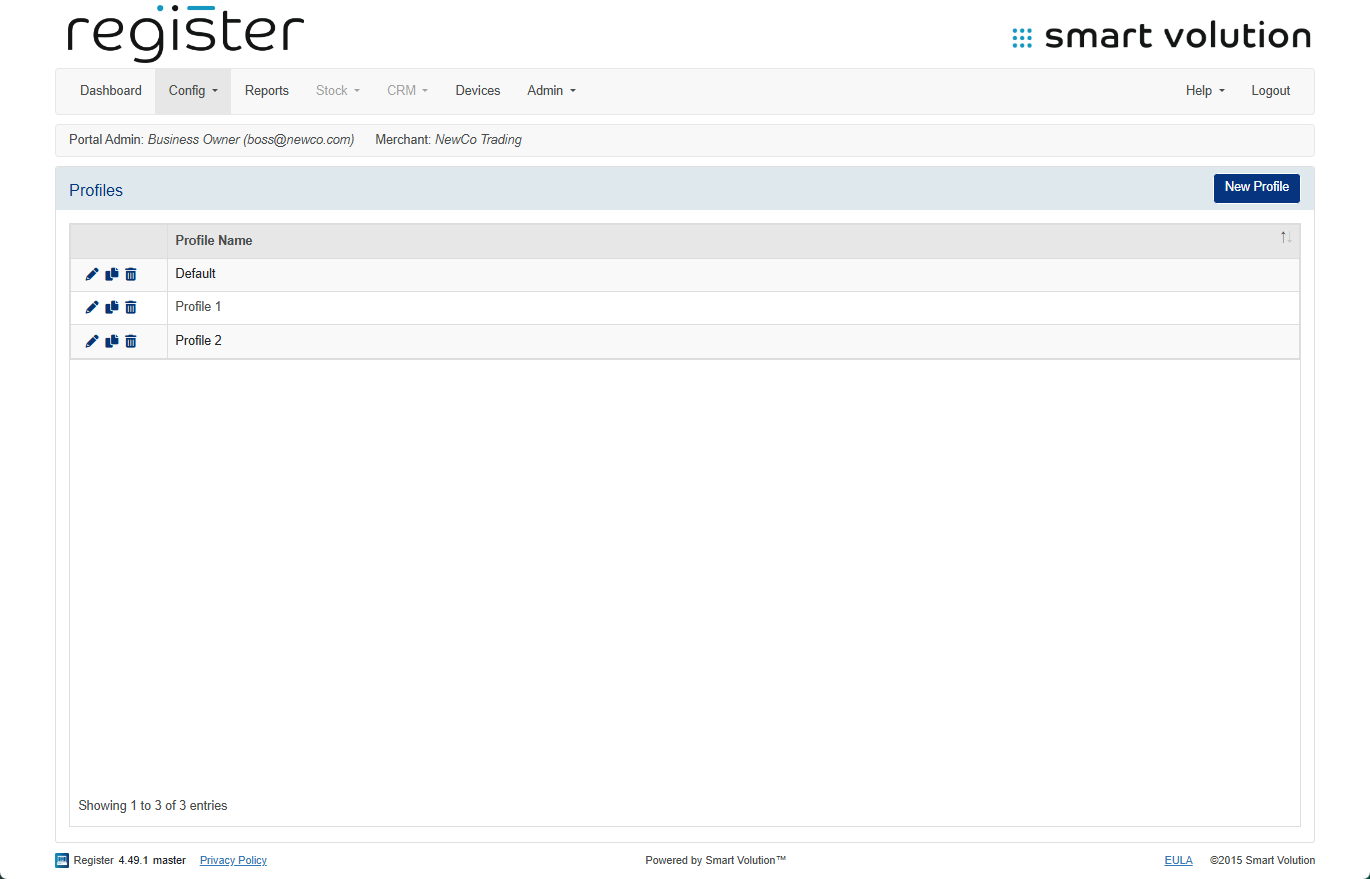
- Locate the Profile assigned to your device and click the Edit ( ✎ ) icon.
- You can verify the Profile assigned to each device under the Devices tab.
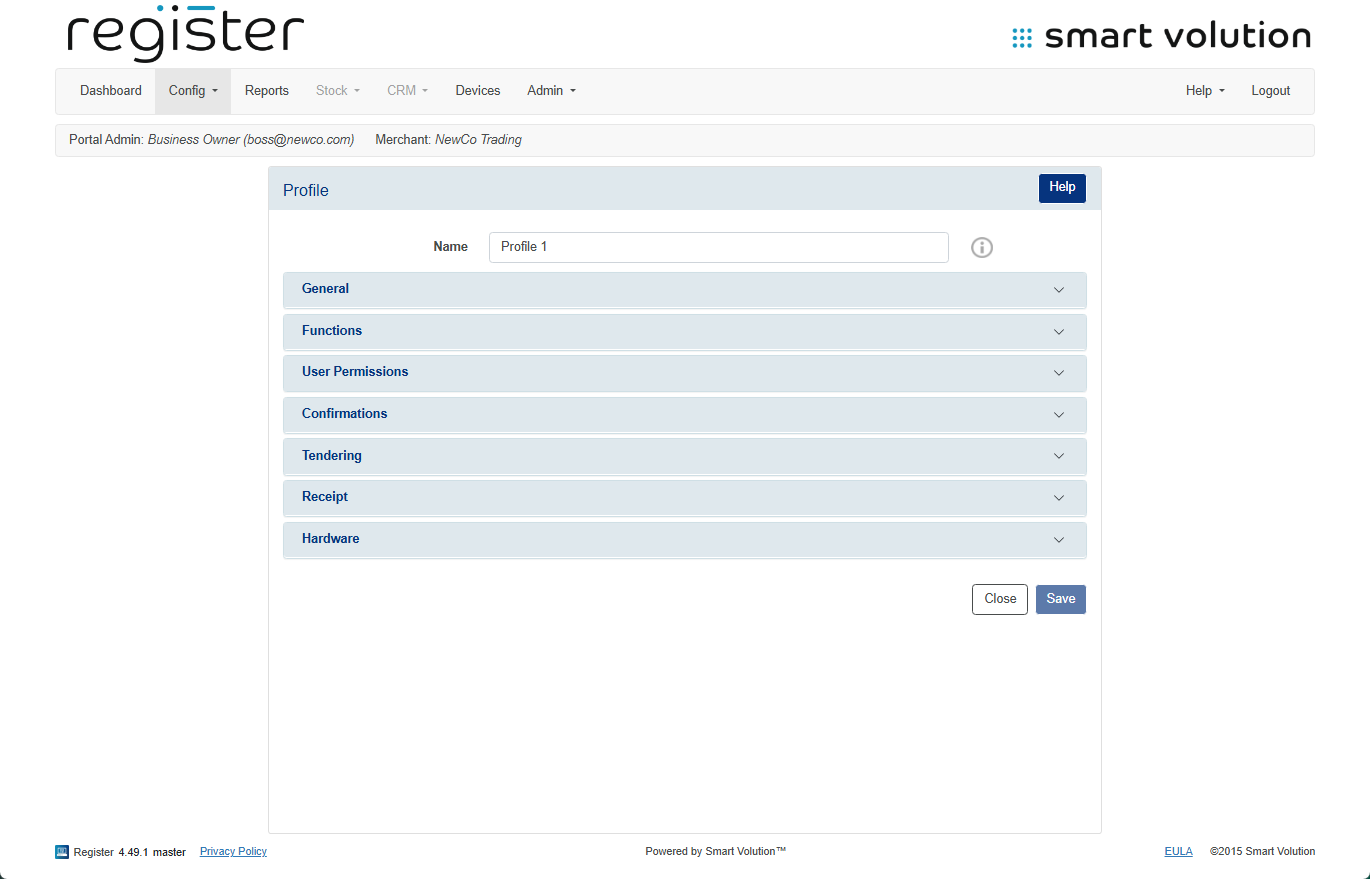
- You can verify the Profile assigned to each device under the Devices tab.
- Expand the User Permissions section.
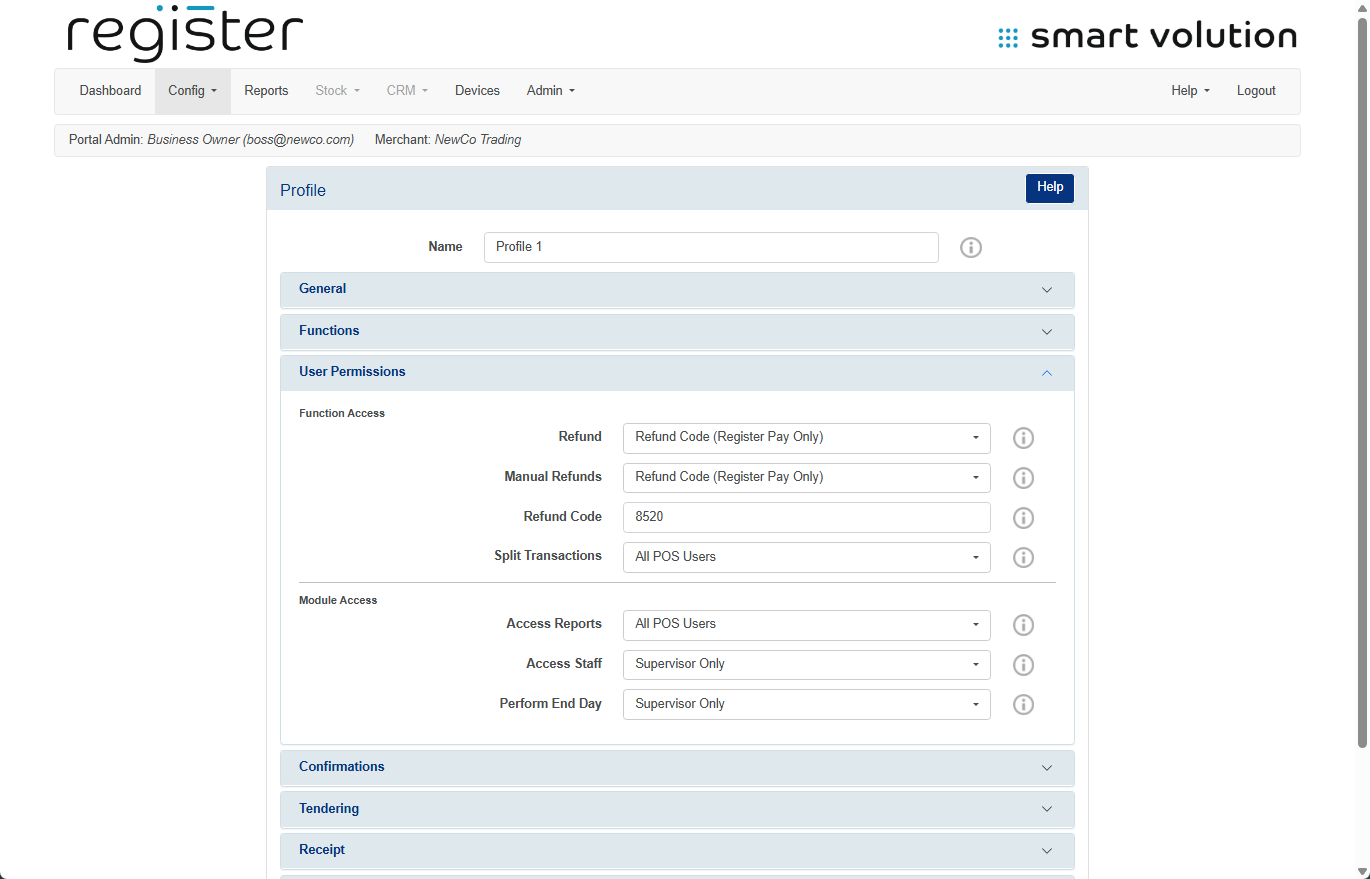
- Locate the Access Staff setting and choose one of the following options from the dropdown menu:
- All POS Users – Any staff member can access Staff Management.
- Disabled – Hides and disables the Staff Management section entirely.
- Supervisor Only – Restricts access to Supervisors only (default setting).
- Click Save at the bottom of the page.
📲 Apply Changes to the Device:
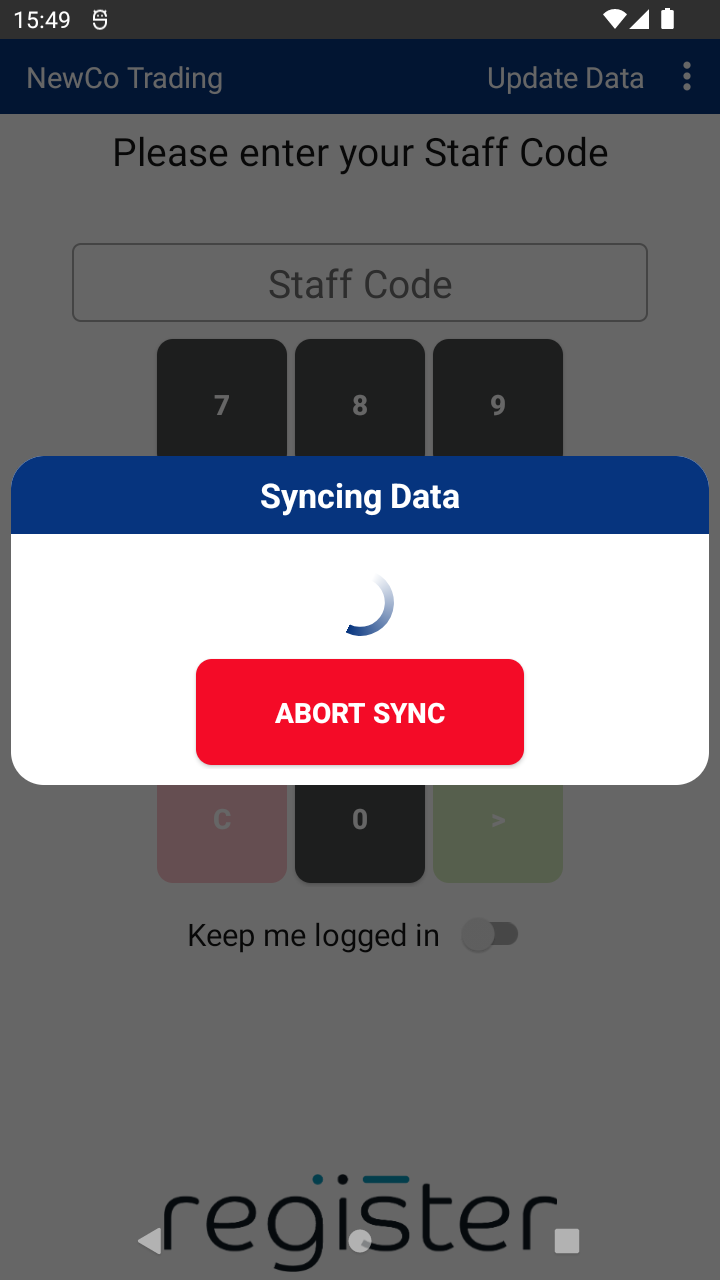
- On your device's login screen, tap the Update Data button (top-right corner) to download and apply the updated configuration settings.