By default, the system is configured to automatically print receipts upon reaching the Transaction Summary screen. You can change this setting to make receipt printing optional, allowing staff to print a receipt only when requested.
🛠️ Steps to Disable Automatic Receipt Printing:
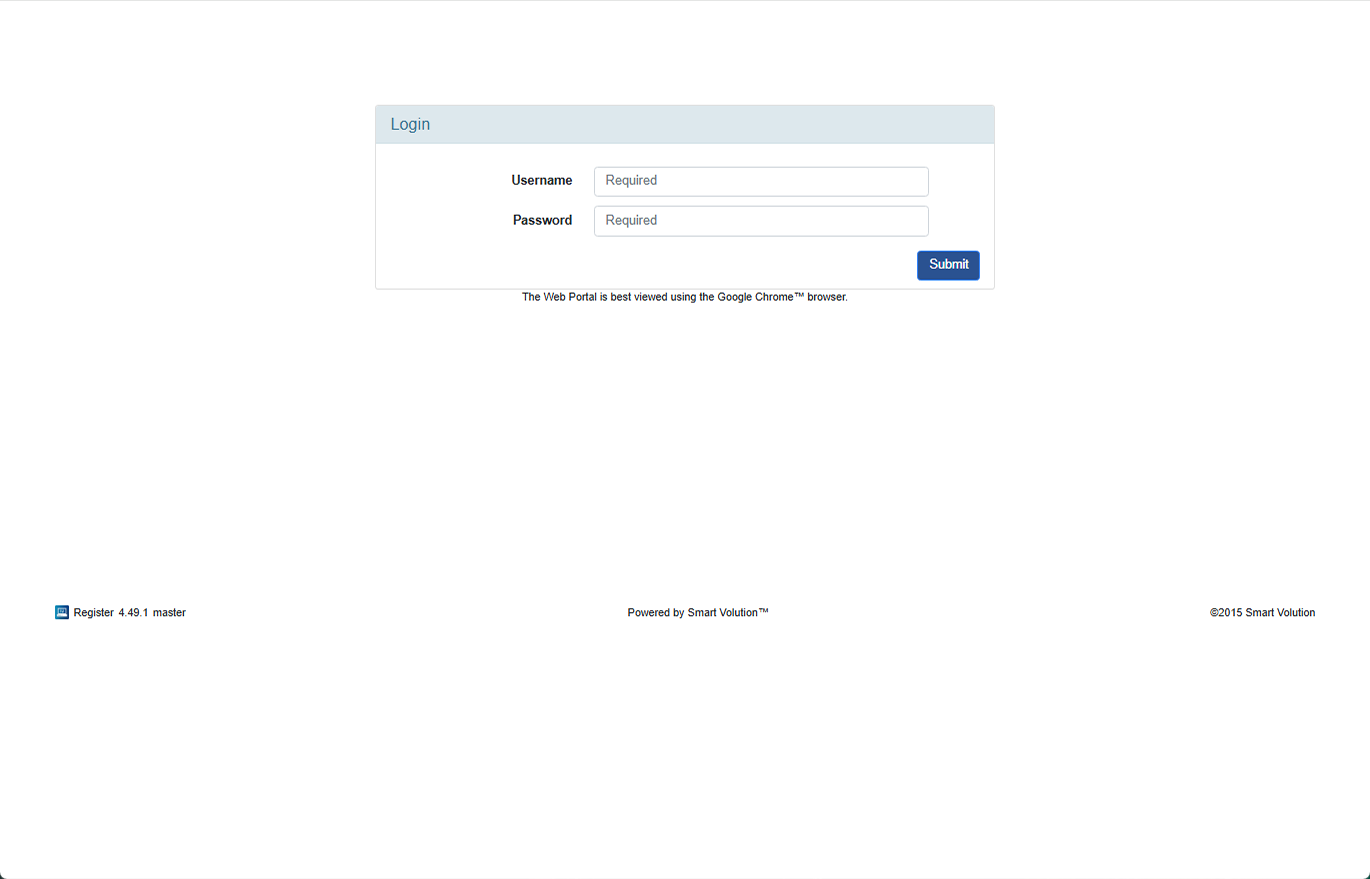
- Log in to the Web Portal using the credentials provided by your Solution Provider.
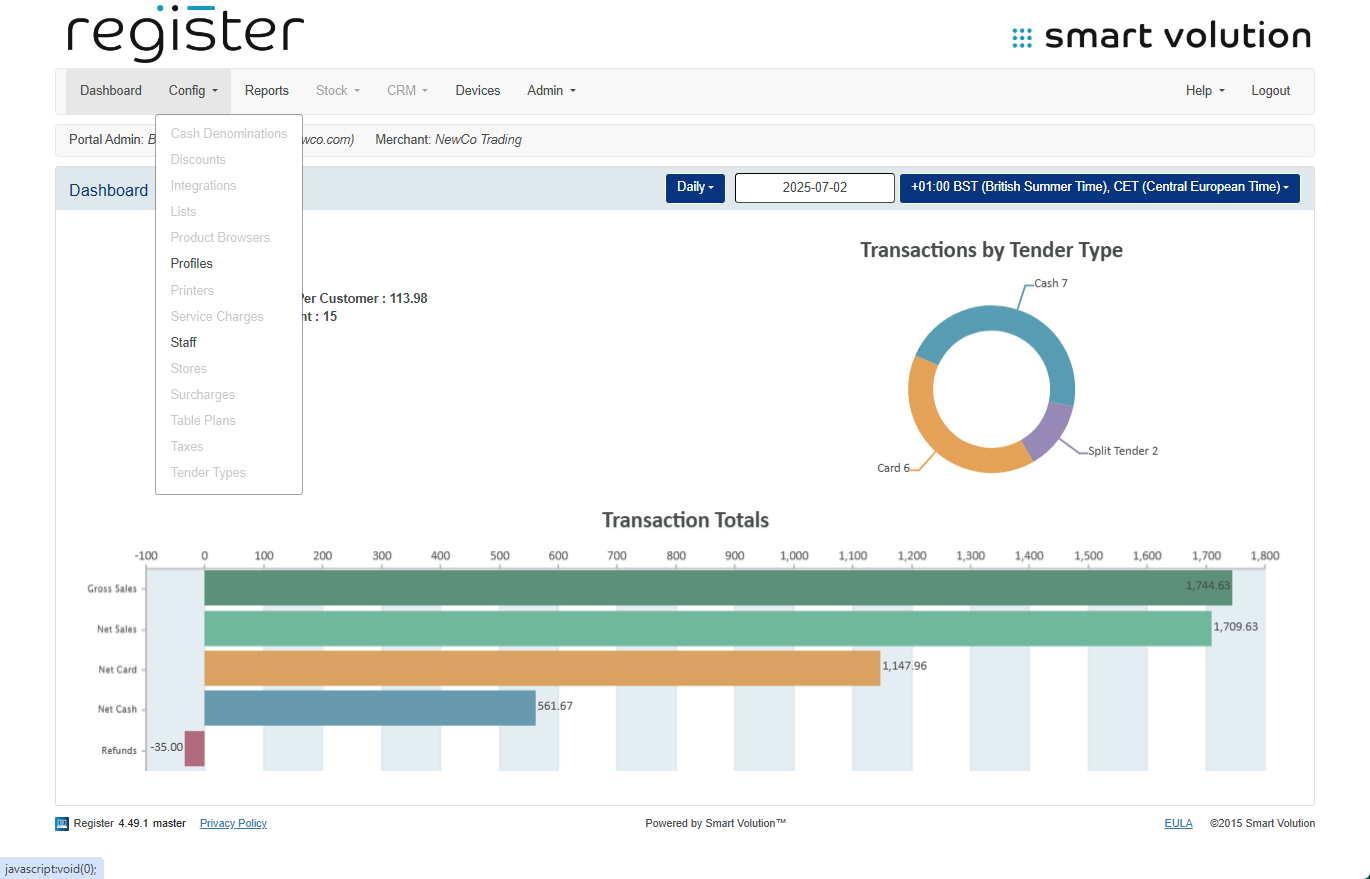
- Click Config in the top navigation bar, then select Profiles from the submenu.
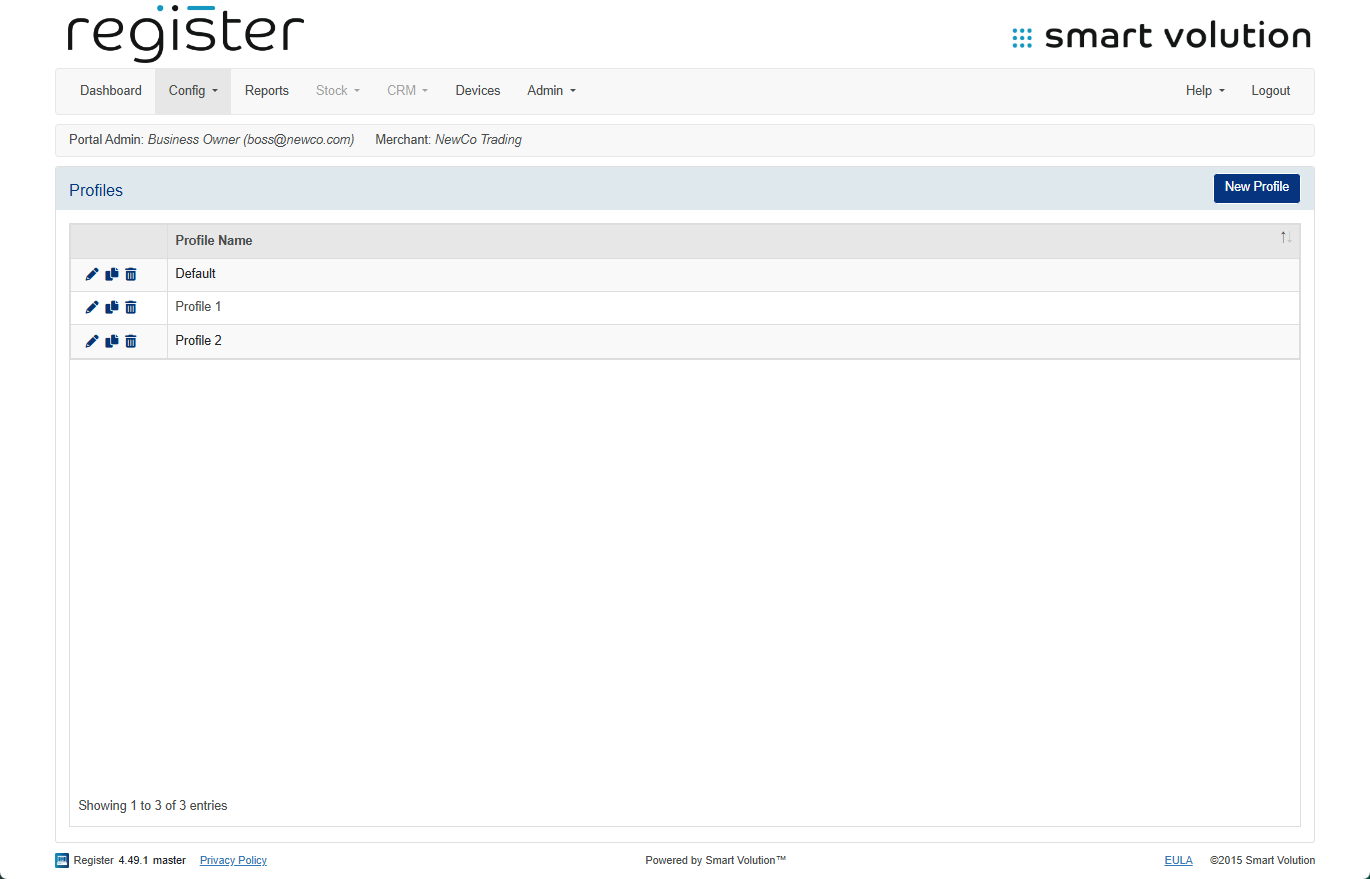
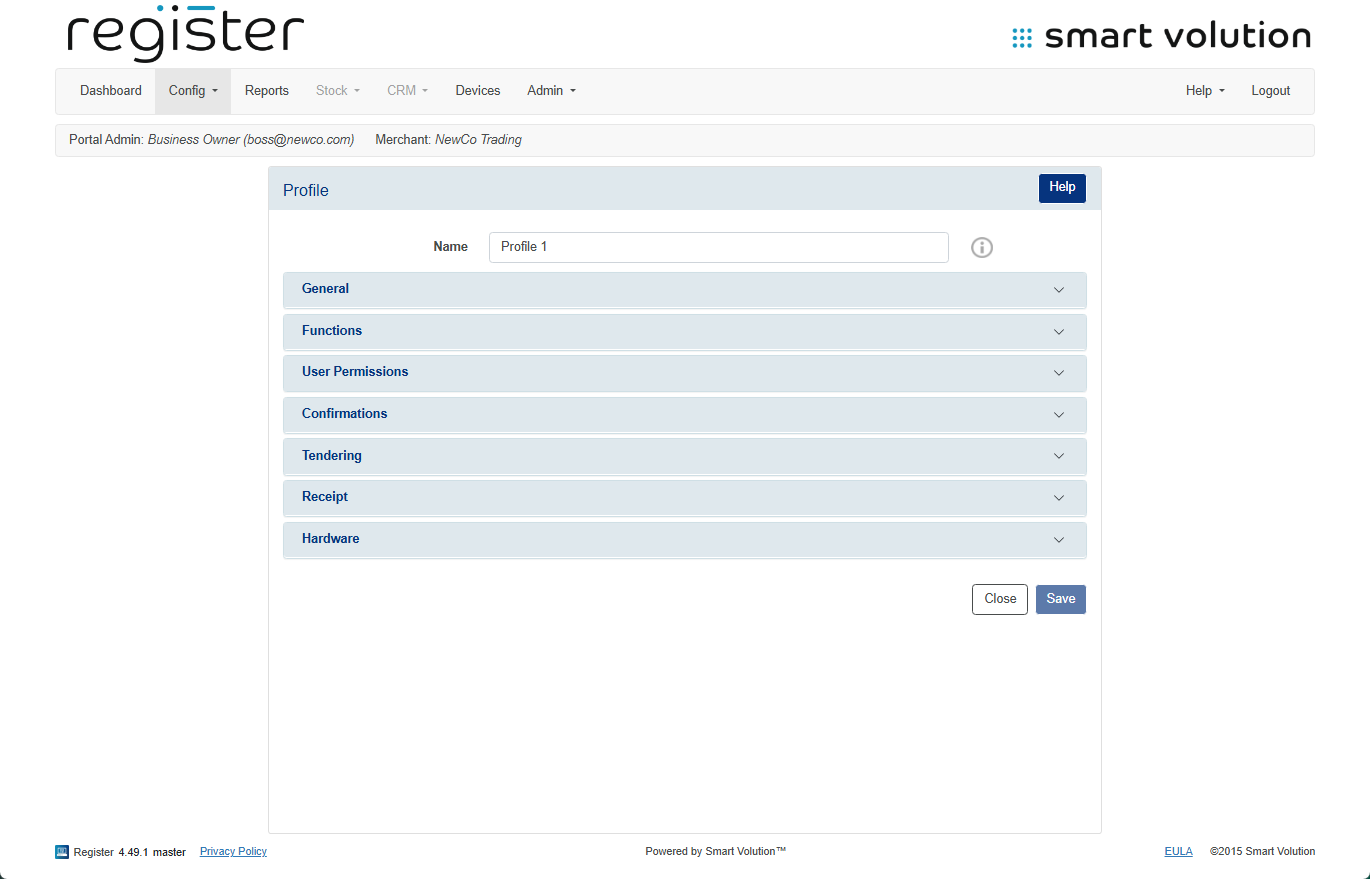
- Locate the Profile assigned to your device and click the Edit ( ✎ ) icon.
- You can verify your device’s Profile assignment under the Devices tab.
- You can verify your device’s Profile assignment under the Devices tab.
- Expand the Receipt section.

- Change the Default Receipt Behaviour setting to Optional Receipt.
- Click the Save button at the bottom of the screen to apply the changes.

🔄 Apply the Update on the Device:
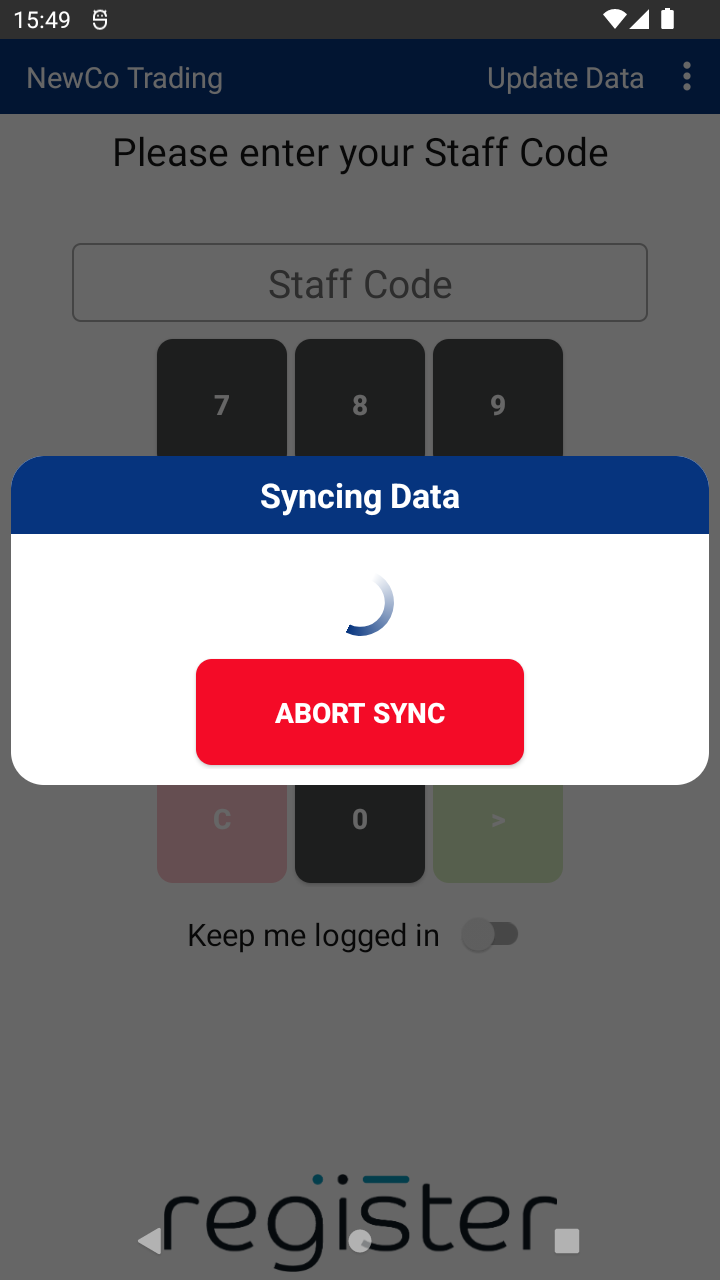
- On your device’s login screen, tap the Update Data button (top-right corner) to download the updated configuration.
Please Note:
Cardholder and Merchant copy receipts for card transactions are typically managed at the terminal level and are not configurable through the Register application.

