The Configuration screen also helps you with troubleshooting and support.
- Once logged in, tap the Menu by tapping the hamburger ( ☰ ) button in the top left corner.
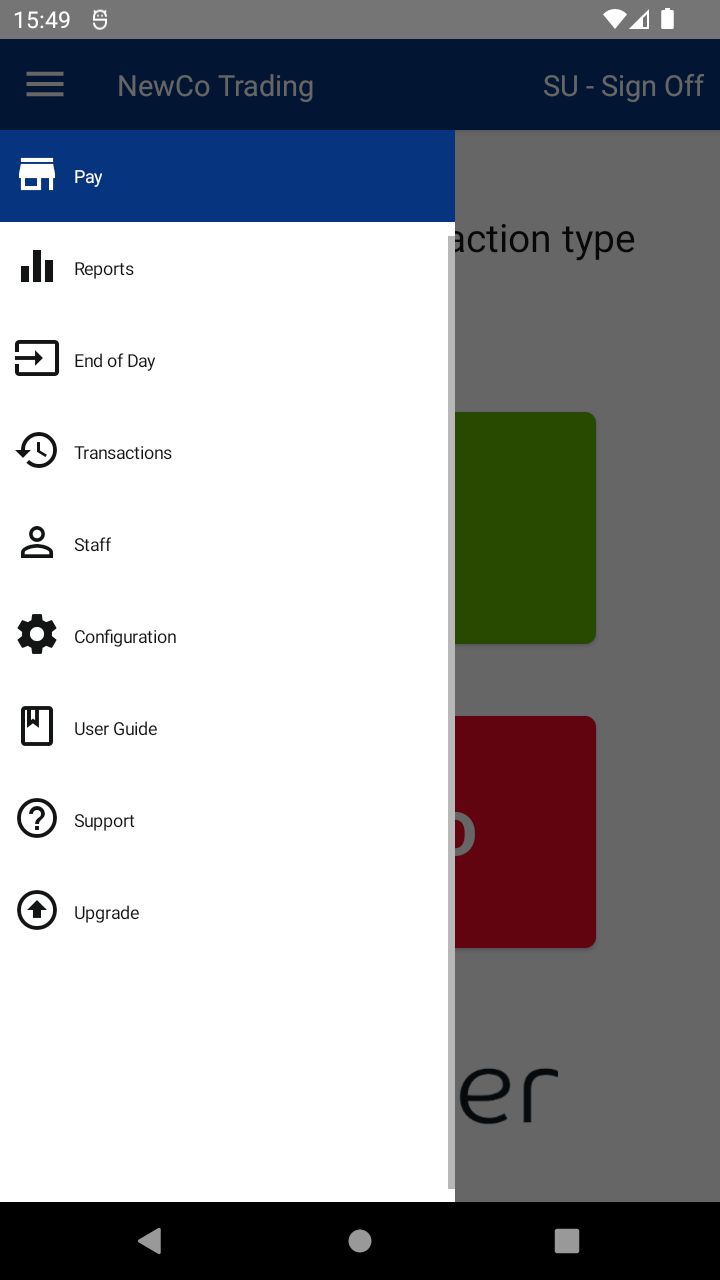
- Tap the Configuration option.
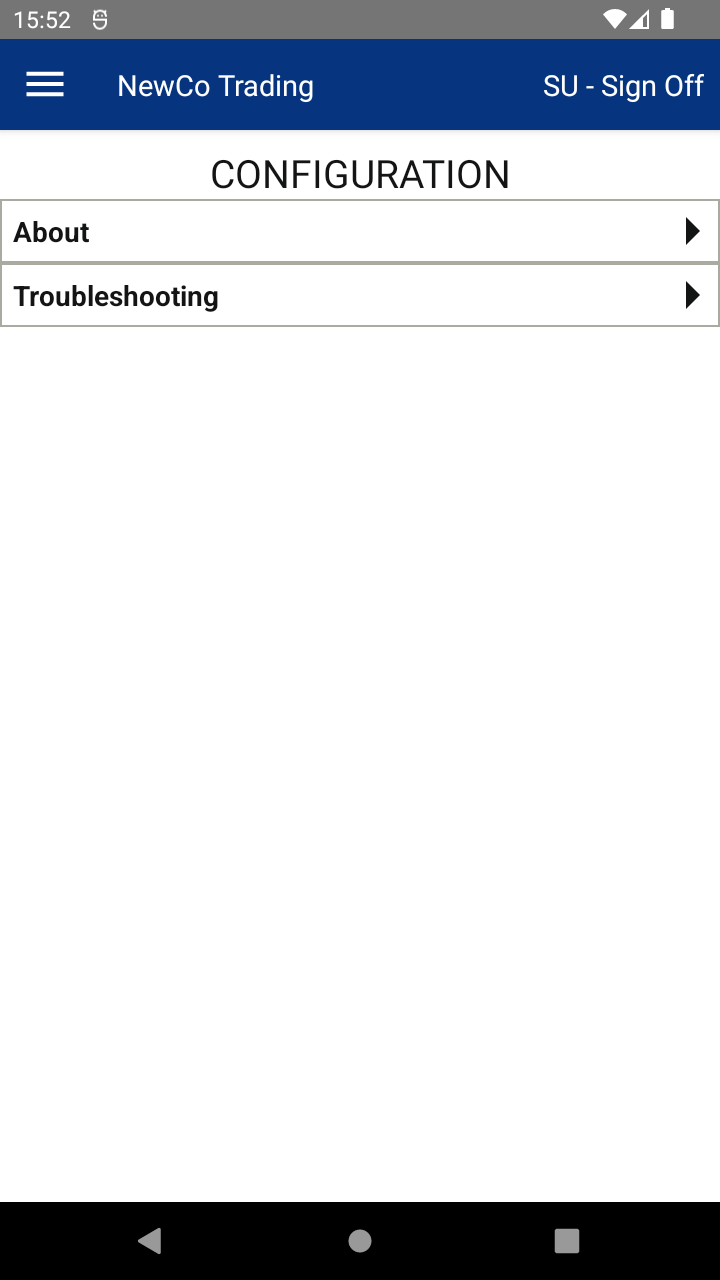
- Tap Troubleshooting to see helpful info and actions your support team might ask for:
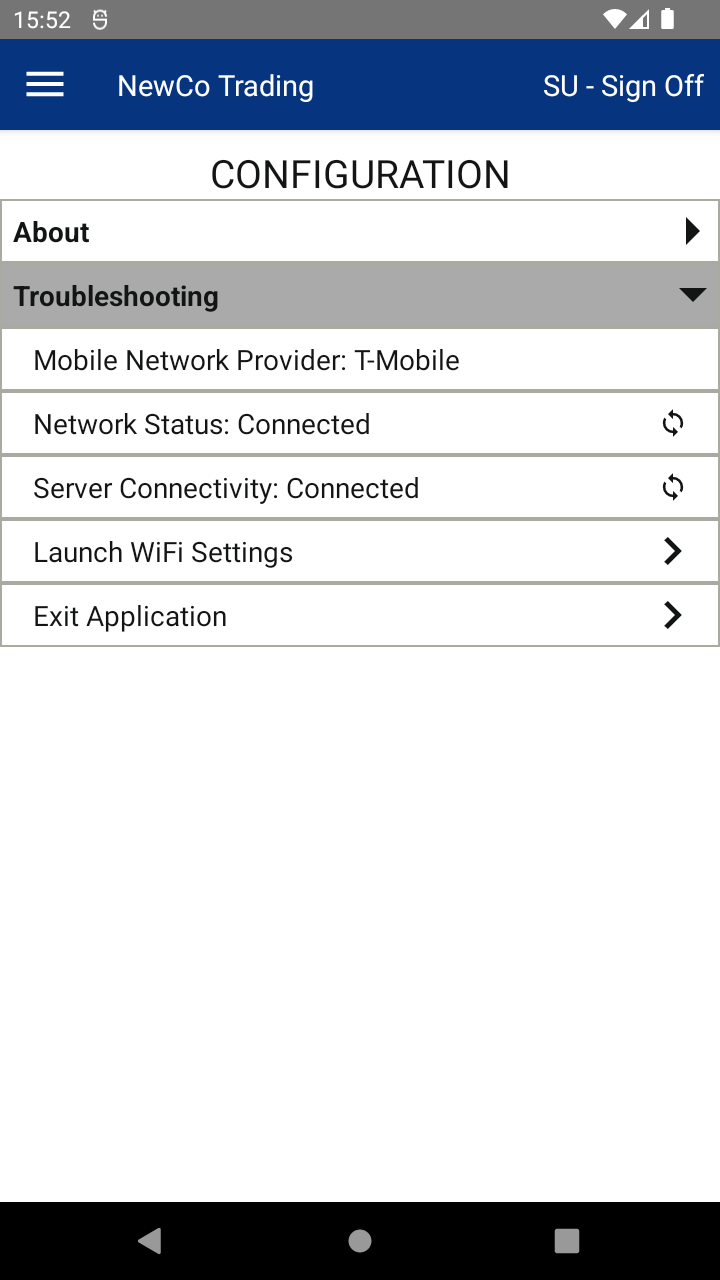
- 📶 Mobile Network Provider — shows the mobile network your device’s SIM card is using
- 🌐 Network Status — checks if your device is connected to the internet. It will say Connected or Disconnected. Tap the refresh arrows ( 🗘 ) to check again.
- 🔗 Server Connectivity — checks if your device can connect to the Web Portal. It will say Connected or Disconnected. Tap the refresh arrows ( 🗘 ) to check again.
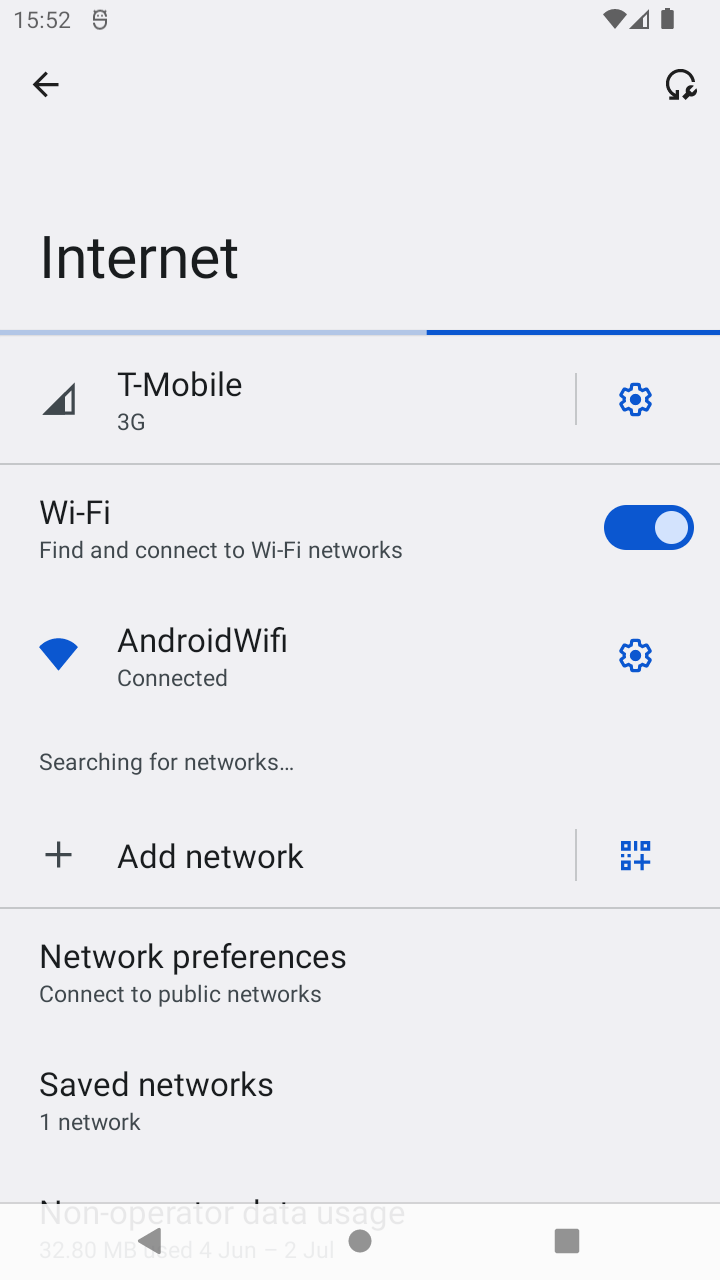
- 📡 Launch Wi-Fi Settings — opens your device’s Wi-Fi settings. After updating Wi-Fi, tap the back ( ◀ ) icon at the bottom of the screen to return.
- ❌ Exit Application — closes the app and takes you to your device’s home screen.
📘 Learn more:

