Want to manage staff from your computer? It’s easy to do in the Web Portal! Here’s how:
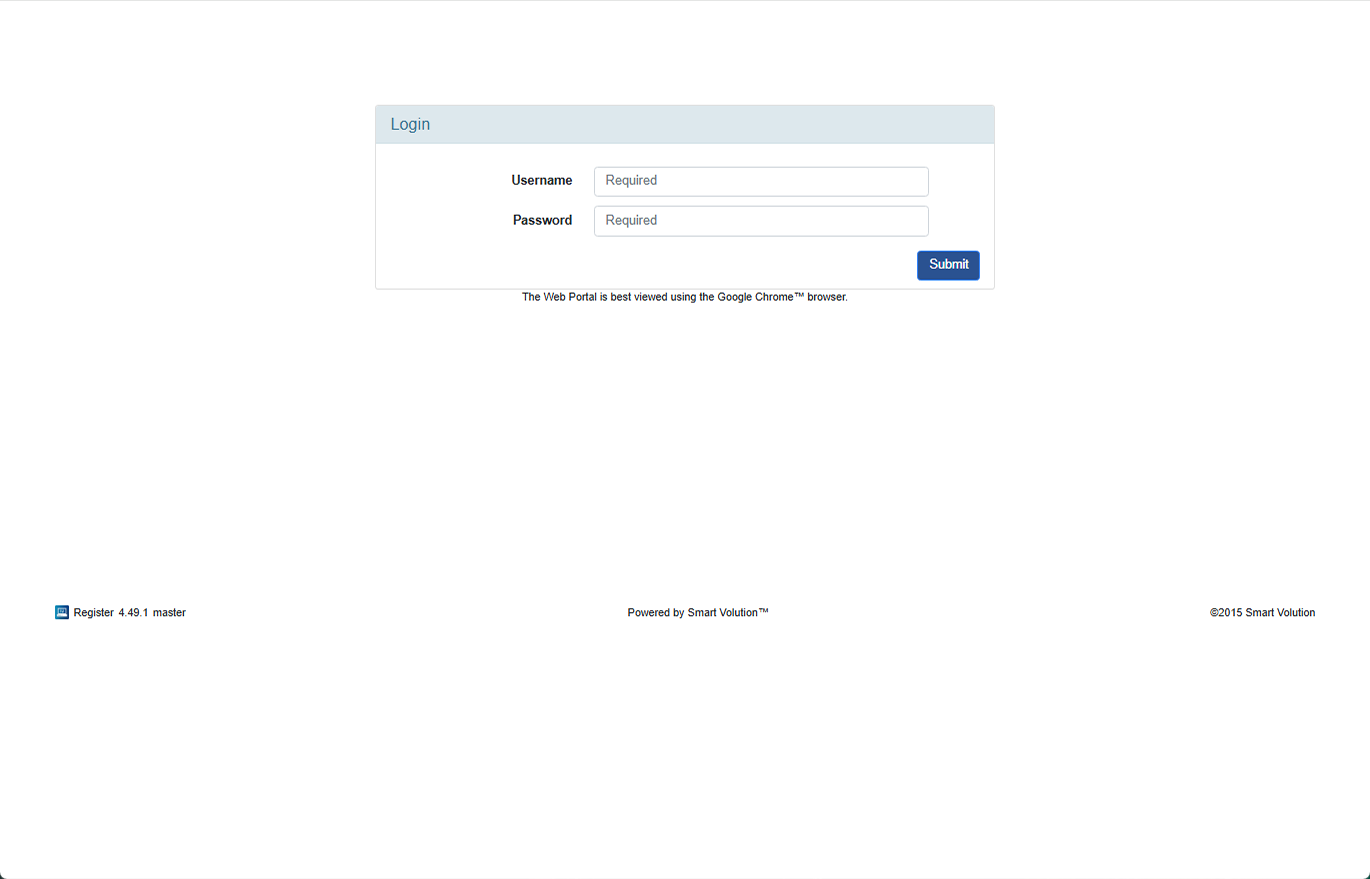
- Log in to the Web Portal using the login details from your Solution Provider.
- Once you're in, click Config in the top menu.
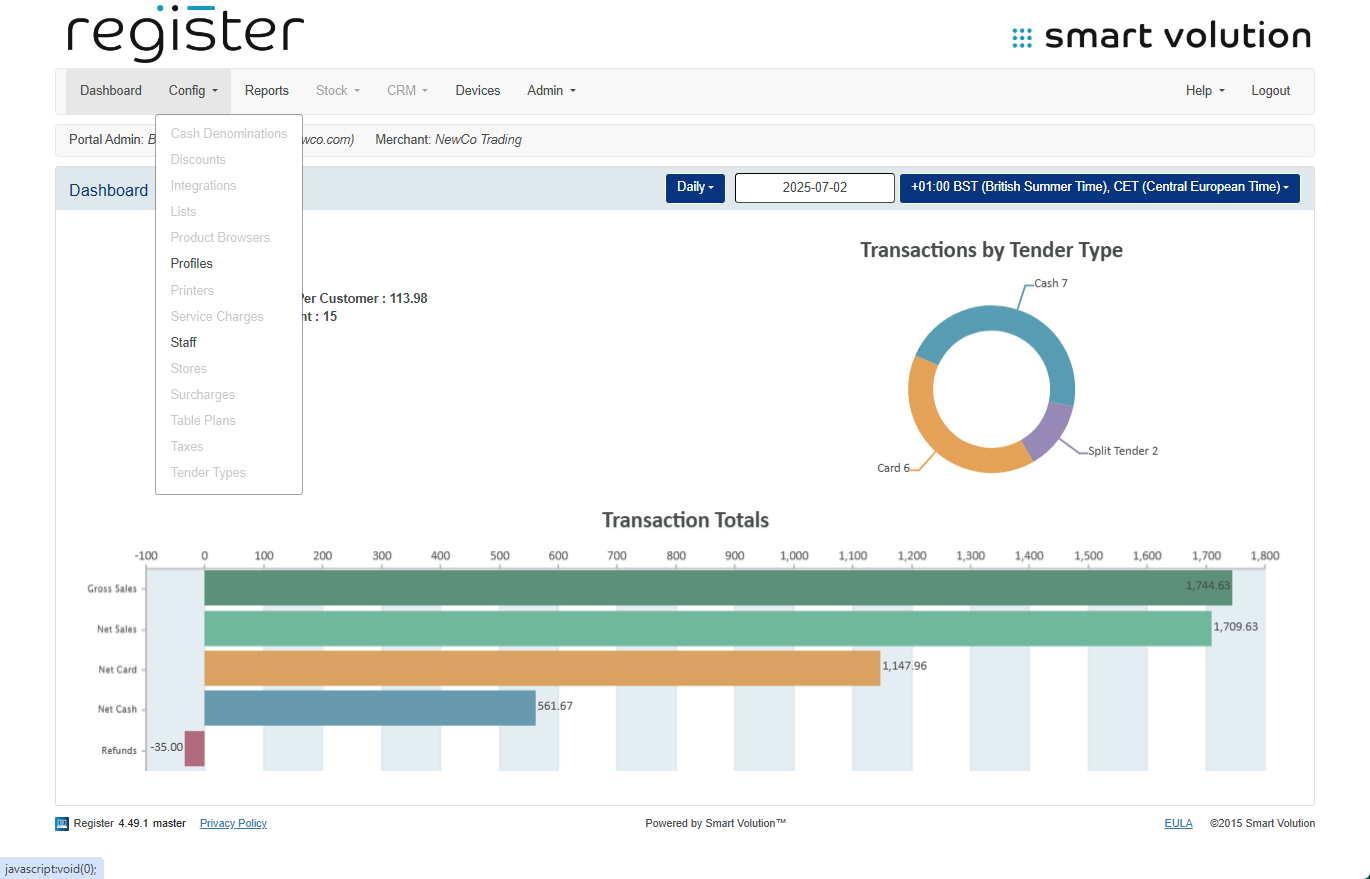
- Then click Staff in the dropdown.
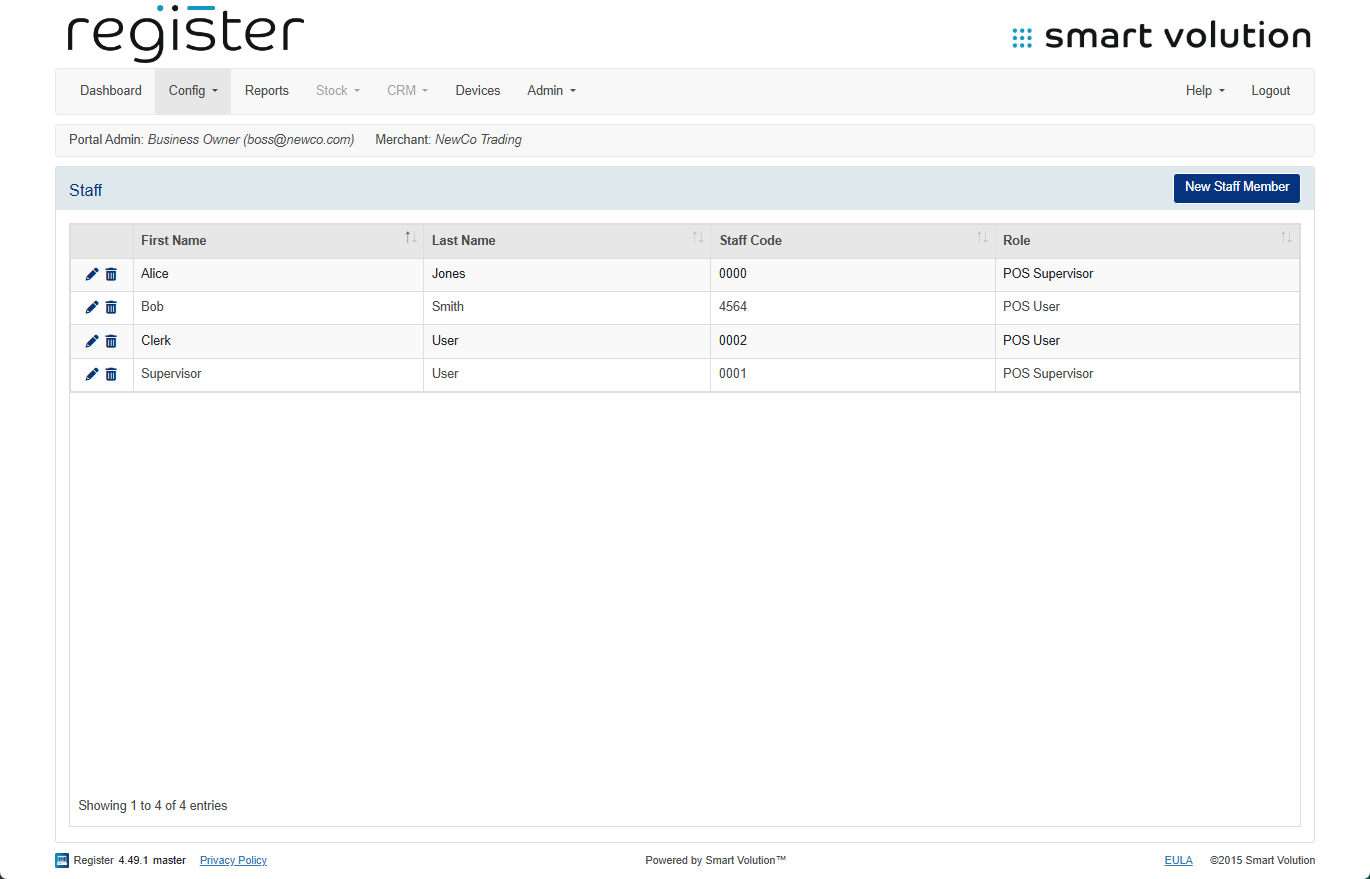
👀 You’ll now see a table with all your staff members. From here, you can:
- Add a new staff member:
Click New Staff Member, fill in the details, then click SAVE.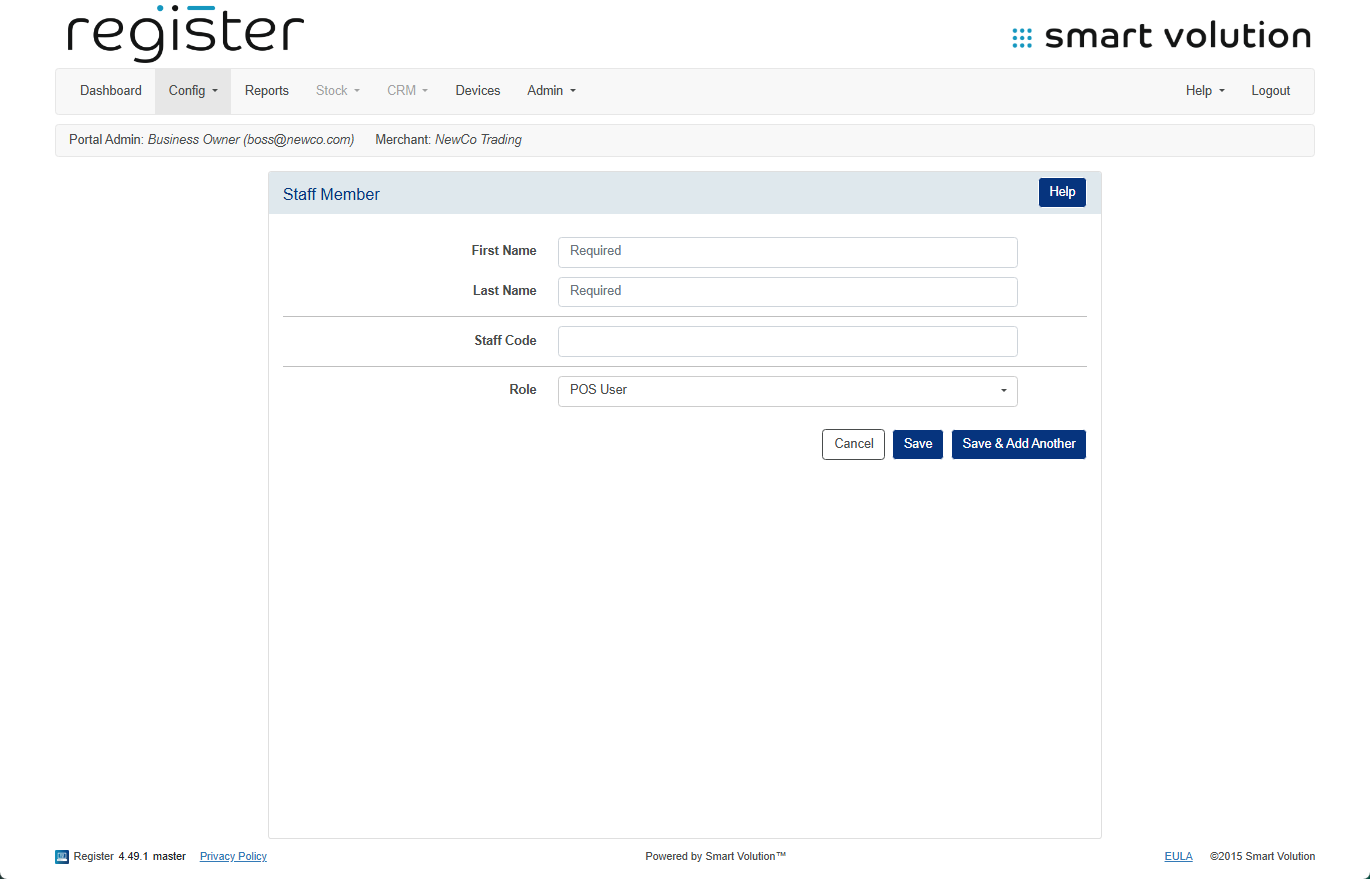
- Edit an existing staff member:
Click the pen icon ✎ next to their name, make your changes (name, code, or role), and click SAVE.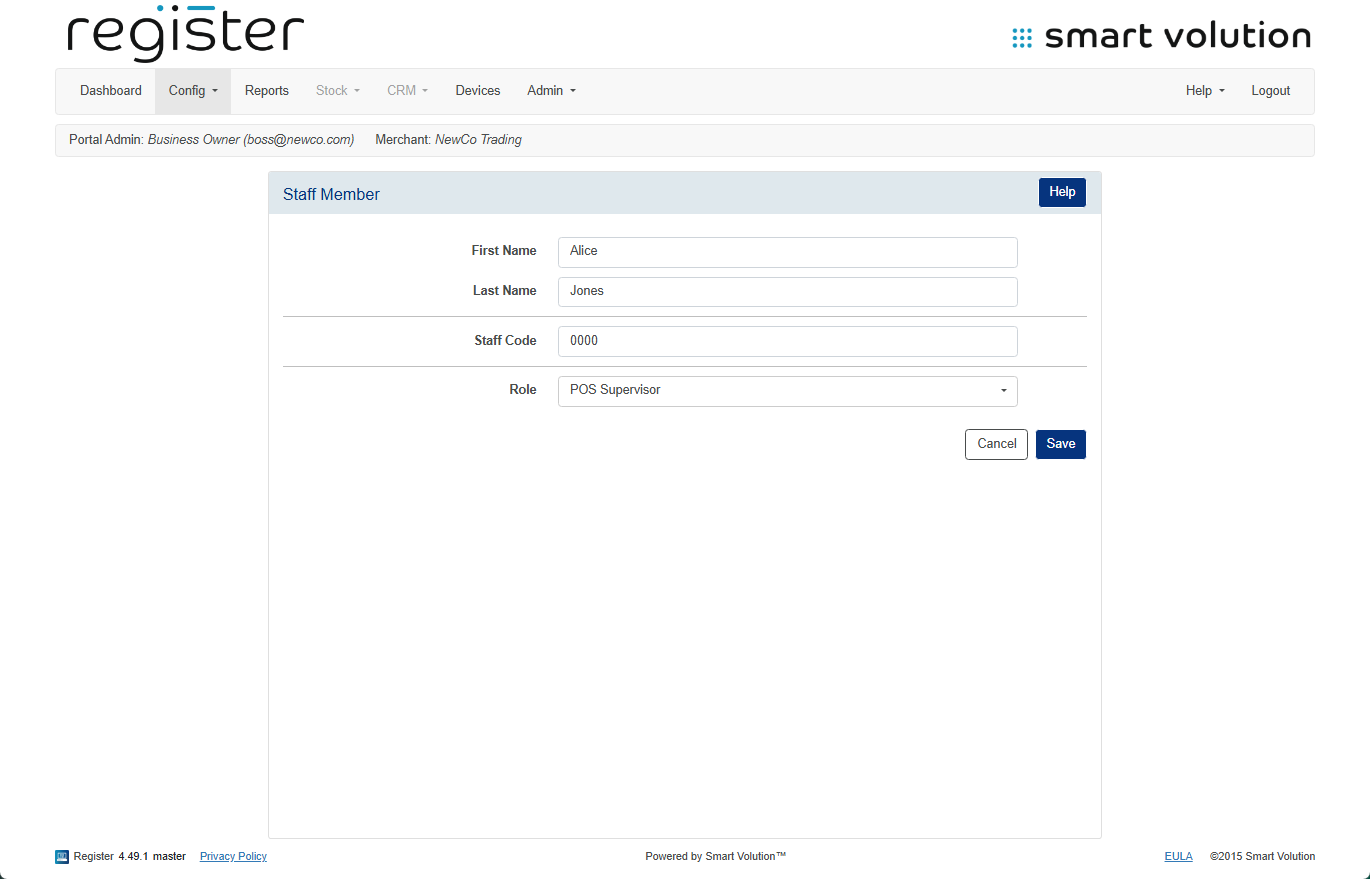
- Delete a staff member:
Click the trash can icon 🗑 next to the staff member you want to remove. A message will pop up—click Yes to confirm.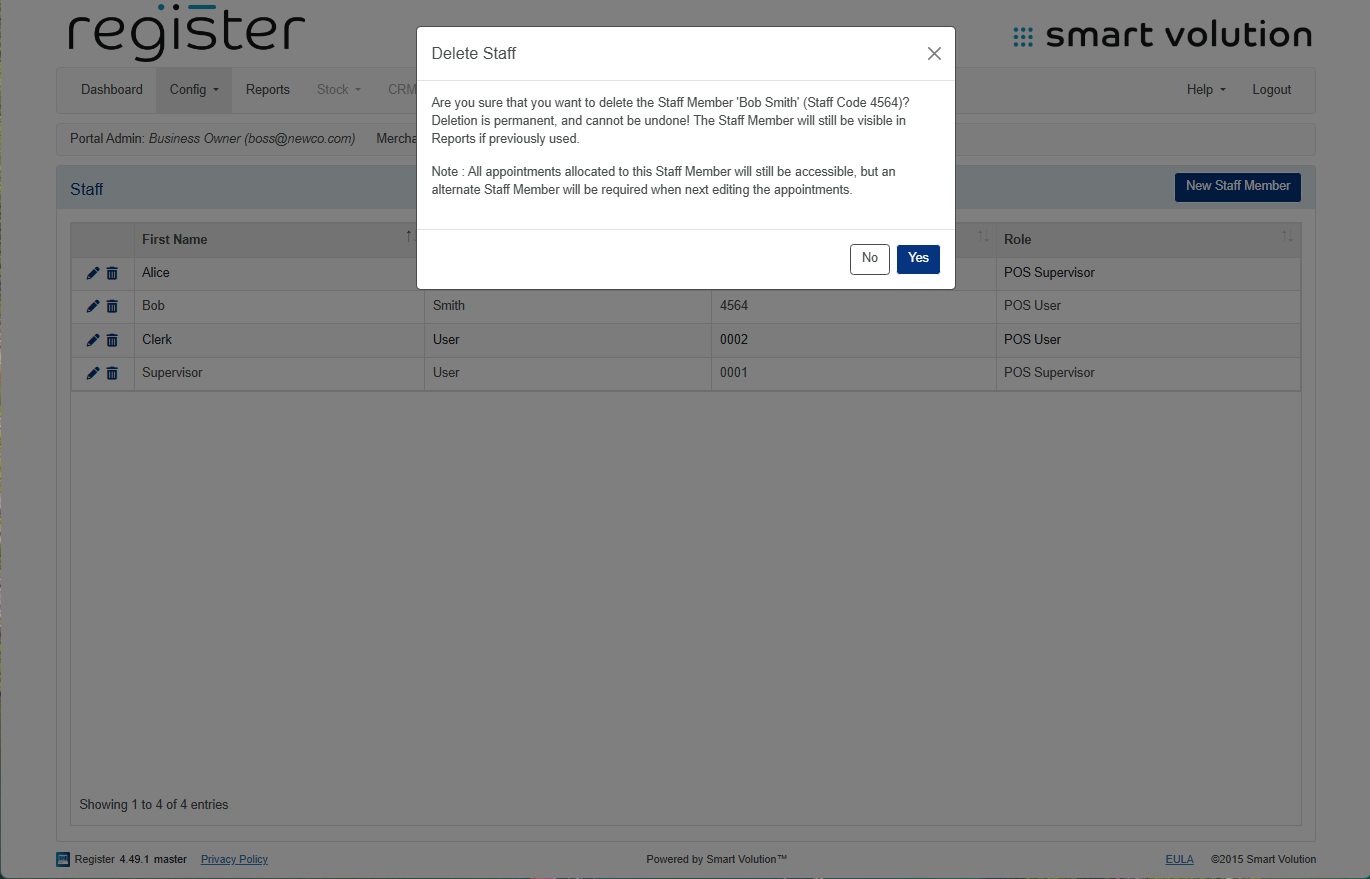
Please Note:
🔄 All changes made here will sync to your devices the next time you tap Update Data on the login screen.

