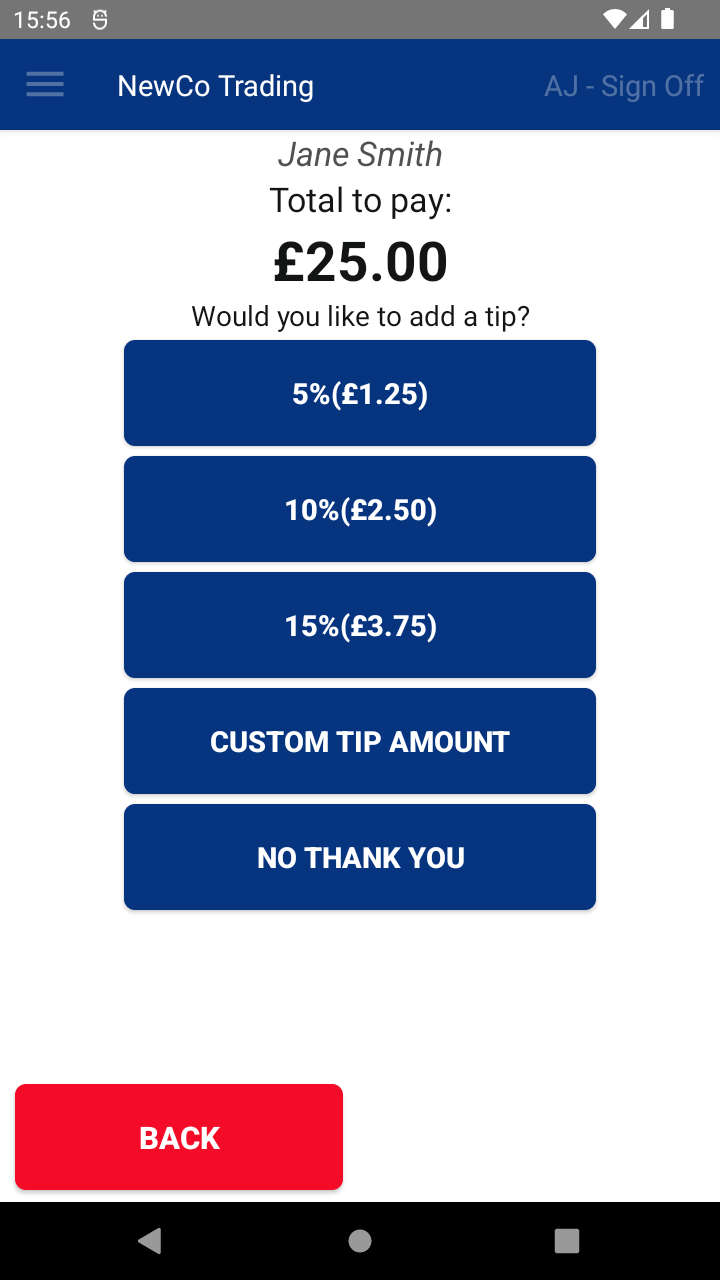
After selecting a payment method, the system allows you to add a tip. You’ll be presented with several options:
1. Choose a Percentage Tip
You’ll see three pre-set tip buttons (e.g. 5%, 10%, 15%).
- Tap one of these to automatically add that percentage to the total amount.
- The system will then proceed to the selected payment method.
2. Enter a Custom Tip Amount
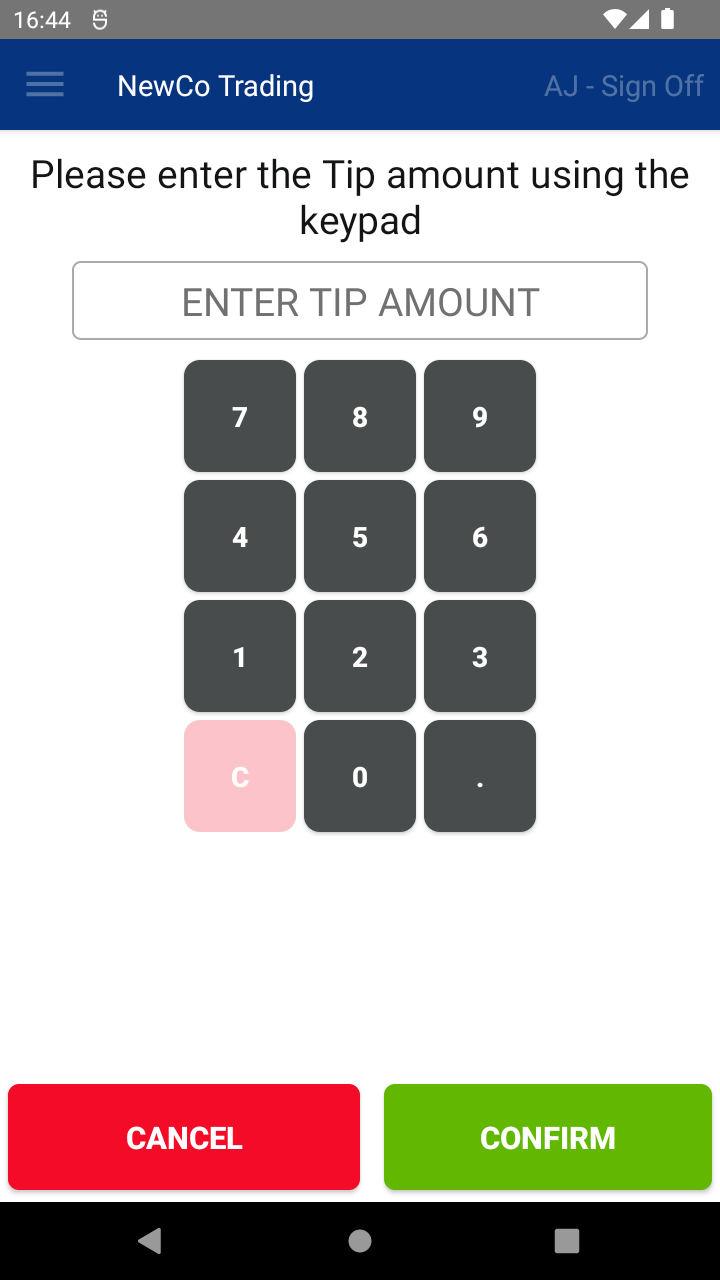
- Tap CUSTOM TIP AMOUNT to open a keypad.
- Enter any amount in your local currency, then tap CONTINUE.
- The system will proceed to the selected payment method.
3. Skip Tipping
- Tap NO THANK YOU to skip gratuity.
- You’ll continue to the selected payment method without adding a tip.
💵 Recording a Cash Tip
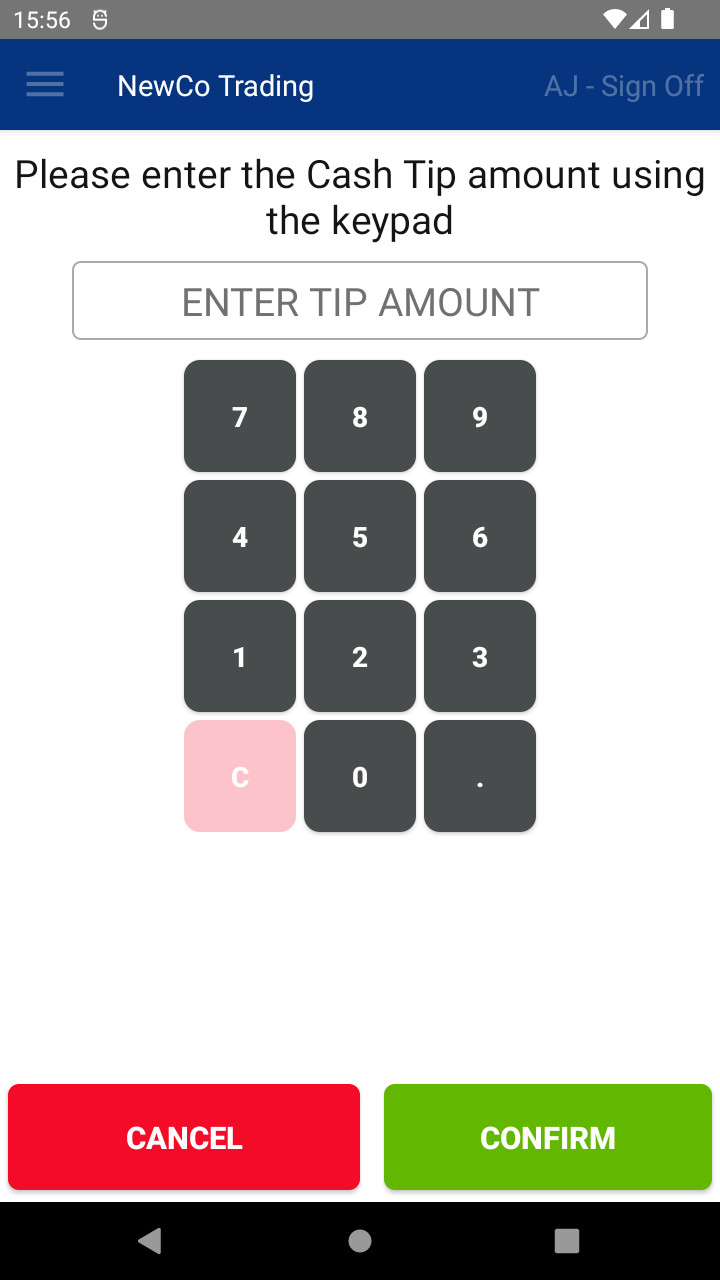
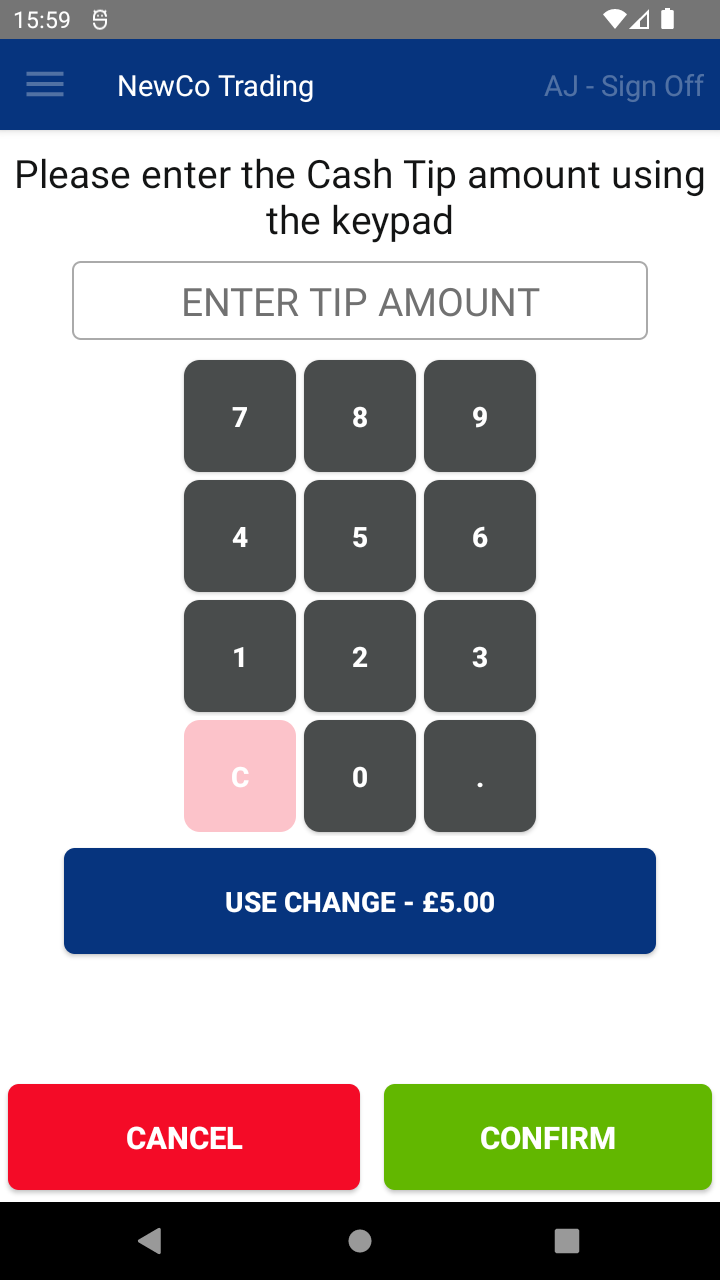
You can also record a cash tip at the end of the transaction:
- On the Transaction Summary screen, tap ADD CASH TIP.
- Enter the tip amount using the keypad, then confirm.
📊 Tip Tracking
- All recorded tips are attributed to the logged-in staff member.
- Tip totals appear in the Staff Sales Report and the End of Day Report.
📘 Learn more:

